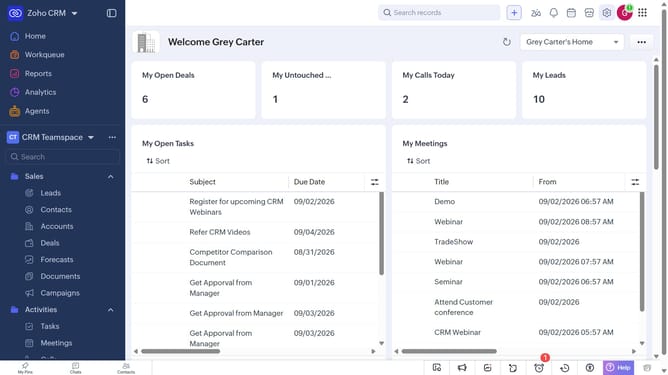
How to change the time format on Zoho CRM
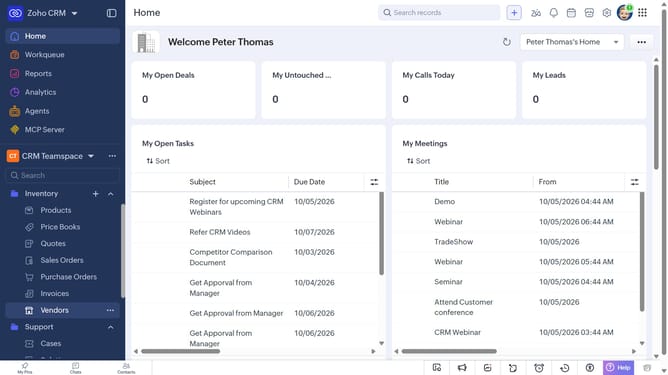
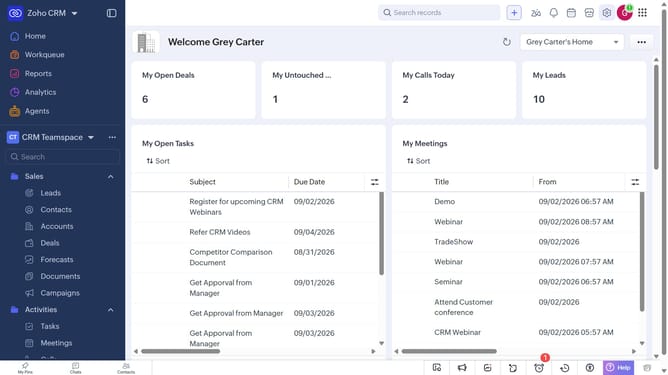
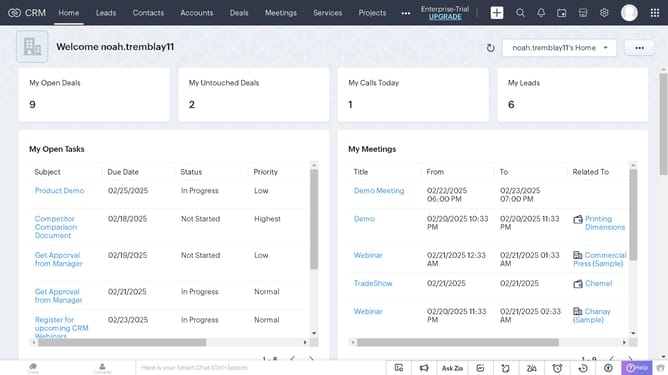
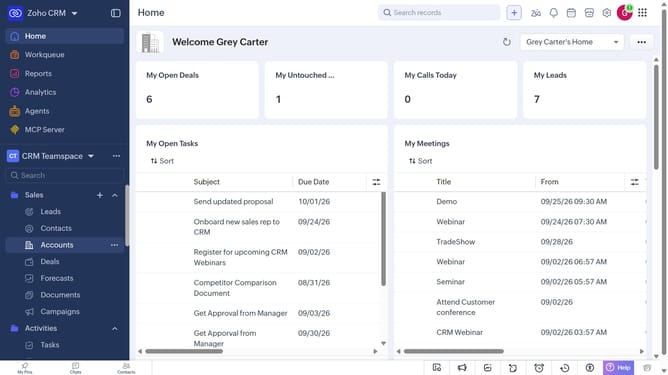
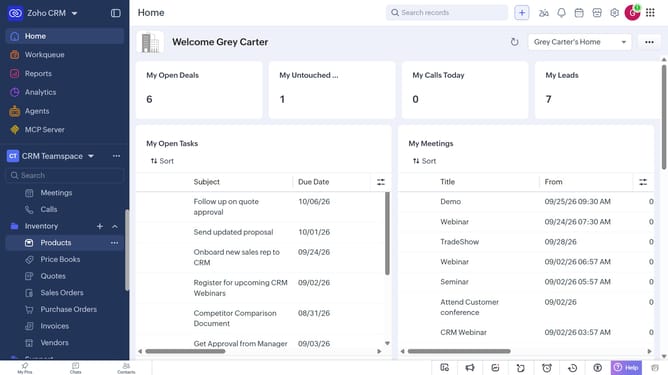
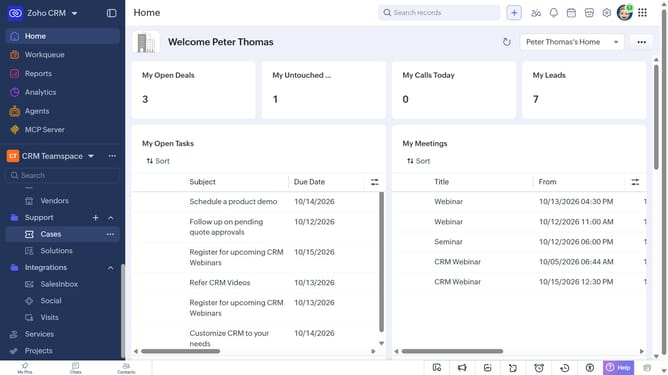
Here is how to change the time format on zoho crm
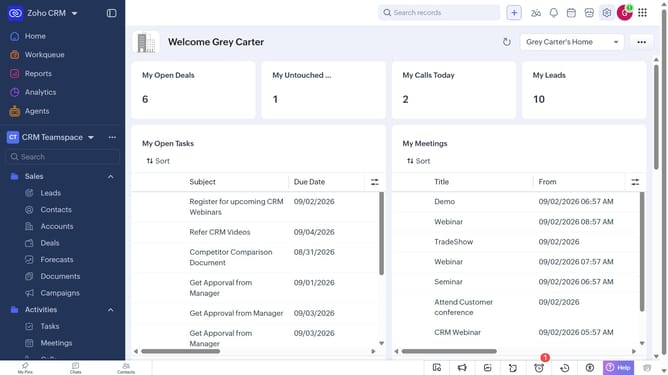
- First click on the settings icon in the top right corner
- Click on "Personal Settings" under the "General" section
- Next, click on the pencil icon next to "Locale information"
- Click on the "Time Format" dropdown
- Then, select your preferred time format from the dropdown menu
- Finally click on the "Save" button
Why should you How to change the time format on Zoho CRM
Zoho CRM is a robust platform designed to simplify customer relationship management for businesses of all sizes.
Changing the time format in Zoho CRM ensures that your schedule aligns perfectly with your local preferences, enhancing clarity and punctuality in your daily operations.
By tailoring the time display to your needs, you can streamline meetings, appointments, and follow-ups, preventing misunderstandings that arise from time zone differences.
This feature not only boosts productivity but also fosters better communication and collaboration across teams, ensuring everyone is on the same page.
Last update