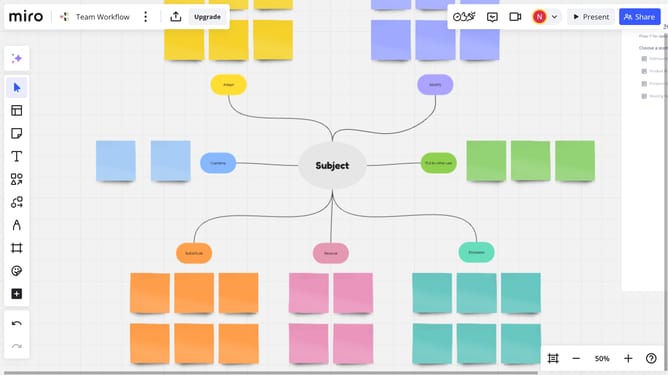
How to change the grid type on a Miro board
Here is how to change the grid type on a miro board
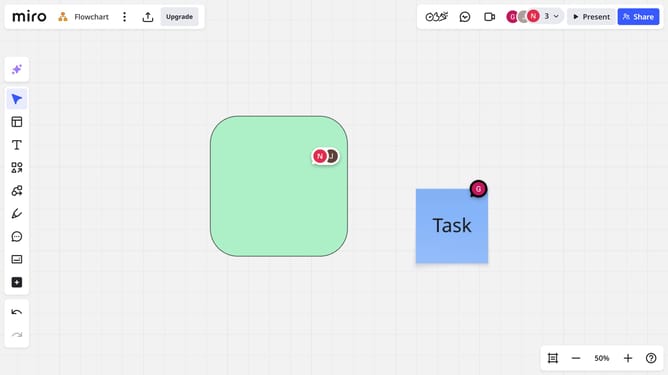
- First open your board and click on the three dots button in the top header bar
- Next click on "View" option in the dropdown menu
- Then click on "Grid" option in the View submenu
- Finally select your preferred grid type from the available options (Line grid, Dot grid, or None)
Why should you change the grid type on a Miro board
Miro is an online collaborative whiteboard platform that enhances teamwork and creativity.
Changing the grid type on a Miro board is a versatile feature that allows you to customize the organization's visual layout. This flexibility caters to varied project needs, enabling a seamless workflow.
By adapting the grid, users can prioritize tasks, manage projects more efficiently, and improve visual clarity. Using this feature encourages creativity and structured thinking, making collaboration enjoyable and productive.
Last update