How to change the border style of a shape in a Miro board
Here is how to change the border style of a shape in a miro board
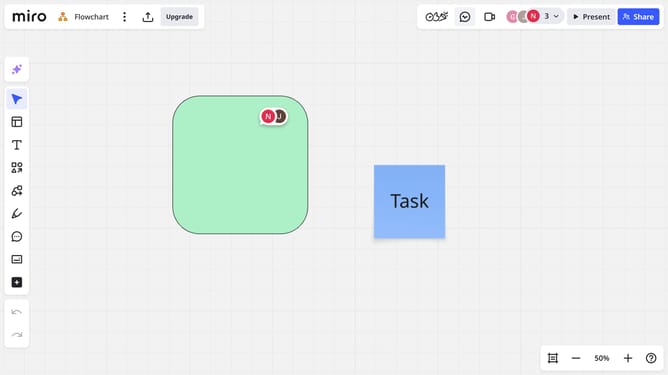
- First click to select the shape you want to edit the border style
- Next click on the "Border style, opacity and color" button in the toolbar that appears
- From the style menu, you can choose the line type and adjust the border thickness using a slider
- Next use the opacity slider if you want to make the border more or less transparent
- Under the "Brand colors" section, choose a different border color if needed
- The border style of the shape is now updated according to your preferences
Why should you change the border style of a shape in a Miro board
Miro is a versatile online collaborative whiteboard designed for visualizing ideas and teamwork.
One of its standout features is the ability to change the border style of shapes effortlessly. This feature allows users to add a personalized touch to their diagrams, enhancing clarity and focus.
Adjusting border styles can draw attention to essential information or organize content effectively, making presentations more impactful and engaging.
Overall, this simple yet powerful feature enhances communication and creativity on a Miro board, elevating the collaborative experience.
Last update