How to rotate a text box on a Miro board
Here is how to rotate a text box on a miro board
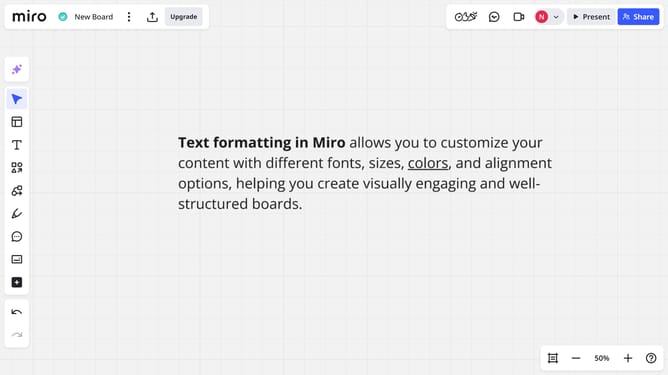
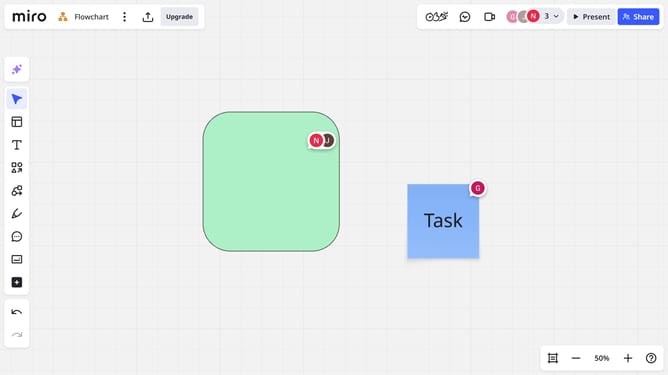
- First locate and select the text box you want to rotate in your board
- Then look for the rotate handle below the text box
- Finally click and drag the rotation handle at the bottom to adjust the text angle as desired
Why should you rotate a text box on a Miro board
Miro is an intuitive online collaboration tool designed to bring teams together for seamless visual brainstorming and planning.
The ability to rotate a text box on a Miro board enhances flexibility in designing presentations or visual projects. This feature allows you to align your text creatively, ensuring that it complements the visual flow of your ideas.
Rotating text boxes can make information stand out, guide viewers' attention more effectively, and add a dynamic touch to otherwise static boards. It's an invaluable tool for maximizing the impact of your team's innovative ideas.
Last update