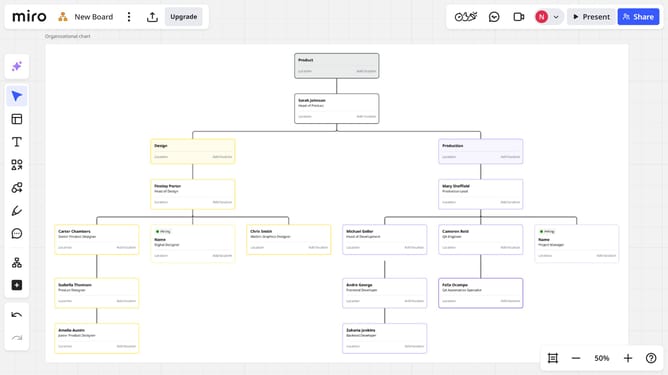
How to attach a URL link to text on a Miro board
Here is how to attach a url link to text on a miro board
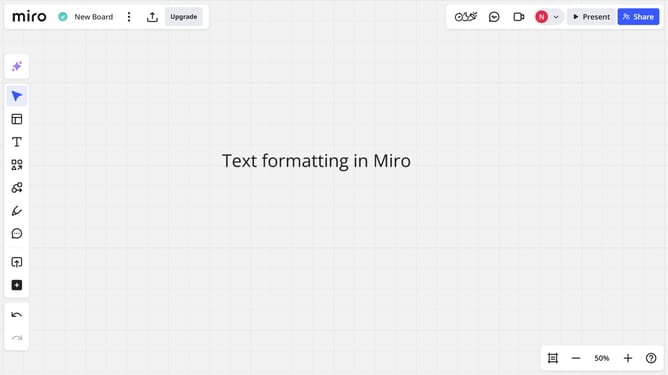
- First locate the text box where you want to insert the link
- Next double-click the text box and highlight the specific word or phrase you want to link
- Click the "Link" icon in the text formatting toolbar
- Then paste the URL you want to attach in the input field that appears
- Finally click "Apply" to confirm
- The linked text is now active and will open the URL in a new tab when clicked
Why should you attach a URL link to text on a Miro board
Miro is a dynamic online collaborative whiteboard designed to empower team creativity and productivity.
Attaching a URL link to text on a Miro board streamlines sharing resources and information, making collaboration seamless.
This feature boosts productivity by allowing users to access external content directly from the board, enhancing the flow of ideas and communication.
Utilizing this capability ensures a more interactive and effective working environment, supporting efficient project management and team collaboration.
Last update