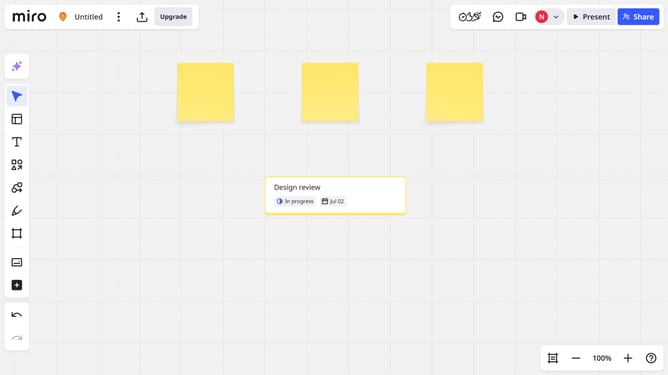
How to show or hide specific information in an org chart in a Miro board
Here is how to show or hide specific information in an org chart in a miro board
- First click on the org chart you want to adjust to select it
- Next in the toolabr that appears, click the filter icon
- Then a dropdown menu will appear showing available fields (Description, Location, Team and any custom fields)
- Finally check or uncheck the boxes next to each field to show or hide them across all cards
Why should you show or hide specific information in an org chart in a Miro board
Miro is a dynamic visual collaboration platform designed to streamline teamwork and enhance creativity.
In Miro, having the ability to show or hide specific information in an org chart empowers users to customize visibility based on their unique collaboration needs.
This feature is invaluable for focusing on relevant data, ensuring that discussions remain concise and productive.
By tailoring the view of your org chart, you enhance communication, reduce information overload, and facilitate effective decision-making.
Last update