How to add a card in a Miro board
Here is how to add a card in a miro board
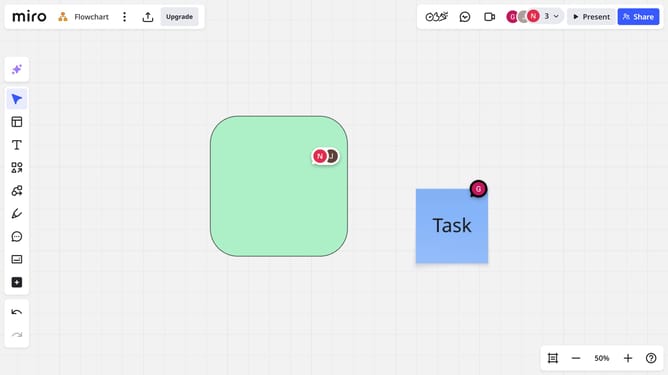
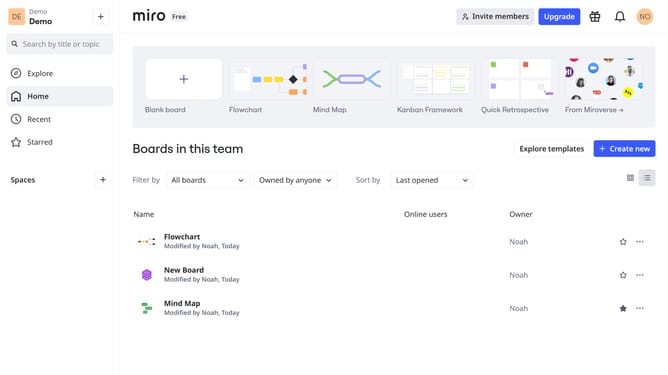
- First open a board and click on the "Card" icon in the left sidebar
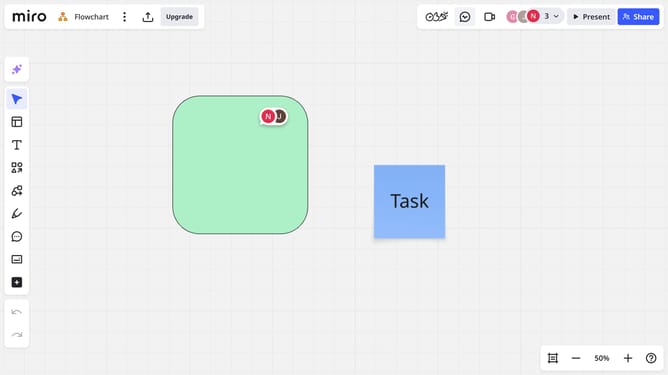
- Then click anywhere on the board to place the card
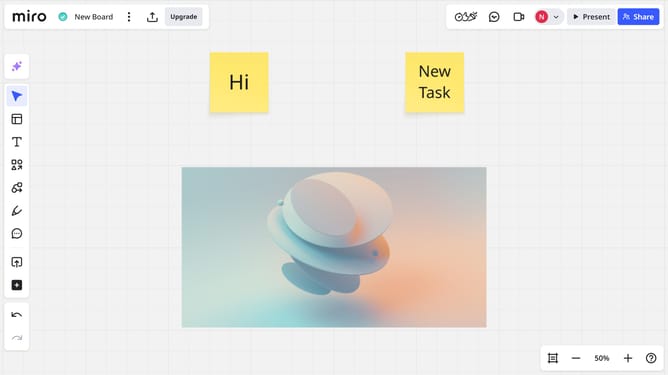
- The card is now successfully added to your Miro board
- Now you can enter a title in the text field
- Use the toolbar to add additional details such as status, tags, assignee, or due date, if needed
Why should you add a card in a Miro board
Miro is an innovative online collaborative whiteboard created to empower teams by streamlining brainstorming sessions and enhancing idea visualization.
One of the standout features of Miro is the ability to effortlessly add cards to a board, allowing users to organize and prioritize information efficiently.
By integrating cards, teams can seamlessly track tasks, assign roles, and maintain focus on project goals. This feature boosts productivity by providing a clear and structured layout, fostering collaboration and ensuring all team members are aligned and informed.
Last update