How to check board details in Miro
Here is how to check board details in miro
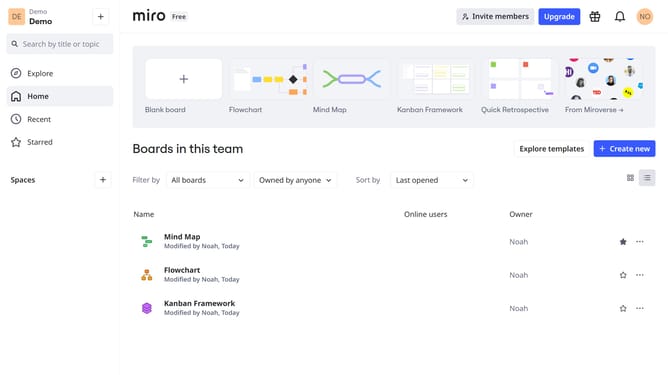
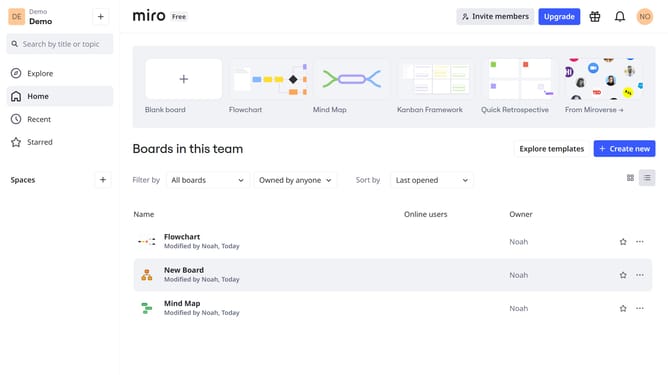
- First, from your dashboard, locate the board you want to view details for
- Next click on the "More options" button (three dots) next to it
- Then click on the "Board details" option from the dropdown menu
- Alternatively, click on the board to open it
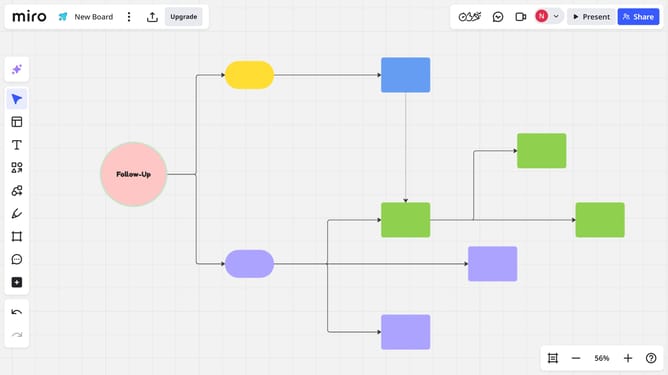
- Next, click the “More options” menu (three dots) in the top header of the board
- Click on "Board" in the dropdown menu
- Then click on the "Details" option from the submenu
- Finally, a panel with key information about the board will appear
Why should you check board details in Miro
Miro is an innovative online collaborative tool designed to enhance teamwork and creativity through visual collaboration.
The ability to check board details in Miro is a significant feature that allows users to maintain a clear overview of their project's progress and relevant information.
Accessing board details swiftly not only supports effective organization but also facilitates seamless communication among team members.
By keeping everyone informed, this feature empowers teams to move forward with clarity and purpose.
Last update