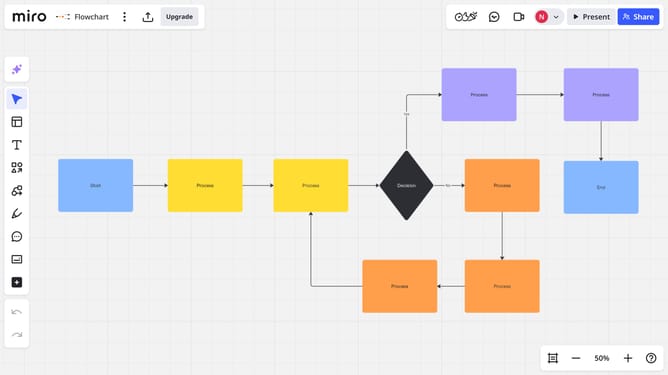
How to resize or rotate a card in a Miro board
Here is how to resize or rotate a card in a miro board
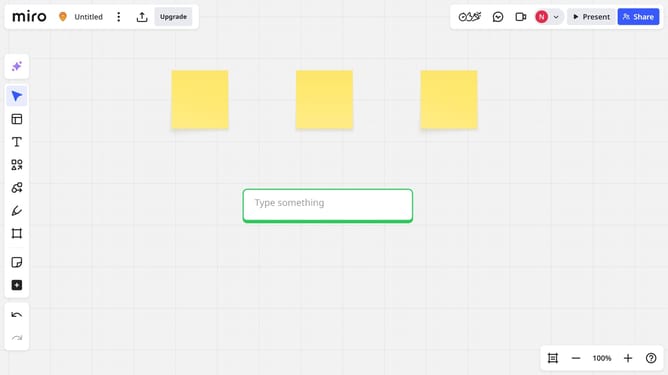
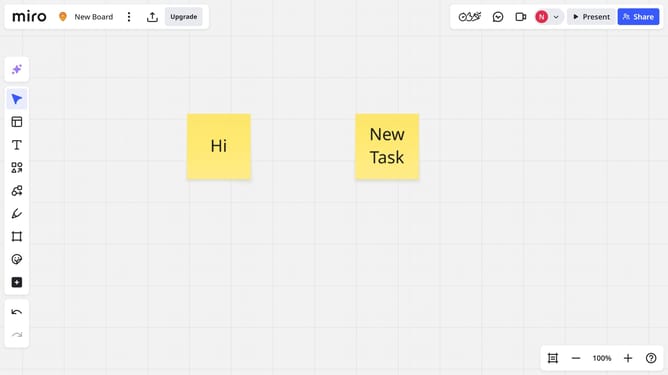
- First open a board and select the card you want to resize or rotate by clicking on it
- Then, locate the white handles around the edges of the card
- To resize, drag any of the white handles to adjust its size
- Next to rotate the card, look for the rotate icon (a circular arrow) near the edge of the selected card
- Then click and drag the rotate icon to spin the card to your desired angle
Why should you resize or rotate a card in a Miro board
Miro is an intuitive online collaborative platform designed to transform teamwork through visual brainstorming.
Resizing or rotating a card on a Miro board is a feature that offers dynamic flexibility in organizing and presenting information. By resizing, you can emphasize important content, creating focus where it's needed most, while rotating cards allows for creative layout adjustments, making presentations more engaging.
This enhances communication and collaboration by enabling team members to convey ideas more effectively, resulting in seamless collaboration and clearer understanding during brainstorming sessions.
Last update