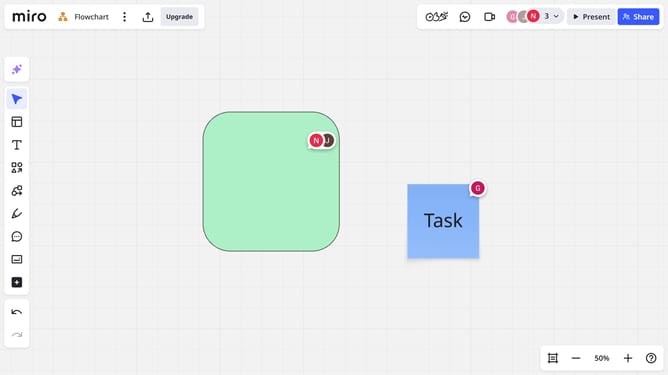
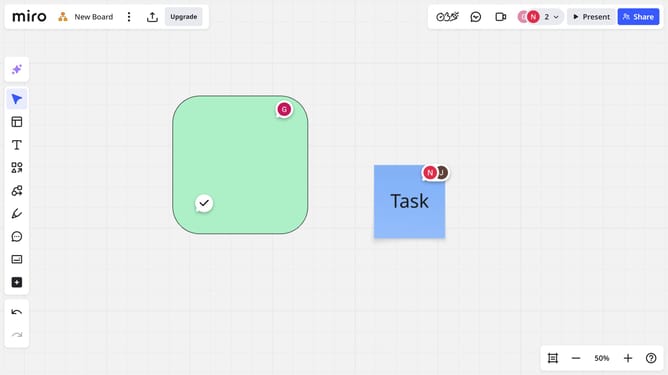
How to change the fill color of a shape in a Miro board
Here is how to change the fill color of a shape in a miro board
- First open a board and select the shape you want to modify
- Next click on the "Fill color" icon in the top toolbar that appears
- A color palette will appear. Then, click your desired color to apply it as the shape’s fill color
- The shape’s fill color will update instantly in your Miro board
Why should you change the fill color of a shape in a Miro board
Miro is an intuitive online collaborative whiteboard designed to help teams collaborate and brainstorm effectively.
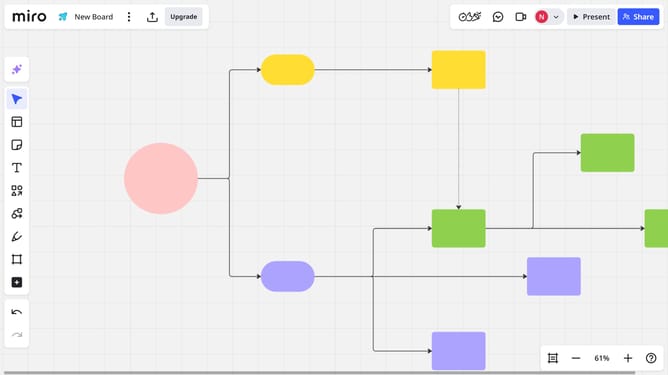
One useful feature is the ability to change the fill color of shapes, which enhances visual clarity and organization on your board.
By customizing the fill color, you can easily differentiate between various categories or project phases, providing a quick visual reference for better understanding and efficiency.
This not only aids in communication among team members but also adds a touch of personalization to your creative process.
Last update