How to create a diagram from a diagram format using AI in Miro
Here is how to create a diagram from a diagram format using ai in miro
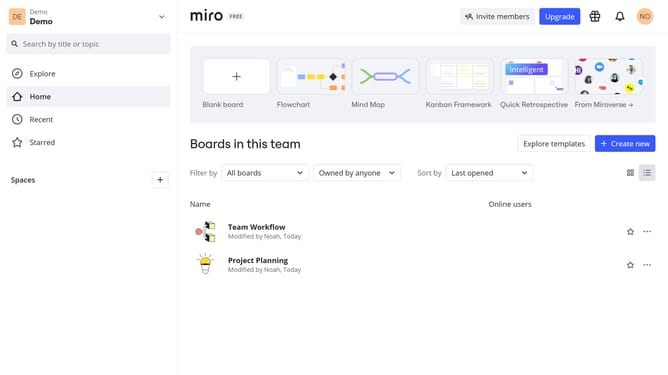
- First, from the board list, open the board where you want to create a diagram
- Then click the "+" button in the left sidebar toolbar
- In the tools popup menu, click on the "Diagram" option
- Click anywhere on the canvas to add the diagram block
- Next click “Create with AI” in the diagram format
- Miro will automatically open focus mode, then select a diagram type from the list
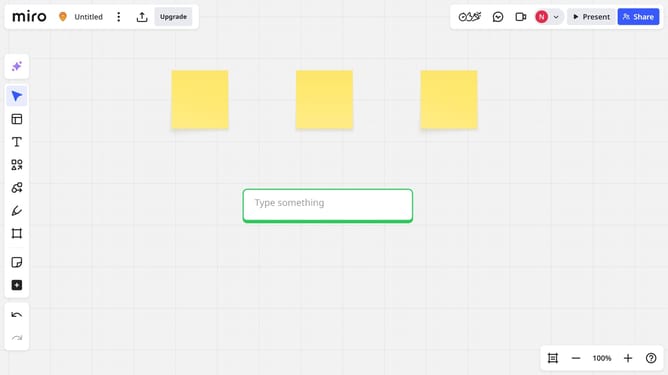
- Click on the text input field to enter the diagram description
- Next click the submit button to generate diagram
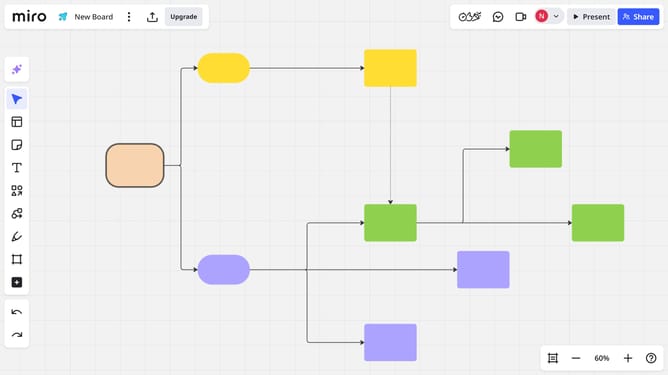
- Miro AI will analyze your input and generate a structured diagram using predefined templates and connectors
- Once the diagram is generated, click “Apply to canvas” to add it to your board
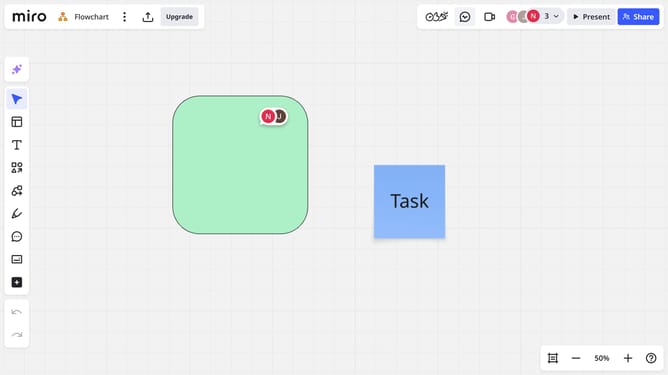
- Now you can edit, move, connect, or delete shapes just like with manually created elements
- Finally once you're done, click on the "Back to Canvas" to exit focus mode
Why should you create a diagram from a diagram format using AI in Miro
Miro is a versatile online collaborative whiteboard designed to streamline team workflows and enhance creativity.
Creating a diagram from a diagram format using AI in Miro revolutionizes the way teams visualize ideas. This feature empowers users to quickly transform basic structures into comprehensive, professional-grade diagrams with minimal effort.
Utilizing AI in Miro boosts productivity by eliminating tedious manual formatting, allowing teams to focus more on brainstorming and innovation. It enhances clarity, ensuring every stakeholder has an accurate understanding of complex concepts.
Last update