How to assign a card to a user in a Miro board
Here is how to assign a card to a user in a miro board
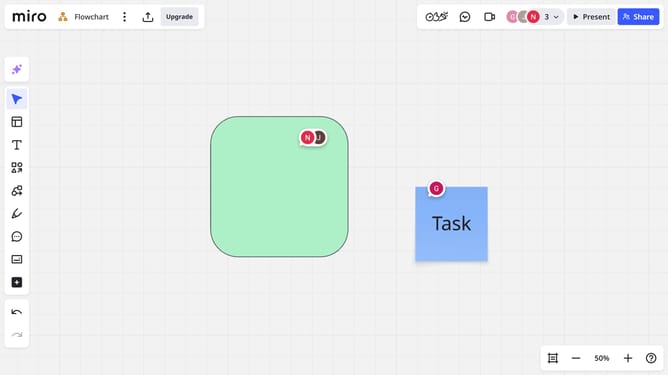
- First click on the card you want to assign to open the toolbar, or open the card panel
- Next click on the "Add assignee" button in the toolbar
- Then select a user from the assignee dropdown list
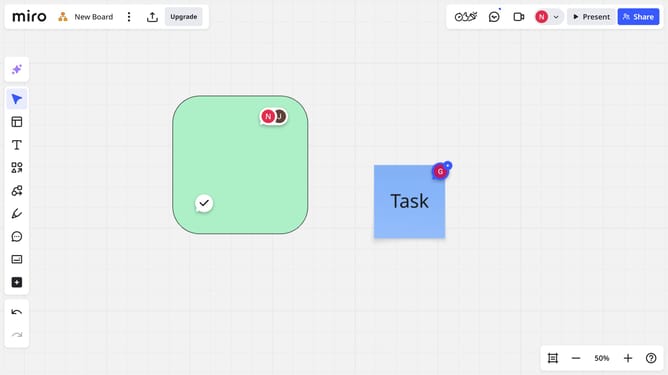
- Once assigned, the user’s avatar will show on the card
Why should you assign a card to a user in a Miro board
Miro is a dynamic online collaboration tool designed to bring teams together in a vibrant virtual workspace.
Assigning a card to a user in a Miro board streamlines task management, ensuring clarity on roles and responsibilities.
This feature enhances team collaboration by making sure every team member knows what they are working on, fostering accountability and focus.
Utilizing card assignments in Miro leads to organized workflows and boosts productivity, empowering teams to efficiently reach their goals.
Last update