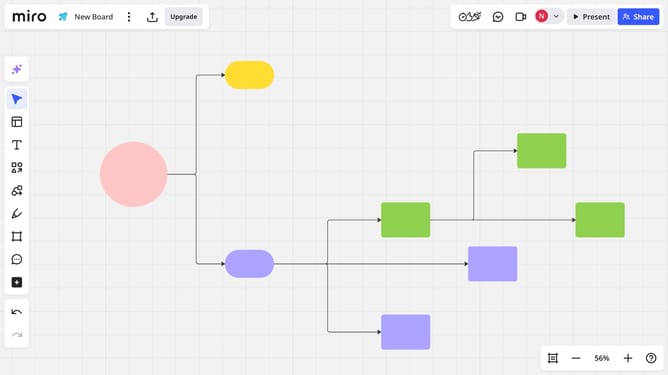
How to edit text on a Miro board
Here is how to edit text on a miro board
- First in a board, locate the text you want to edit
- To edit the existing text, simply double-click it and type the new text
- Next to adjust formatting, use the toolbar above the text box
- To change the font, click on the font dropdown menu and select your preferred font
- Next edit the font size and style as needed
- To change the text color, click on the text color button
- Then select your preferred color from the color palette
- Finally, once you're done editing, click outside the text box to apply the changes
Why should you edit text on a Miro board
Miro is an intuitive online collaborative whiteboard platform that sparks innovation and teamwork.
Editing text on a Miro board is a breeze, offering flexibility and immediate customization. By quickly adjusting ideas and adding notes, users enhance clarity and communication in their brainstorming sessions.
This feature optimizes workflow efficiency, encouraging spontaneous creativity and effective collaboration. Effortlessly adaptable, Miro's text editing fosters a dynamic environment for creative problem-solving.
Last update