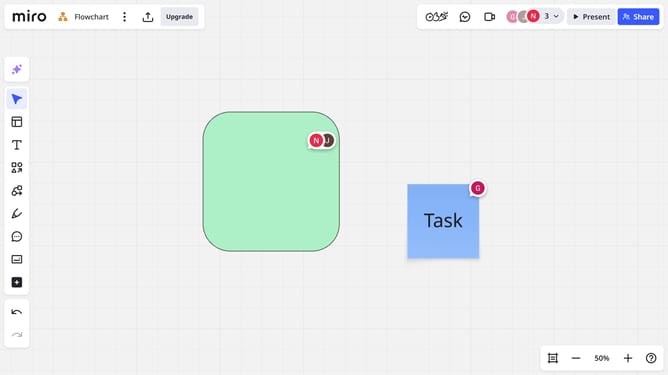
How to add text to shapes on a Miro board
Here is how to add text to shapes on a miro board
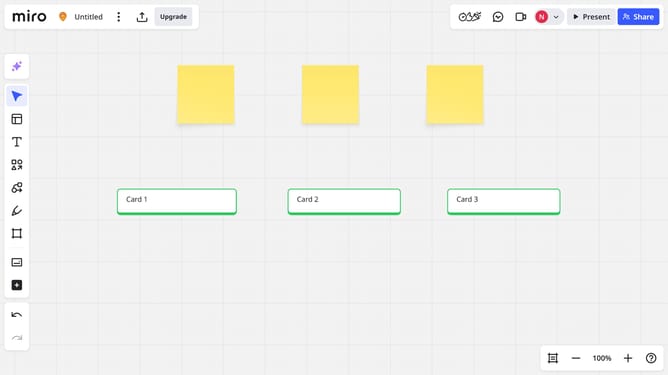
- First, open your Miro board and select the shape you want to add text to
- Then double-click on the shape to enable text editing
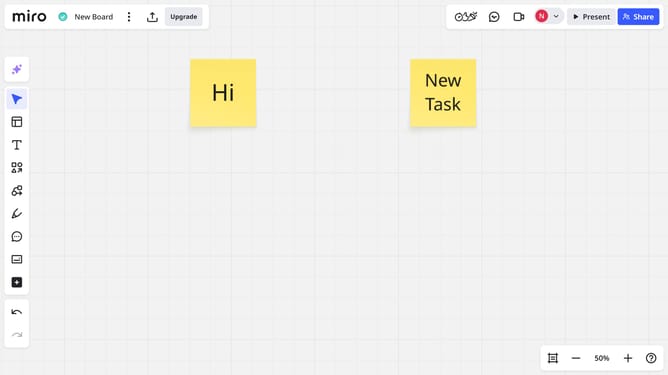
- Next, start typing, and the text will automatically appear inside the shape
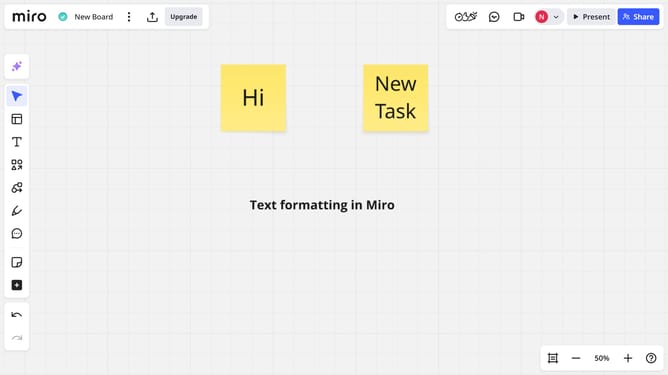
- If needed, adjust the font style to match your design
- Modify the font size to make the text larger or smaller as needed
- The text has been successfully added, and you can continue editing it as needed
Why should you add text to shapes on a Miro board
Miro is a dynamic collaboration platform designed to bring teams together, wherever they are.
Adding text to shapes on a Miro board is an intuitive feature that's central to organizing ideas and enhancing visual communication.
This feature allows users to clearly label and detail each element, transforming simple shapes into informative elements. This becomes critical in brainstorming sessions or strategic planning, where clarity and understanding are paramount.
By embedding text seamlessly into shapes, Miro enriches collaboration and ensures everyone stays on the same page.
Last update