How to bulk-edit cards in a Miro board
Here is how to bulk-edit cards in a miro board
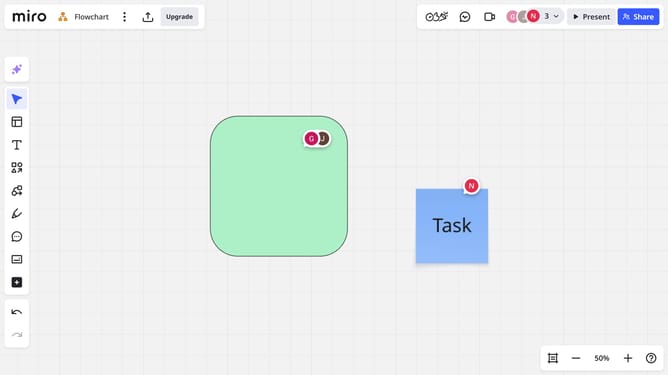
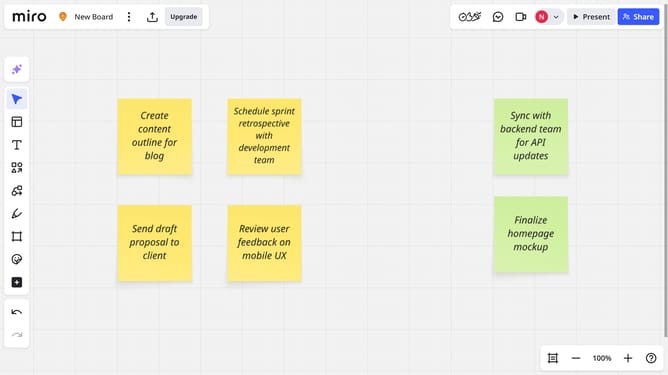
- First, open a board and locate the cards you want to edit
- Next, select the cards by clicking and dragging to draw a selection box around them
- Once selected, a floating toolbar will appear
- Next, click the fill color button to change the card color
- Select your desired color from the palette
- Then update the status, tags, assignees, due date, and any other details as needed using the toolbar
Why should you bulk-edit cards in a Miro board
Miro is a versatile online collaborative whiteboard platform designed for teams to come together and innovate seamlessly.
The bulk-edit feature for cards in a Miro board enhances productivity by allowing users to make simultaneous changes to multiple cards. This feature is perfect for quickly updating details, reorganizing tasks, or aligning objectives.
Using bulk-edit not only saves time but also ensures consistency across projects, making team collaboration smoother and more efficient. It empowers users to maintain clarity and focus, driving projects forward with ease.
Last update