How to change my email address on my Miro account
Here is how to change my email address on my miro account
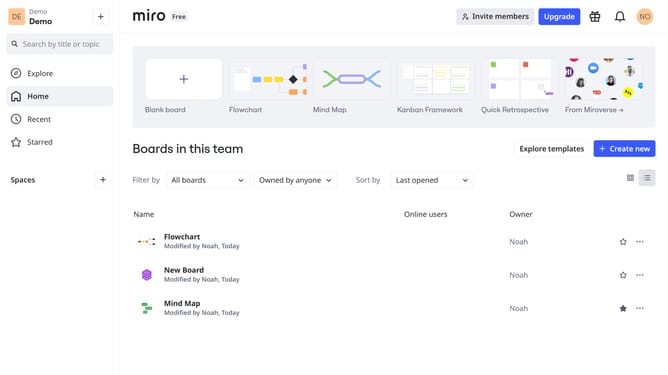
- First log in to your Miro account and click on your "Profile" in the top right corner
- Then select "Profile" from the dropdown menu
- In the profile settings menu, find the "Email address" section
- Click on "Change" next to your email address
- Next enter your new email address and your password
- Finally, click "Update email" to confirm the change, and your Miro account email address will be successfully updated
Why should you change my email address on my Miro account
Miro is a powerhouse collaborative whiteboard allowing you to visualize and innovate with teams effortlessly.
Changing your email address on a Miro account helps keep your contact information current and ensures uninterrupted access to collaborative projects.
This feature not only gives users flexibility but also enhances security and communication efficiency by aligning your account with the right email.
Stay connected and make the most of your digital collaboration experience by maintaining up-to-date contact details within Miro's intuitive platform.
Last update