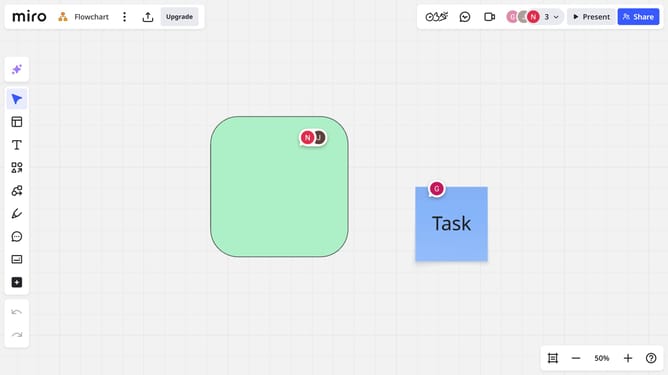
How to rename a layer in a diagram in a Miro board
Here is how to rename a layer in a diagram in a miro board
- First locate the diagram in your board
- Then click on the "Focus mode" in the top toolbar
- Next click on the "Layers" button in the top right corner
- In the Layers panel, locate the layer you want to rename
- To rename the layer, double-click directly its name
- Alternatively, hover and click the "More options" menu (three dots) next to the layer
- Then click on "Rename" from the dropdown menu
- Finally type the new name and press "Enter" to save
Why should you rename a layer in a diagram in a Miro board
Miro is a versatile online collaborative whiteboard designed to streamline teamwork and foster creativity.
Renaming a layer in a diagram within a Miro board is a straightforward feature that enhances organization and clarity. By customizing layer names, team members can quickly identify and navigate elements within complex diagrams, making collaboration more effective.
This feature is particularly beneficial for maintaining a clear workflow, ensuring each layer's purpose is evident, and improving the overall readability of your board.
Last update