How to add a card to an org chart in a Miro board
Here is how to add a card to an org chart in a miro board
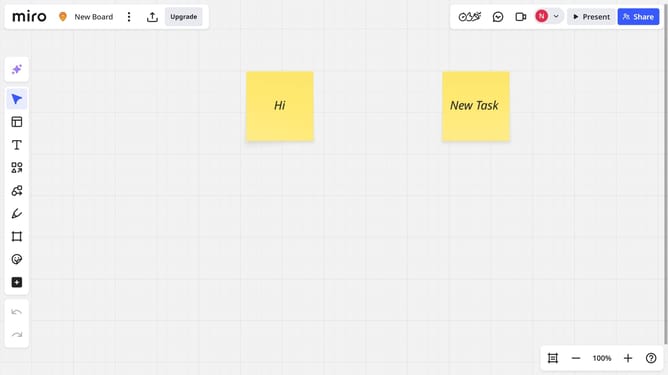
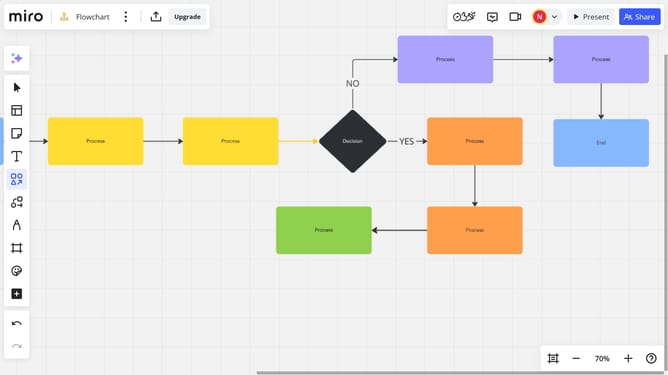
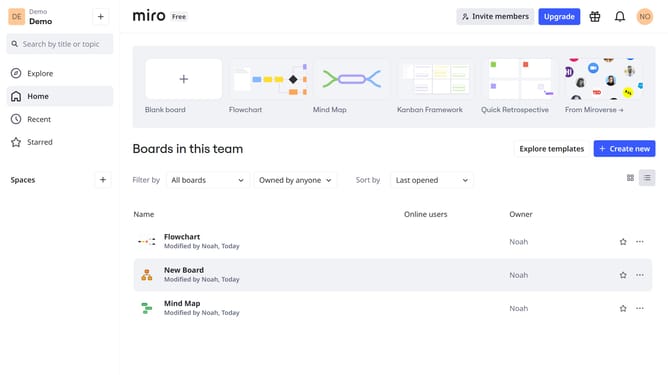
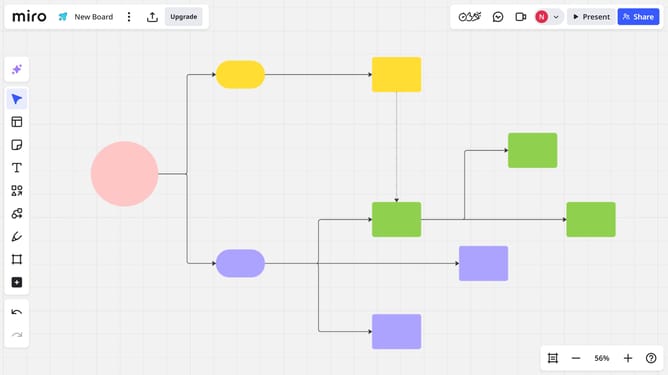
- First open your Miro board and locate the existing org chart
- Next hover near an existing card in the org chart until you see a plus (+) icon appear
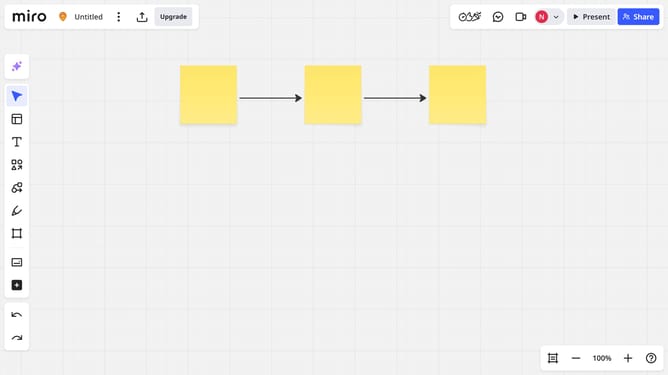
- Then click the plus (+) icon to automatically add a new connected card below or beside the selected one
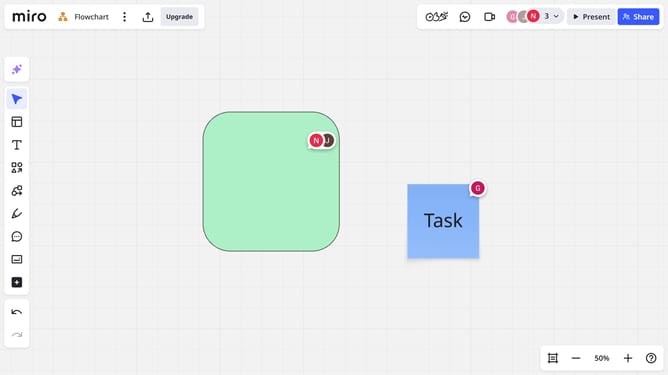
- Finally, a new card will appear, double-click on it to enter details such as name, title, or department
Why should you add a card to an org chart in a Miro board
Miro is a versatile online collaborative whiteboard platform designed to help teams work together seamlessly.
Add a card to an org chart in a Miro board and enhance clarity in visualizing team structures.
This feature allows for easy customization and updating, making it ideal for dynamic and growing teams.
Using cards in your org chart clarifies roles and responsibilities, enabling efficient communication and collaboration.
Last update