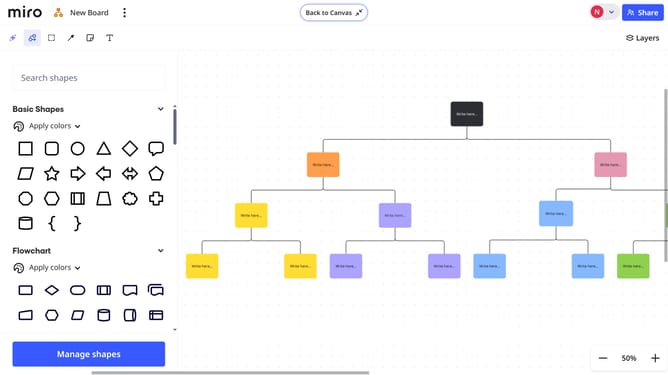
How to add text to a shape in a Miro board
Here is how to add text to a shape in a miro board
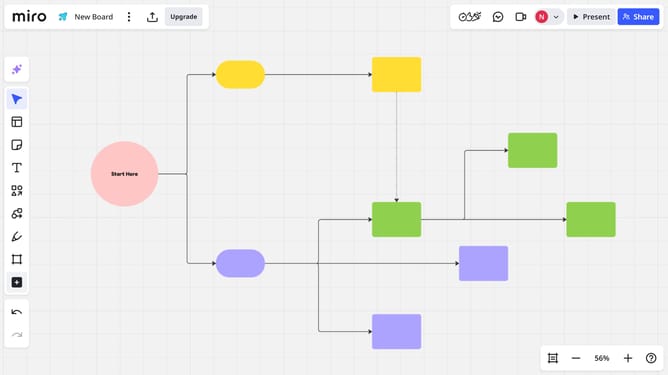
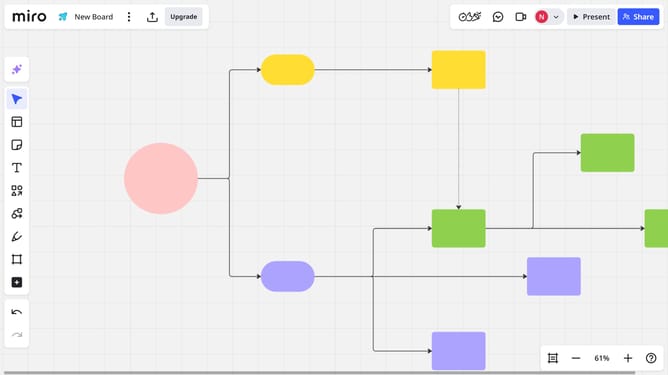
- First locate the shape you want to add text to
- Next double-click inside the shape to activate text editing mode
- Then type your text directly into the shape
- Finally use the text formatting toolbar that appears above the shape to change font, size, color, alignment, or style as needed
Why should you add text to a shape in a Miro board
Miro is a versatile digital collaboration platform designed to enhance creative teamwork.
Adding text to a shape in a Miro board streamlines communication within your visual projects, ensuring your ideas are effectively highlighted and easily understood by team members.
This feature supports brainstorming sessions and dynamic presentations by offering clarity and context, making your board more engaging and informative.
Ultimately, integrating text into shapes transforms abstract thoughts into organized visuals, fostering a more intuitive sharing and collaboration experience.
Last update