How to hide a layer in a diagram in a Miro board
Here is how to hide a layer in a diagram in a miro board
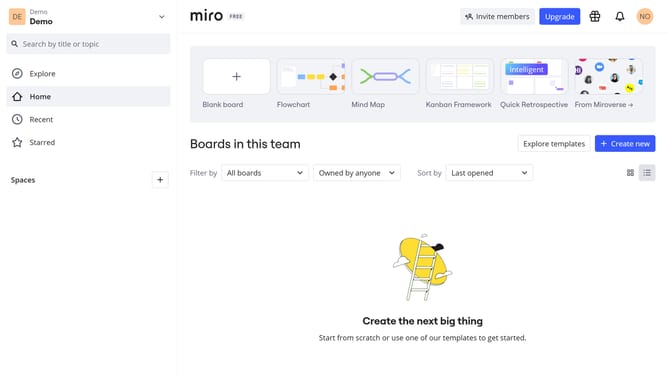
- First open your board and locate the diagram you want to organize
- Then click on the "Focus mode" in the top toolbar
- Next click on the "Layers" button in the top-right corner of the interface
- In the Layers panel, locate the layer you want to hide
- Then click the eye icon next to the layer to hide it
- It will change to a closed eye, and all content on that layer will disappear from the canvas
Why should you hide a layer in a diagram in a Miro board
Miro is an intuitive online collaborative whiteboard platform tailored for seamless teamwork in visual projects.
The feature to hide a layer in a diagram allows users to declutter complex boards and focus on specific elements without distraction. This is especially beneficial in collaborative environments where simplicity aids understanding and decision-making.
By hiding unnecessary layers, you significantly enhance productivity and keep your team aligned visually, ensuring everyone stays on the same page without information overload.
Last update