How to edit shapes on a Miro board
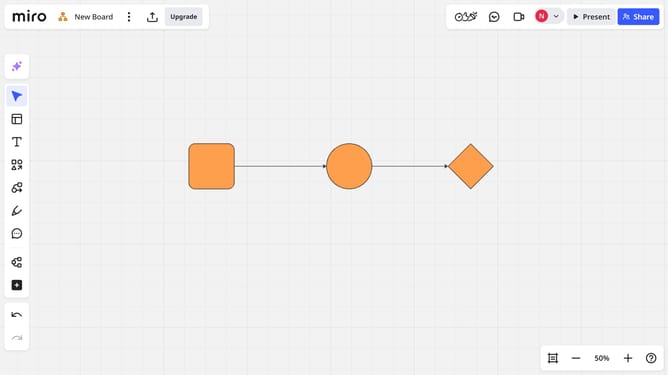
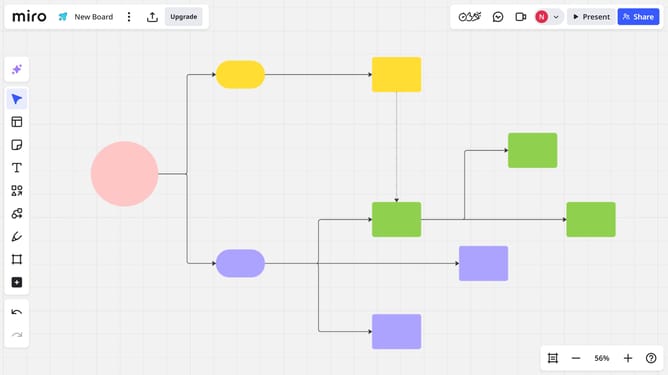
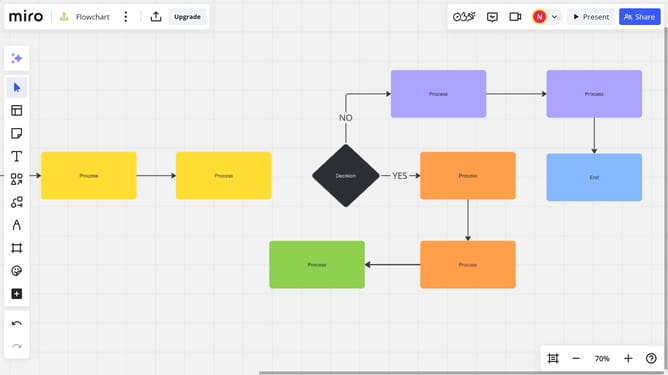
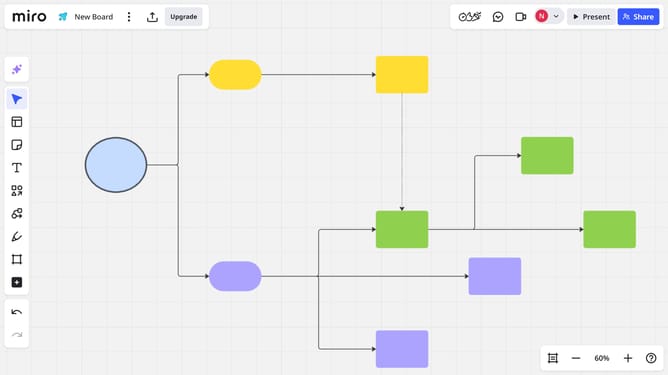
Here is how to edit shapes on a miro board
- First open your Miro board and select the shape you want to edit
- Then double-click to edit the text inside the shape and type the new one
- Next click on the "Bold" formatting button in the top toolbar to change the font style
- Click on the "Text color"
- Select your desire color from the color palette
- To change the font size, click on the font size adjustment
- To change the font, click on the font selection dropdown
- Click on the "Background color" button
- Select your desired color from the background color palette
- Your shape is now updated with the desired changes
Why should you edit shapes on a Miro board
Miro is a versatile online collaborative whiteboard platform designed to empower teams to think and work visually.
The ability to edit shapes on a Miro board allows users to bring their ideas to life with ease and precision. This feature offers flexibility in modifying shapes to fit the exact needs of a project, enhancing the visual communication process.
By editing shapes, users can ensure their boards are visually cohesive and impactful, supporting clearer understanding and collaboration. This adaptability in design helps streamline workflows and boosts productivity, allowing teams to focus on creativity and problem-solving.
Last update