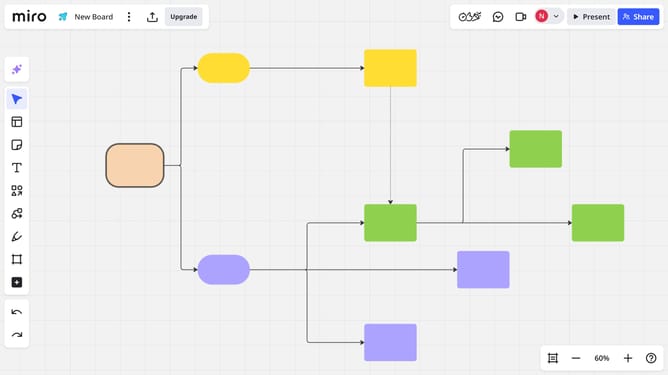
How to change the border color of a shape in a Miro board
Here is how to change the border color of a shape in a miro board
- First click to select the shape you want to edit
- Next click on the "Border style" icon in the toolbar that appears
- Then from the formatting options menu, locate the color palette with a range of color options
- Finally click on your preferred color to apply it to the shape’s border
Why should you change the border color of a shape in a Miro board
Miro is an intuitive online collaboration platform designed to foster creativity and teamwork.
Changing the border color of a shape in a Miro board is a feature that boosts visual organization and clarity during collaborative work. It allows team members to distinguish elements quickly, enhancing focus and understanding.
Using distinct colors for different shapes can signify priority or categorize ideas, transforming a cluttered board into a well-organized visual workspace. This makes information more memorable and discussions more efficient.
Last update