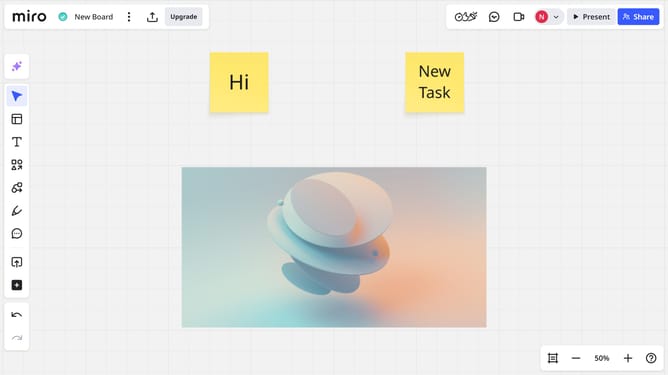
How to delete a card in a Miro board
Here is how to delete a card in a miro board
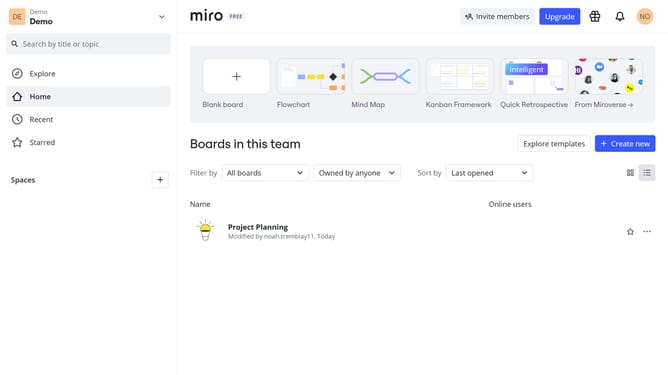
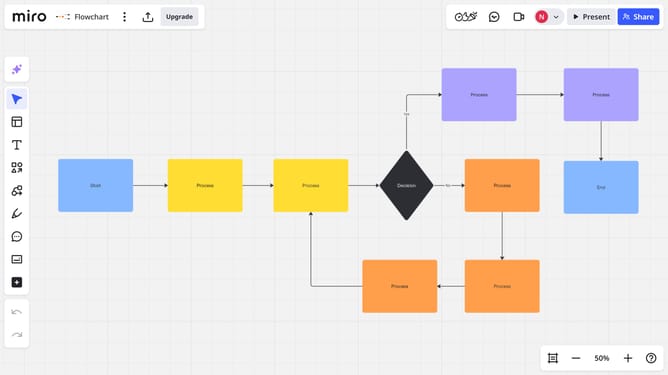
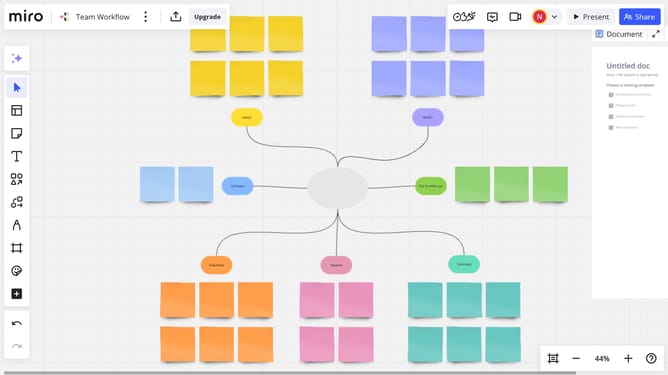
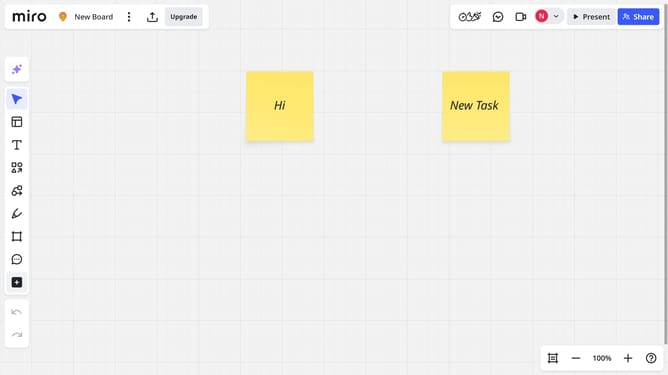
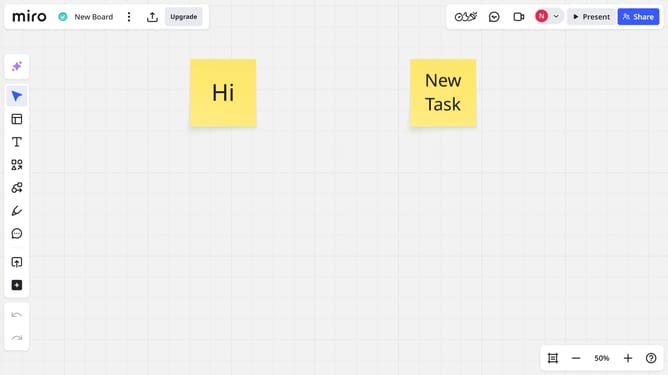
- First open your board and locate the card you want to delete
- Then click to select the card and press the "Delete" key on your keyboard
- Alternatively, click on the "More actions" button (three dots) in the toolbar
- Finally click on the "Delete" option in the dropdown menu
Why should you delete a card in a Miro board
Miro is a versatile online collaborative whiteboard platform that fosters creativity and teamwork.
Deleting a card in a Miro board is a crucial feature that helps maintain an organized workspace. It allows users to remove obsolete or unnecessary content efficiently, ensuring the board remains relevant and streamlined.
By keeping the board tidy, team members can focus on current priorities and enhance productivity. This decluttering process contributes to clearer communication and better collaboration across projects.
Last update