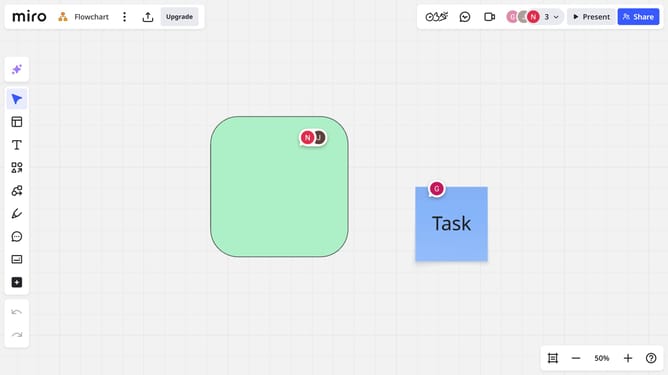
How to open the card panel in a Miro board
Here is how to open the card panel in a miro board
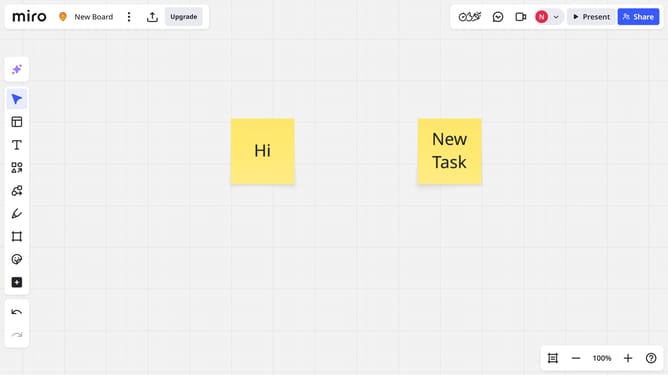
- First open your board and locate a card
- Then select it and click the expand icon in the top-right corner of the card
- Alternatively, click on the "Open in side panel" icon in the toolbar above the card
- The card panel will now open, allowing you to view and edit the card’s details
Why should you open the card panel in a Miro board
Miro is an innovative online collaboration platform designed to bring teams together, no matter where they are.
The card panel feature within a Miro board is a powerful tool that helps users manage and organize information effectively. By opening the card panel, you can quickly add, edit, and view cards, keeping ideas and tasks structured and easily accessible.
The ability to open and utilize the card panel enhances productivity by providing a clear visual overview, aiding in tracking progress and promoting seamless collaboration among team members.
Last update