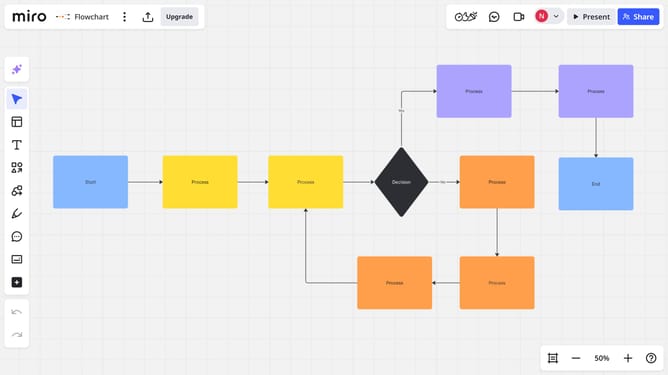
How to create connection lines between objects on MIro
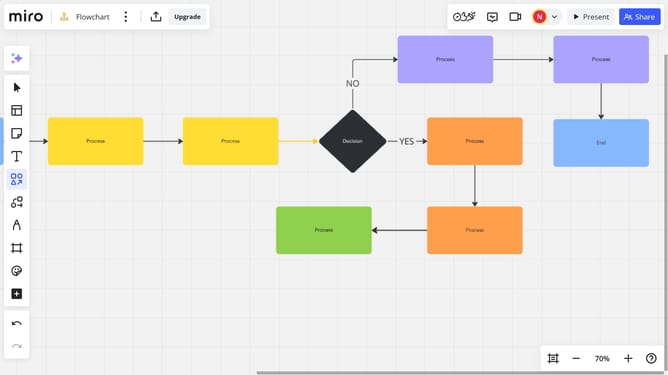
Here is how to create connection lines between objects on miro
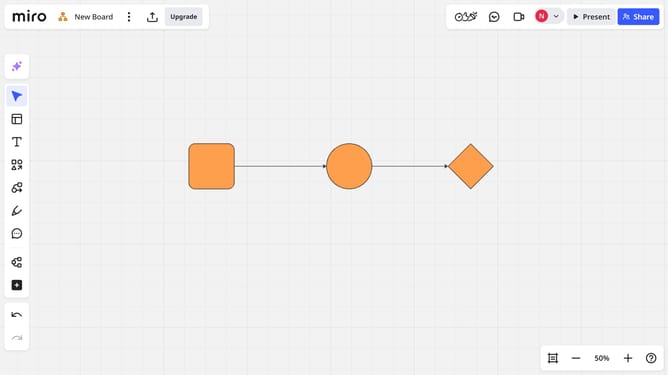
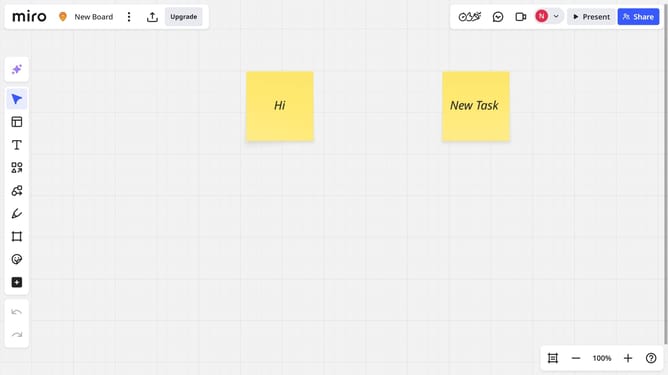
- First, open your Miro board and locate the objects you want to connect
- Then, select one object and hover over it to reveal the blue dots around its edge
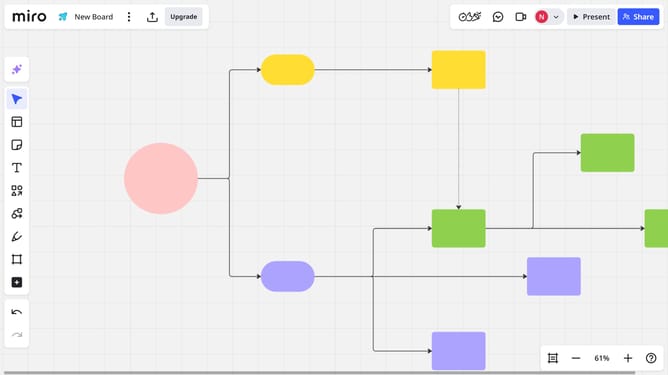
- Next, click on a blue dot and drag the line to another object until it snaps into place
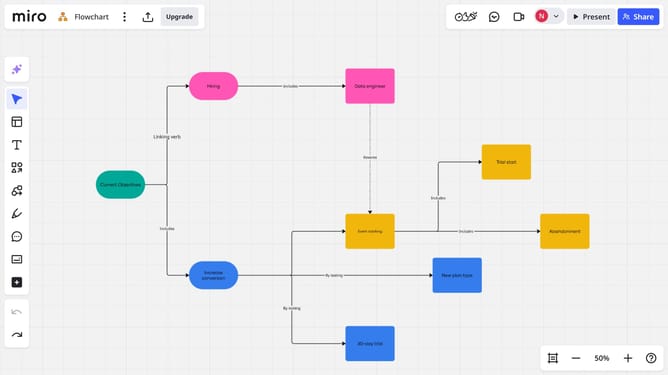
- The objects are now linked with a connection line
Why should you create connection lines between objects on MIro
Miro is a versatile online collaborative whiteboard platform designed to enhance team productivity and creativity.
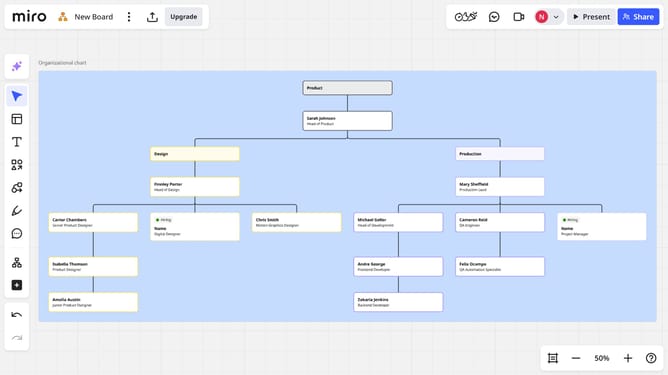
Creating connection lines between objects in Miro allows users to visually link ideas, tasks, or data, fostering a clear flow of thought. This feature enhances understanding by visually representing relationships, ensuring that teams can easily track progress and dependencies.
Utilizing connection lines streamlines communication, minimizing misunderstandings and ensuring that everyone is on the same page. This leads to more efficient decision-making and a more cohesive team effort.
Last update