How to move elements between layers in a diagram on a Miro board
Here is how to move elements between layers in a diagram on a miro board
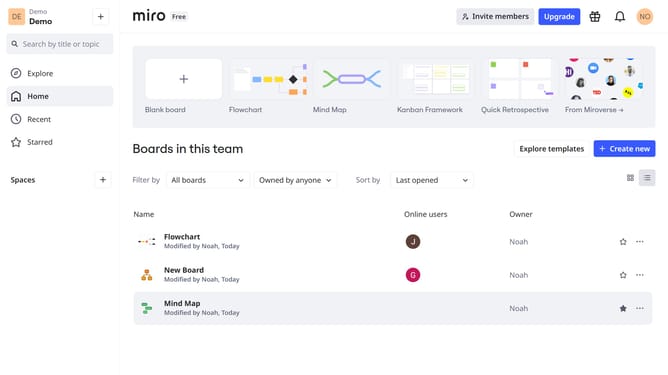
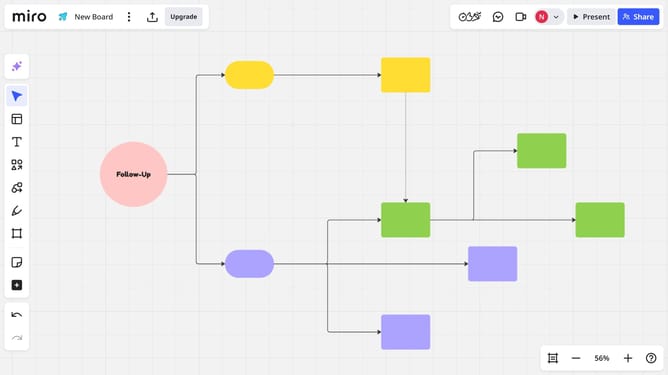
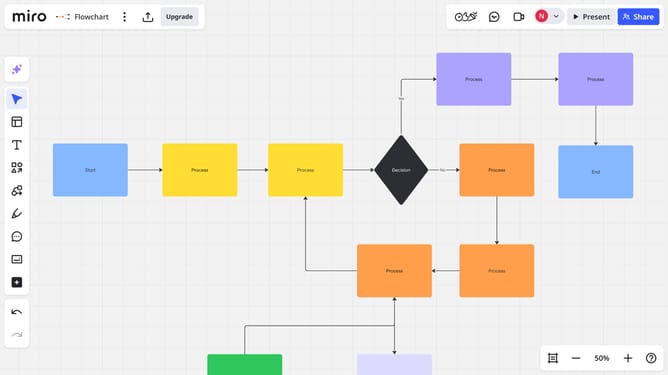
- First open your board and locate the diagram you want to organize
- Then click on the "Focus mode" in the top toolbar
- Click to select the element that you want to move (shape, text, sticky note, etc.)
- Next click the "More options" menu (three dots) in the toolbar that appears
- Then select "Move to layer" from the dropdown menu
- Finally select the layer you want to move your element to
- The element will now belong to the selected layer
Why should you move elements between layers in a diagram on a Miro board
Miro is an intuitive online collaborative whiteboard platform designed for teams to brainstorm, plan, and execute projects seamlessly.
Moving elements between layers in a diagram on a Miro board allows for enhanced organization and clarity. By reordering elements, users have the flexibility to prioritize information or make specific details more prominent.
This not only enriches the visual structure but also improves collaborative efforts as team members can quickly grasp the design's hierarchy and focus points. Such features make Miro an invaluable tool in project management and creative processes.
Last update