How do I change the line thickness on Miro
Here is how do i change the line thickness on miro
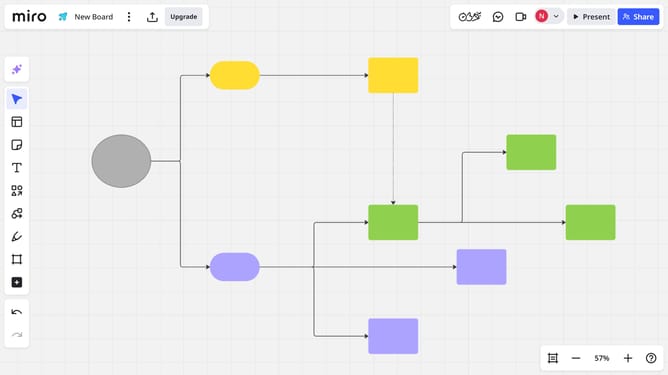
- First, select the line or connector on your board
- Then click on the "Type" button in the toolbar that appears above the line
- Next, in the pop-up menu, look for the different line styles and select the one you want
- Finally, adjust the thickness by choosing the desired line weight
- The line thickness will update immediately on your board
Why should you How do I change the line thickness on Miro
Miro is an online collaborative whiteboard platform designed to enhance teamwork and creativity.
Adjusting the line thickness feature in Miro allows you to personalize your drawings and diagrams, enhancing visual clarity and impact.
By changing the line thickness, you can highlight key points and differentiate between various elements within your projects, making collaboration more effective.
This flexibility ensures your board remains organized and visually appealing, fostering better communication and understanding among team members.
Last update