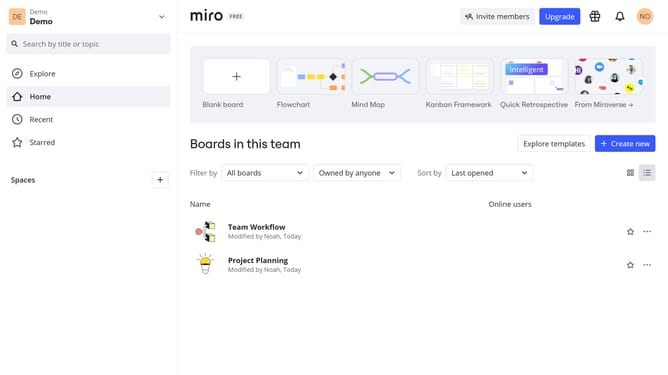
How to view your saved files in a Miro board
Here is how to view your saved files in a miro board
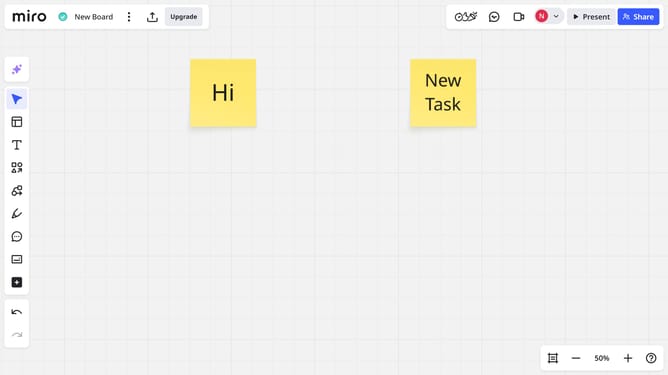
- First open any board and click on the "Upload" button in the left sidebar
- Then click on "Saved files" option from the upload dropdown menu
- Finally the Saved files panel will open, displaying all the files you've saved to your Miro library
Why should you view your saved files in a Miro board
Miro is an intuitive online collaborative platform designed to streamline creative and strategic processes.
Viewing your saved files in a Miro board is effortlessly simple and enhances your workflow by offering instant access to crucial documents within your creative space. This seamless integration supports swift transitions between brainstorming and referencing saved materials, fostering a more productive environment.
By keeping all your resources within the Miro ecosystem, you're empowered to maintain focus and continuity without breaking creative momentum. Intuitive file accessibility means your collaborative potential is maximized, driving projects forward efficiently.
Last update