How to preview a comment on a Miro board
Here is how to preview a comment on a miro board
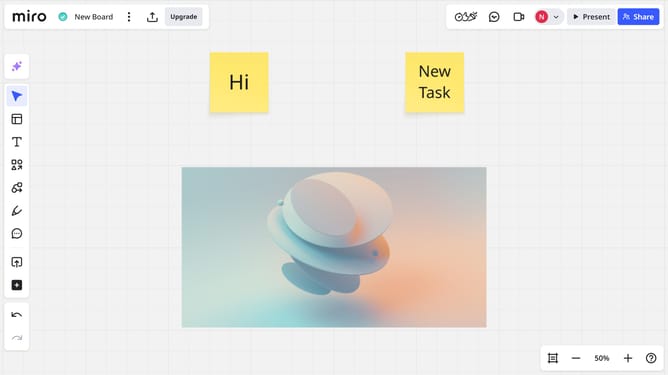
- First, open the board where the comment you want to preview is located
- Then locate a comment icon (a small speech bubble) attached to an object or floating on the canvas
- Finally hover your mouse over the comment icon without clicking and a preview of the comment will appear
Why should you preview a comment on a Miro board
Miro is an intuitive online collaborative whiteboard designed to bring teams together.
Previewing a comment on a Miro board allows you to effortlessly review discussions without the need to dive deep into a thread. This feature enhances clarity and ensures you're always in tune with ongoing conversations.
By using this tool, you streamline communication and improve collaboration, making sure that every team member stays aligned with the project’s objectives. Efficiency in managing feedback helps foster a more productive and harmonious work environment.
Last update