How to show or hide scroll bars in Miro
Here is how to show or hide scroll bars in miro
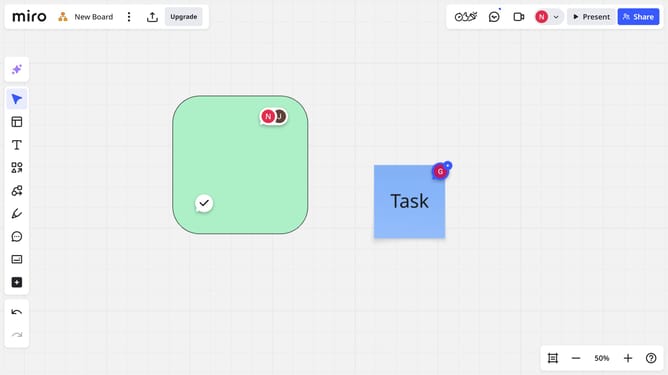
- First open your board and click on the "More options" menu (three dots) in the top header bar
- Click on the "View" option in the dropdown menu
- Then, locate the "Scroll bars" option in the View submenu
- Finally toggle it on to show scroll bars, or off to hide them
Why should you show or hide scroll bars in Miro
Miro is an innovative online collaborative whiteboard platform designed for creating, brainstorming, and collaborating visually.
One of Miro's features includes the ability to show or hide scroll bars, offering flexibility in navigating large boards. This feature helps to reduce clutter and provides a more immersive workspace by hiding scroll bars when not needed.
Displaying scroll bars can be particularly beneficial during detailed editing sessions, ensuring precise navigation across extensive content. Tailoring your view enhances productivity, allowing seamless transitions between different sections of your board.
Last update