How to change the size of a text box on a Miro board
Here is how to change the size of a text box on a miro board
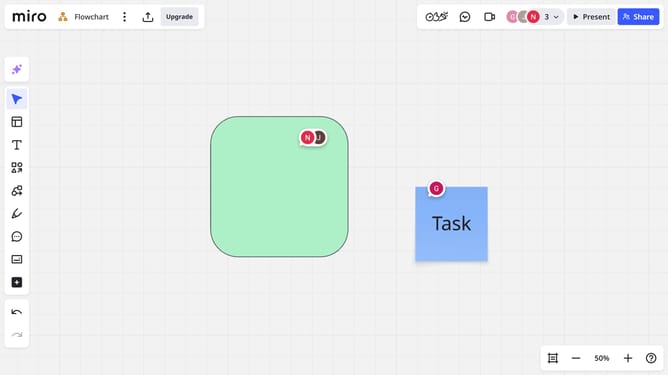
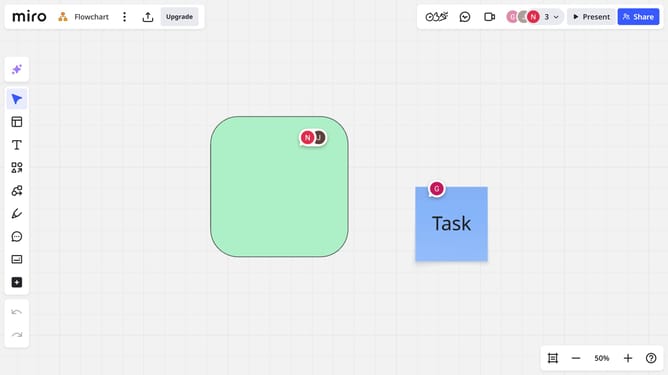
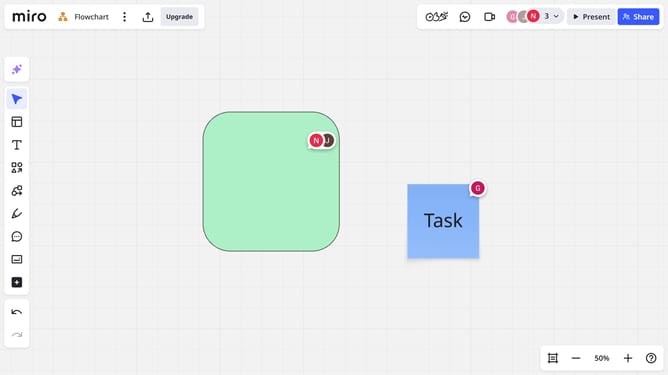
- First select the text box you want to resize by clicking on it
- Then click and drag the white handles on the edges of the text box to resize it
- Finally release the mouse when the box reaches your desired size
Why should you change the size of a text box on a Miro board
Miro is a dynamic and versatile online collaboration platform that boosts creativity and productivity.
One of its standout features is the ability to resize text boxes on a Miro board. Modifying the size of your text boxes allows you to enhance readability and ensure that information is presented neatly and efficiently. This flexibility is crucial when organizing complex ideas or group projects, allowing you to adapt your board to fit your unique presentation style.
Ultimately, resizing text boxes on Miro is not just about aesthetics—it's about optimizing clarity and communication within any collaborative endeavor.
Last update