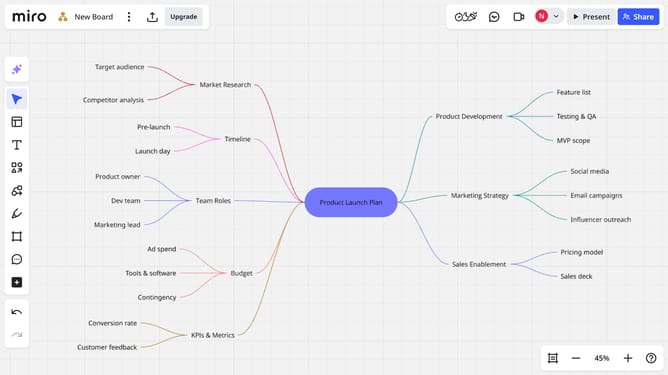
How to duplicate a layer in a diagram in a Miro board
Here is how to duplicate a layer in a diagram in a miro board
- First open your board and locate the diagram you want to organize
- Then click on the "Focus mode" in the top toolbar
- Click on the "Layers" button in the top-right corner of the interface
- In the layers panel, locate the layer you want to duplicate
- Next click on the options menu (three dots) next to it
- Then select "Duplicate layer" from the dropdown menu
- Finally enter a new name for the duplicated layer
- You can edit and drag the duplicate to a new position within the diagram as needed
Why should you duplicate a layer in a diagram in a Miro board
Miro is an innovative online collaborative whiteboard platform that enhances teamwork and creativity.
Duplicating a layer in a diagram on a Miro board streamlines your workflow, allowing for rapid iteration and preservation of design integrity.
This feature is invaluable when refining complex diagrams or prototyping, as it ensures consistent styling while saving time on manual replication.
By effortlessly managing diagram layers, teams can focus on exploring ideas and conveying concepts more effectively.
Last update