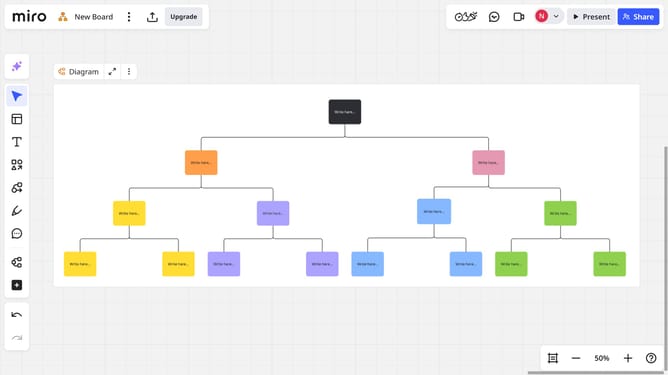
How to create a diagram manually in a Miro board
Here is how to create a diagram manually in a miro board
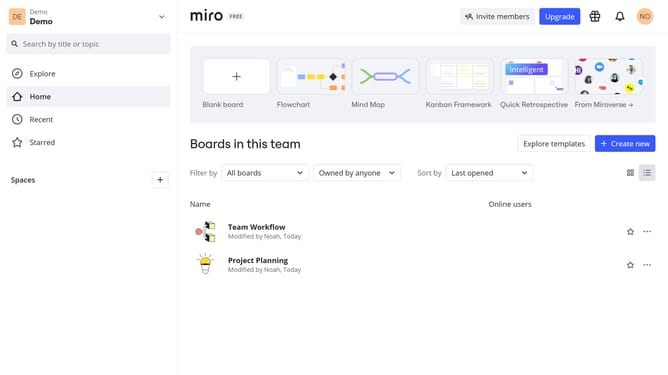
- First, from the board list, click the board where you want to create a diagram
- Then click on the plus "+" button in the left sidebar tools menu
- Next select "Diagram" in the tools popup menu that appears
- Click anywhere on the canvas to add the diagram block
- In the diagram options, click on the "Add shapes" button
- Miro will automatically open focus mode for diagramming
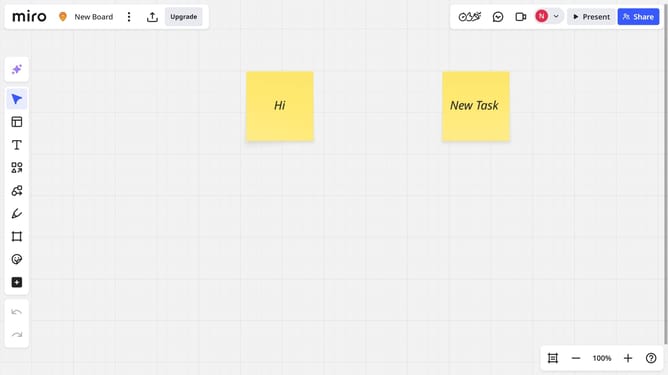
- Then start building your diagram by adding shapes, containers, or sticky notes as needed
- Finally once you're done, click on the "Back to Canvas" to exit focus mode
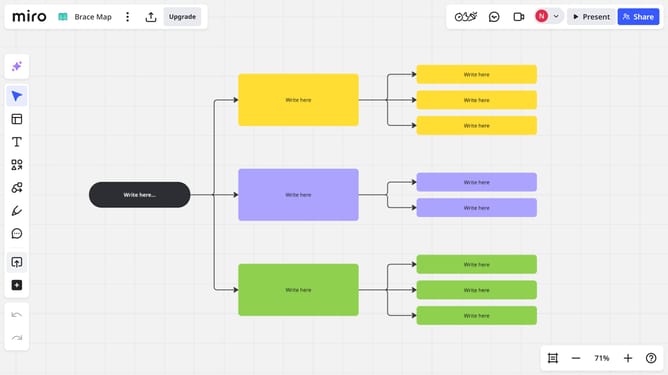
- Your custom diagram is now added to the Miro board and ready to edit or present
Why should you create a diagram manually in a Miro board
Miro is a versatile online collaboration tool designed to facilitate creative teamwork and idea sharing.
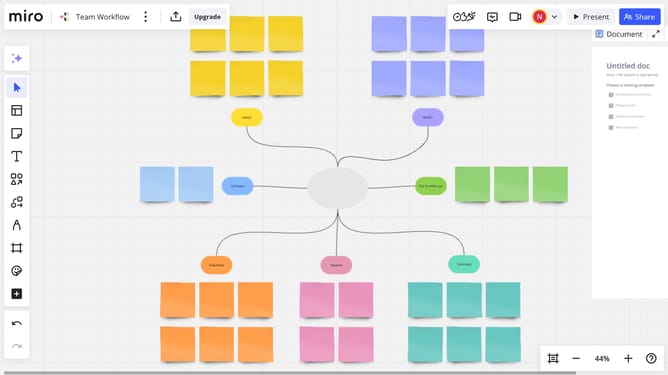
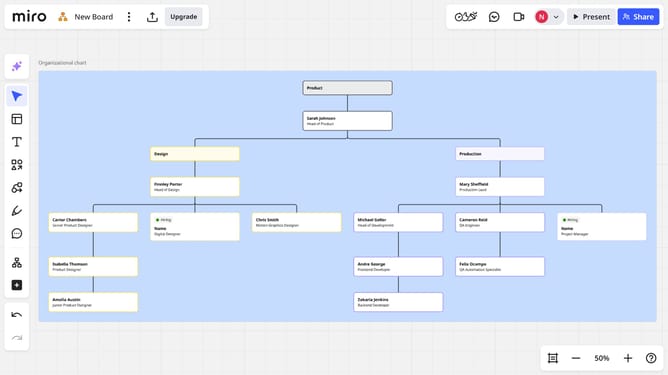
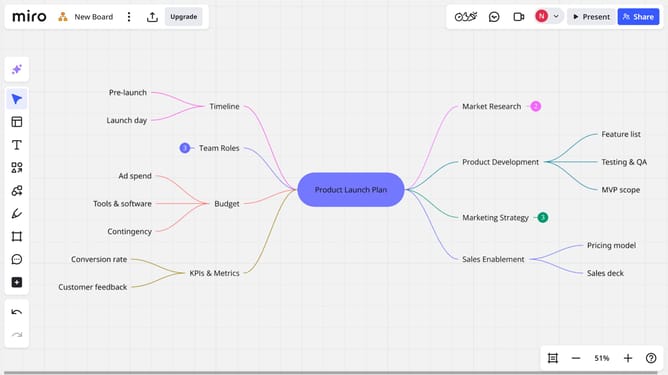
Manually creating a diagram on a Miro board allows users to intuitively visualize concepts and processes. With its flexible canvas, you can customize every element, enhancing understanding and team communication.
This feature empowers teams to brainstorm efficiently, clarify complex ideas, and align perspectives, fostering innovation and productivity in any project.
Last update