How to add text to a Miro board
Here is how to add text to a miro board
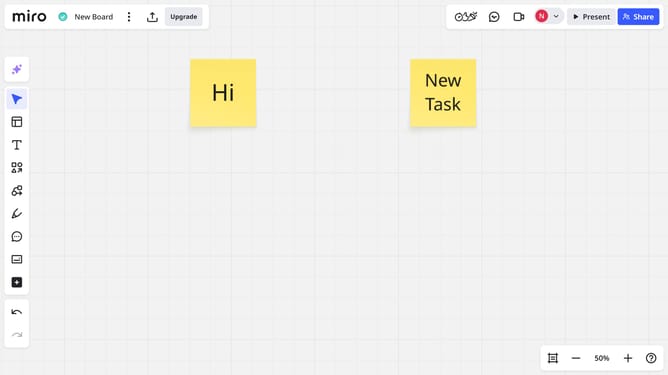
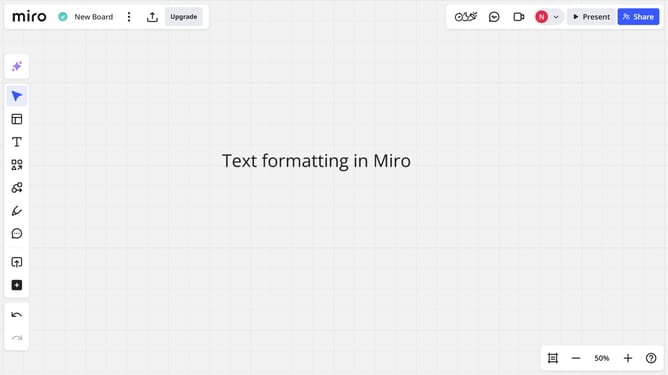
- First in a Board, click on the "Text" tool in the left sidebar
- Next click anywhere on the board where you want to place the text box
- Then a text field will appear
- Finally click inside the text box and type your desired text
- Use the toolbar to adjust the font, size, color, alignment, and more as needed
Why should you add text to a Miro board
Miro is a versatile online collaboration tool designed to foster creativity and streamline workflow in a virtual workspace.
Adding text to a Miro board is an intuitive feature that enhances the clarity and organization of your visual brainstorming. It allows you to seamlessly incorporate notes, headers, or annotations, ensuring that everyone involved is on the same page.
This capability makes communication clear and fosters collaborative thought, making it an essential tool for teams aiming to enhance productivity and innovation.
Last update