How to change the error message color on Zoho CRM
Here is how to change the error message color on zoho crm
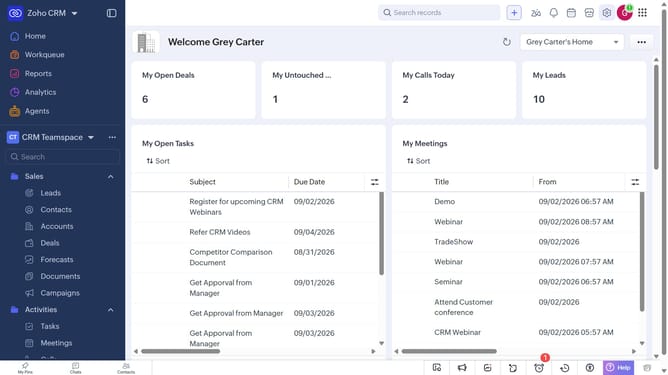
- First click on the settings icon in the top menu
- Next click on "Personal Settings" under the "General" section
- Click on the "Accessibility" tab
- After that, click on the "Vision" tab
- Locate the "Custom Error Message Display" section
- Then click on the color swatch for "Error Message Color"
- Finally, select your preferred accessible color
Why should you How to change the error message color on Zoho CRM
Zoho CRM is a dynamic tool designed to streamline customer relationship management for businesses of all sizes.
One of the customizable features of Zoho CRM is its ability to change the error message color, enhancing user experience by allowing administrators to tailor notifications to better suit their brand or improve visibility.
Adjusting the error message color can make crucial alerts stand out, reducing oversight and ensuring prompt attention to important updates, ultimately boosting the efficiency of your sales team.
Last update