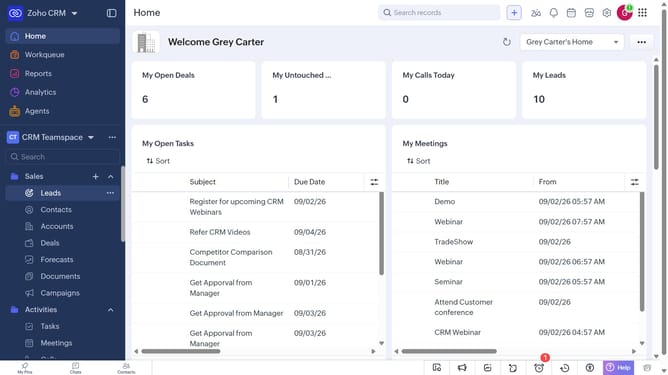
How to change the decimal separator on Zoho CRM
Here is how to change the decimal separator on zoho crm
- First click on the settings icon in the top right corner
- Click on "Personal Settings" under the "General" section
- Next, click on the pencil icon next to "Locale information"
- After that, click on the "Decimal" dropdown under "Number Format" section
- Then, select your preferred decimal separator from the dropdown menu
- Finally click on the "Save" button
Why should you How to change the decimal separator on Zoho CRM
Zoho CRM is a powerful tool designed to streamline your business processes and enhance customer relationships.
In Zoho CRM, changing the decimal separator is a valuable feature for businesses operating in multiple regions. This flexibility ensures that numerical data is presented in the format familiar to your team and clients, enhancing clarity and reducing errors.
By customizing the decimal separator, you can cater to different international standards, making financial data and reports more accessible and understandable to all stakeholders. This capability not only enhances user experience but also boosts operational efficiency by aligning with local numerical practices.
Last update