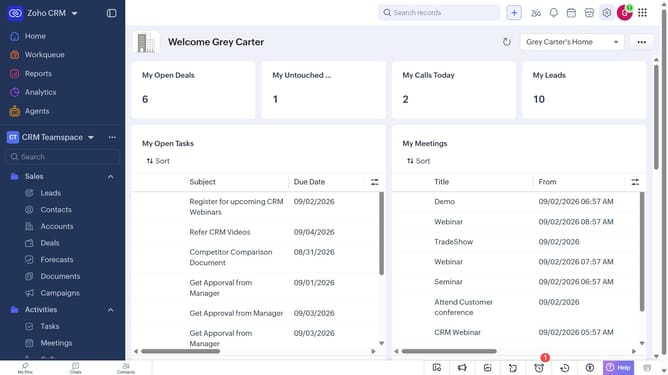
How to change text spacing on Zoho CRM
Here is how to change text spacing on zoho crm
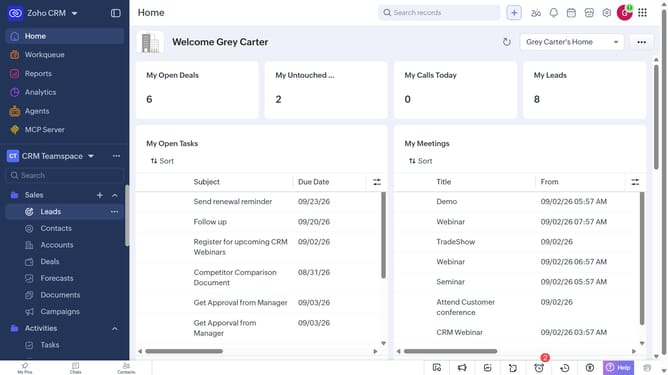
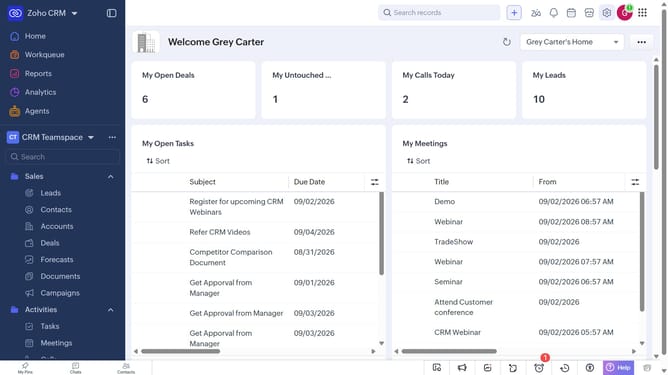
- First click on the settings icon in the top menu
- Next click on "Personal Settings" under the "General" section
- Click on the "Accessibility" tab
- After that, click on the "Vision" tab
- Then, locate the "Spacing" option
- Next, click on the dropdown menu
- Finally, select your preferred spacing option from the dropdown
Why should you How to change text spacing on Zoho CRM
Zoho is a versatile platform tailored for seamless business operations and enhanced customer relationship management.
Among its many customizable features, changing text spacing in Zoho CRM holds great importance. Adjusting text spacing can significantly uplift the readability and presentation of crucial data stored in the CRM.
By refining text spacing, teams can improve data consumption efficiency, ultimately aiding quicker decision-making. This adjustment ensures information stands out clearly, enhancing productivity within collaborative environments.
Embrace the simplicity of optimizing text presentation to align with your business needs and witness a smoother workflow within your Zoho CRM experience.
Last update