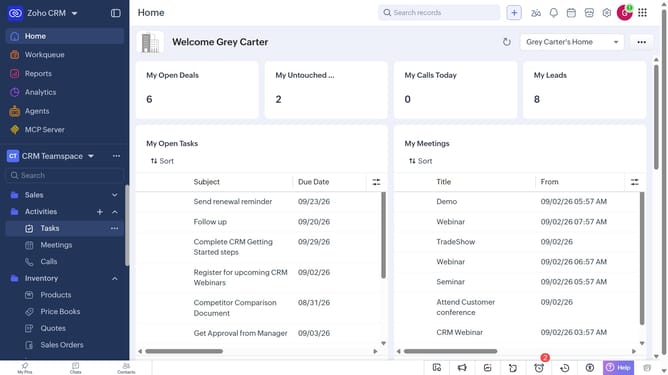
How to enable Magnify Text on Hover on Zoho CRM
Here is how to enable magnify text on hover on zoho crm
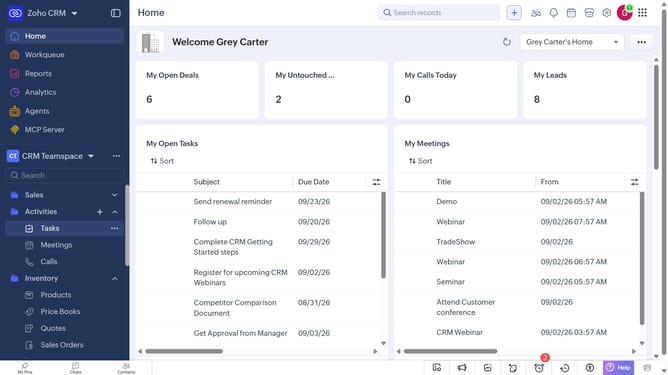
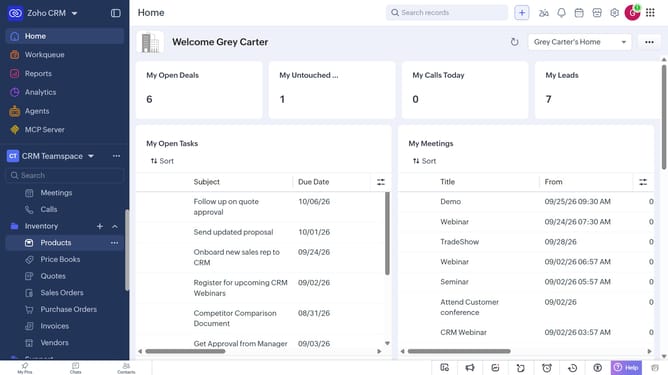
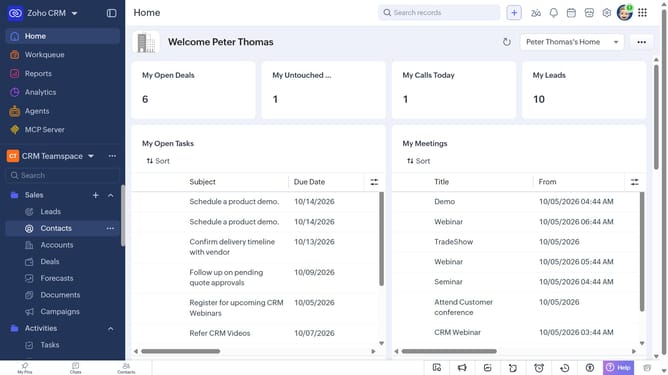
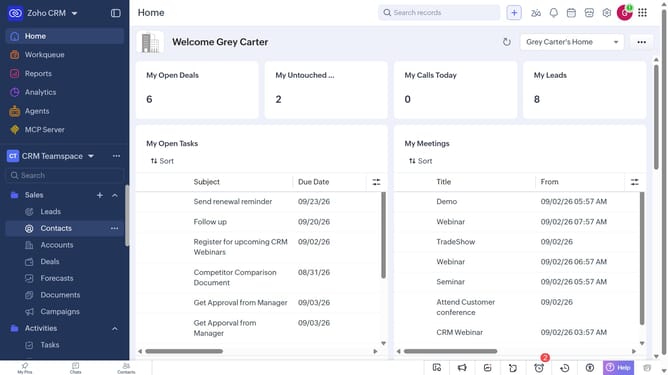
- First click on the settings icon in the top menu
- Next click on "Personal Settings" under the "General" section
- Click on the "Accessibility" tab
- After that, click on the "Vision" tab
- Then, locate the "Magnify Text on Hover" option
- Finally, enable the toggle next to it
Why should you How to enable Magnify Text on Hover on Zoho CRM
Zoho CRM is a comprehensive platform designed to streamline business operations and enhance customer relationships.
The "Magnify Text on Hover" feature in Zoho CRM enhances accessibility and user experience by allowing users to effortlessly view detailed information without straining their eyes. This feature is especially useful when dealing with dense data or intricate details, ensuring that critical information is easily accessible and readable.
By simplifying data interaction, users can improve efficiency and focus, making their workflow smoother and more productive. This feature adds an extra layer of convenience, empowering users to work more effectively in a fast-paced environment.
Last update