How to add slider in Webflow?
Here is how to add slider in webflow
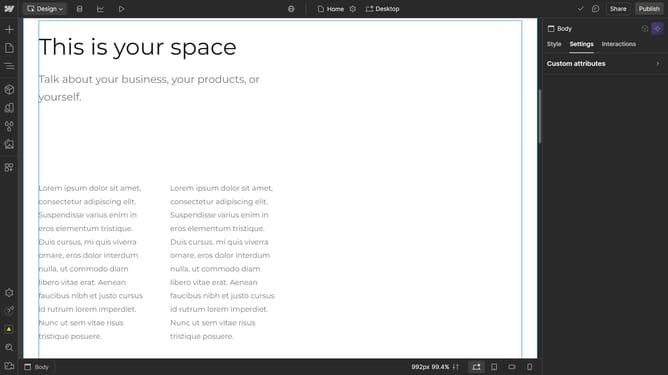
- First, open the "Add Elements" panel from the left sidebar
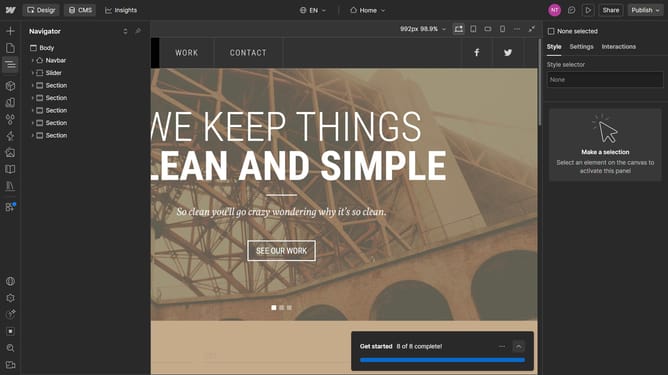
- Find the "Slider" element by scrolling or using the search bar
- Drag the slider onto your page where you want it to appear
- Next, go to the right sidebar for more customization
- Select "Settings"
- In the "Slider settings" section, add more slides as needed
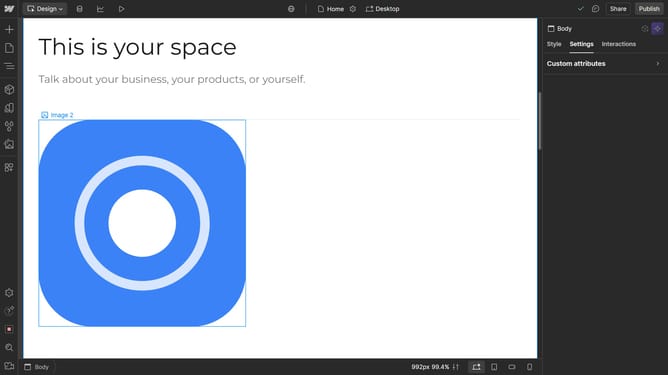
- To insert content into a slide, either upload an image or go to the Assets section and select an image
- Drag a picture to the slide, just like any other element, the image in the slider can be adjusted in size and dimensions
- For more customization, go to the right sidebar and adjust your slider to your liking
Why should you add slider in Webflow?
Webflow is a powerful web design tool that empowers creators to build professional websites without coding.
Incorporating a slider in Webflow is incredibly straightforward and seamlessly integrates into your design process. The slider feature is not only intuitive but also customizable, allowing you to showcase content dynamically and effectively.
Utilizing a slider can significantly enhance the visual appeal of your site, offering an engaging way to display various products, portfolios, or testimonials. Its responsive design ensures that your content is captivating on any device.
Last update