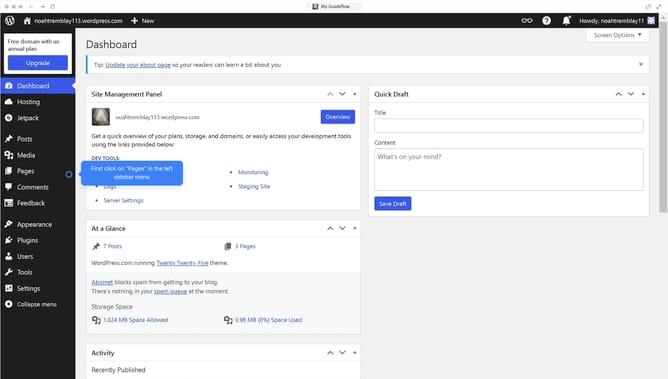
How to add banner in WordPress?
Here is how to add banner in wordpress
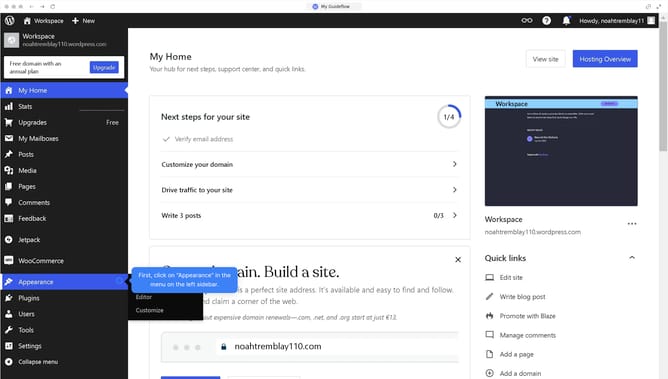
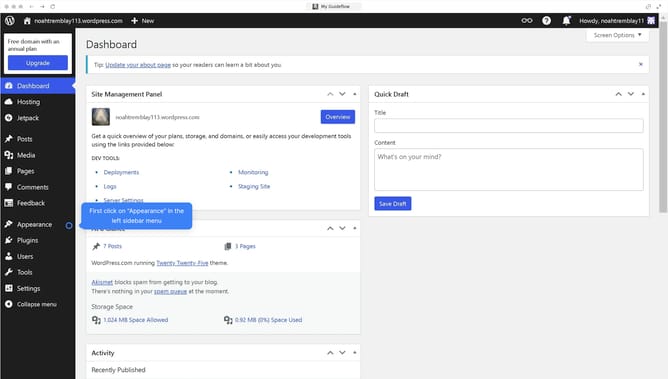
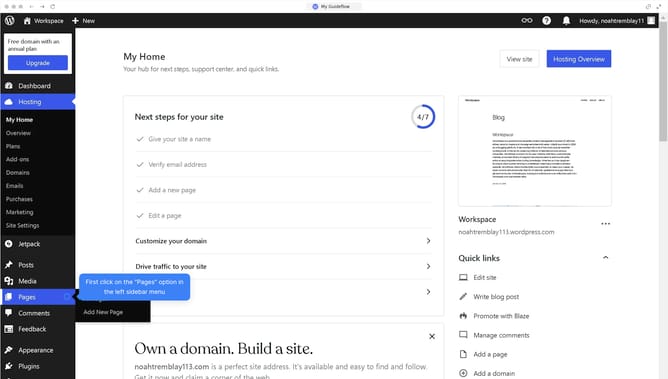
- First, click on the "Appearance" button in left sidebar menu
- Then click on "Customize"
- Click on the "Site Identity" option from the customization sidebar panel
- Click on "Change image" button under the Site Icon section
- Pick an image you want as your banner in the media library
- Click on the "Crop image" button after adjusting the image
- Finally click on "Save Changes" button to update your banner
Why should you add banner in WordPress?
WordPress is a versatile content management system that empowers users to create and manage websites with ease.
Adding a banner in WordPress enhances the visual appeal of your website, offering a dynamic way to communicate key messages.
This feature allows you to showcase promotions, announcements, or branding, capturing visitors' attention effectively.
Using banners is beneficial as they improve user engagement, elevate your site's aesthetic, and effectively direct the audience's focus to important content.
Last update