How to add background video in Webflow?
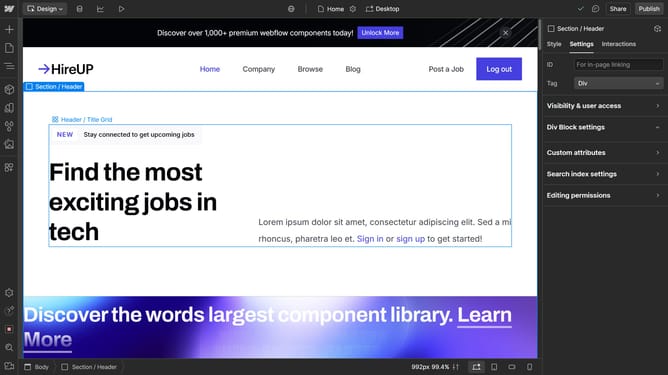
Here is how to add background video in webflow
- First, click on the "Add Elements" panel in the left sidebar
- Find Background Video by using the search bar or locate it under the "Advanced" section
- Drag and drop the "Background Video" element into your desired section
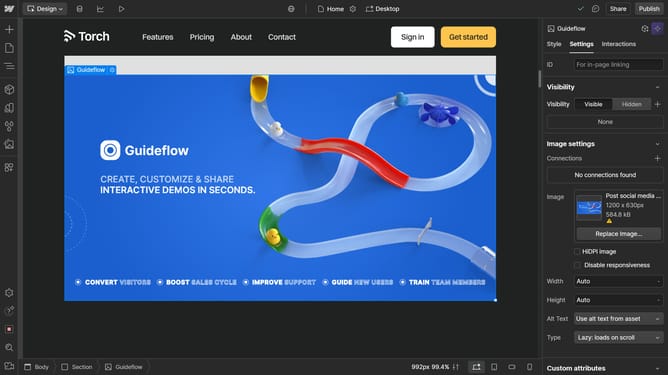
- Then, click on "Upload Video" to select and upload your desired video
- You can see that your video has been uploaded successfully
- And for more editing and customization, such as adjusting position, size, and layout, go to the right sidebar
Why should you add background video in Webflow?
Webflow is a powerful platform designed to create visually stunning websites with ease and flexibility.
Adding a background video in Webflow enhances the aesthetic appeal of your website, offering a modern, engaging experience for visitors.
This feature allows you to integrate dynamic content effortlessly, giving your site a polished and professional look without slowing down performance.
Utilizing background videos can attract visitors' attention immediately, setting the tone and ambiance for your brand's story seamlessly.
Last update