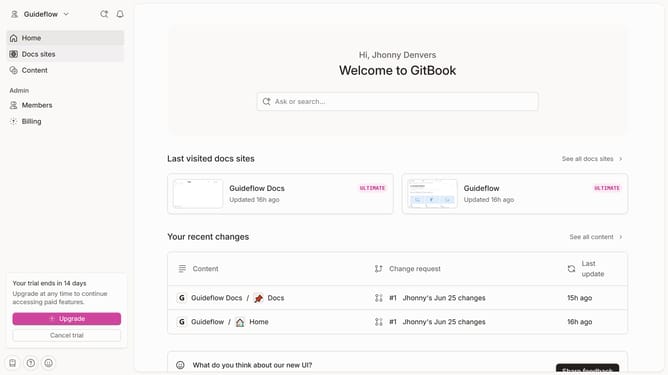
How to add a table image column in help center in Gitbook
Here is how to add a table image column in help center in gitbook
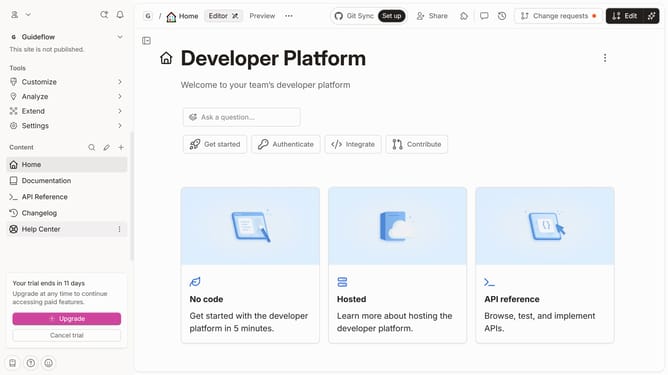
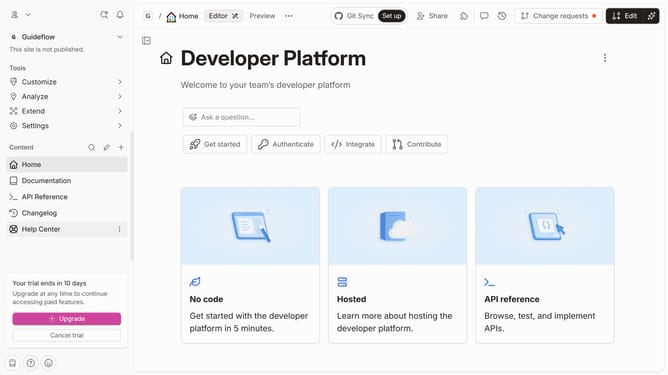
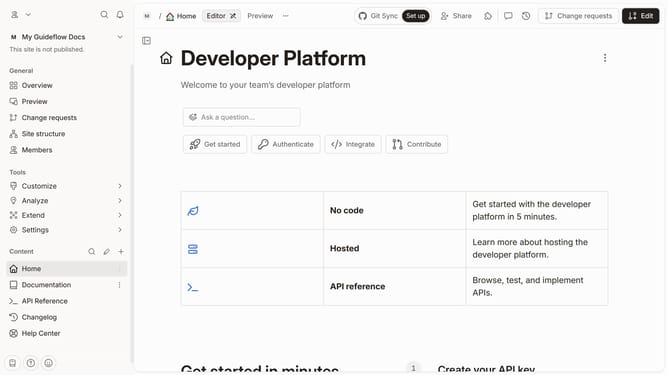
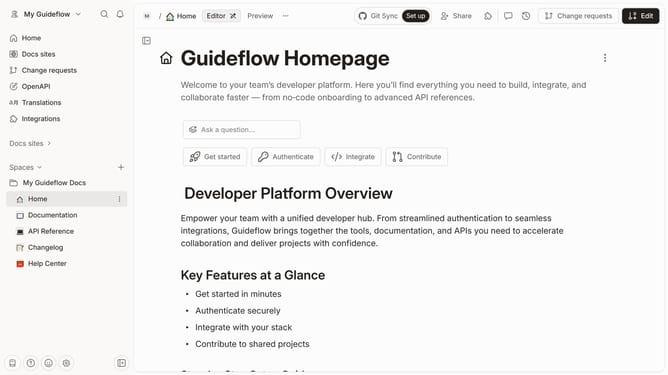
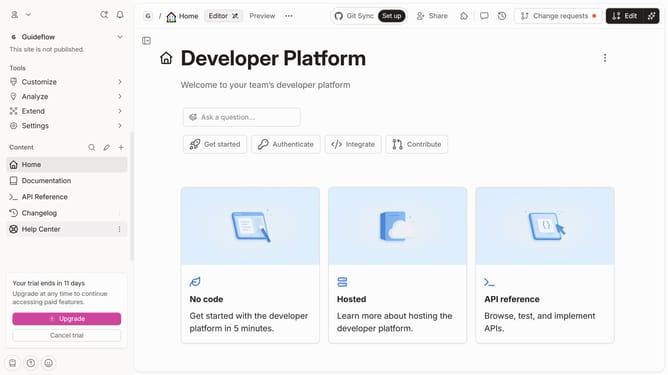
- First click on the "Help Center" in the left sidebar
- Then click on the "Edit" button in the header
- Next, click on the block options icon on the left side of the "Category" column
- Then click on the "Add column" in the dropdown menu
- Click on "Image" in the dropdown menu
- Finally, click on the "Merge" button located in the top right corner
Why should you add a table image column in help center in Gitbook
GitBook is a dynamic platform designed to facilitate the creation and sharing of comprehensive documentation.
Adding an image column to your help center tables in GitBook enhances both visual appeal and functionality. This feature allows for richer content presentation by illustrating complex concepts, simplifying data interpretation, and improving the overall user experience.
Employing image columns transforms your documentation, making it more engaging and easier to understand, thereby offering users a more visually rich and informative journey.
Last update