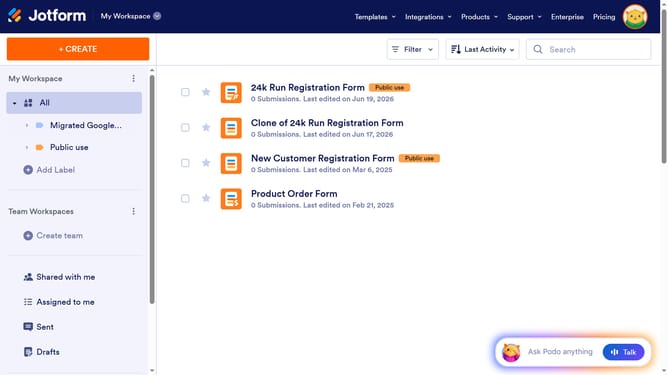
How to add a save and continue later button in a registration form in Jotform
Here is how to add a save and continue later button in a registration form in jotform
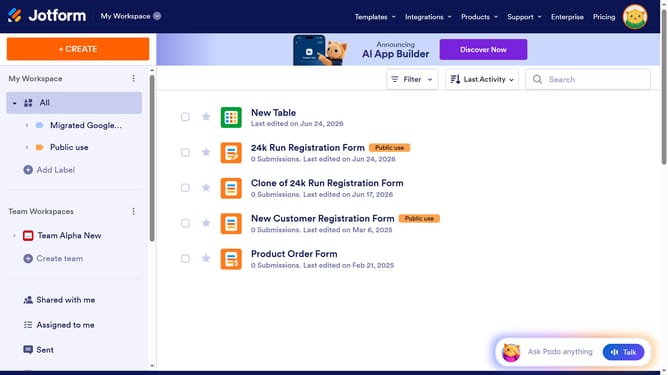
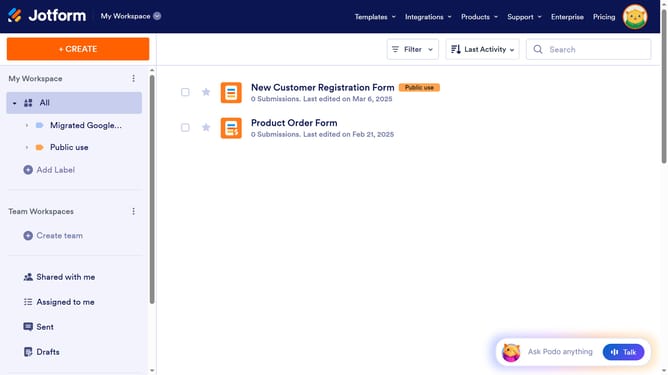
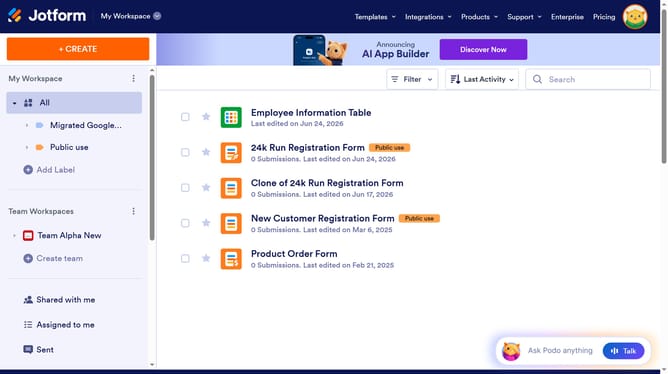
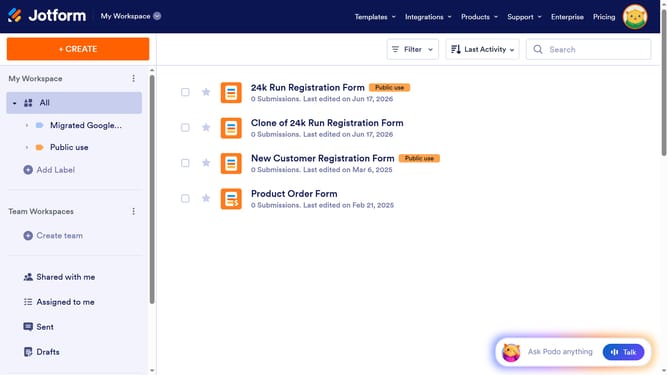
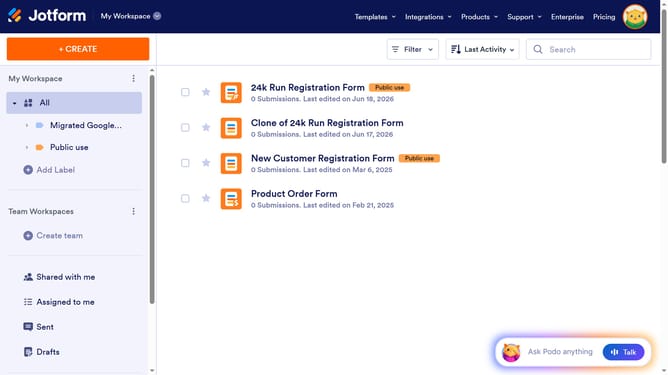
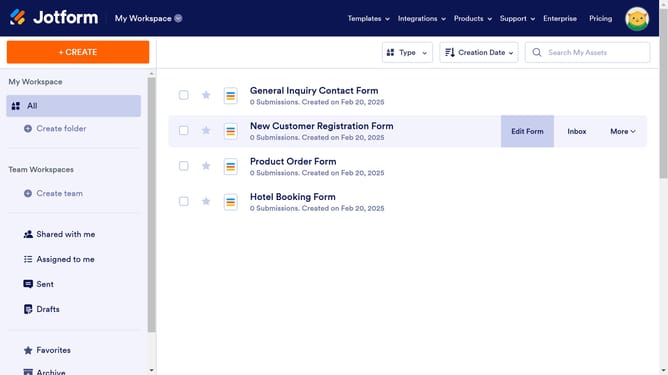
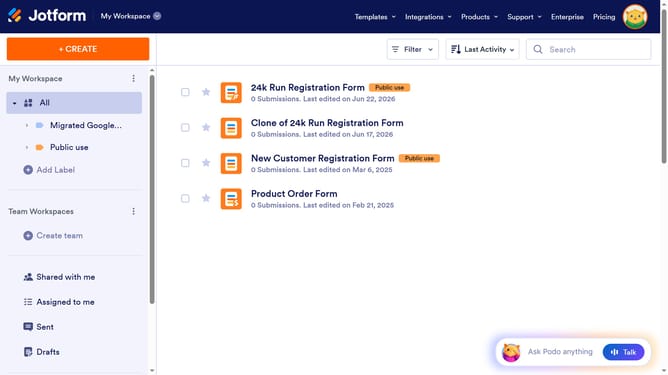
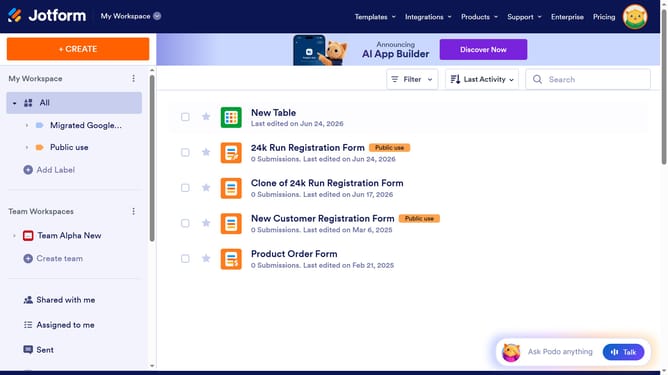
- First, click on "All" in the left sidebar
- Next click on "Edit Form" button at the right side of the form name that you want to manage
- Then click on the "Submit" button area
- Then, click on the settings icon
- Then, click on the "ADVANCED" tab in the "Submit Properties" panel
- Finally, click on the "Save and Continue Later" text input field and edit it
Why should you add a save and continue later button in a registration form in Jotform
Jotform is a user-friendly platform designed to streamline the creation and management of online forms effortlessly.
Adding a "save and continue later" button to a registration form is a handy feature in Jotform that enhances user convenience by allowing respondents to save their progress and return to complete the form at a later time.
This feature is particularly beneficial when dealing with lengthy or detailed forms, as it reduces the risk of user frustration and increases the likelihood of form completion.
By offering this flexibility, Jotform effectively caters to users' varying paces, ultimately improving user experience and form completion rates.
Last update