How to add a image column in a table in homepage in Gitbook
Here is how to add a image column in a table in homepage in gitbook
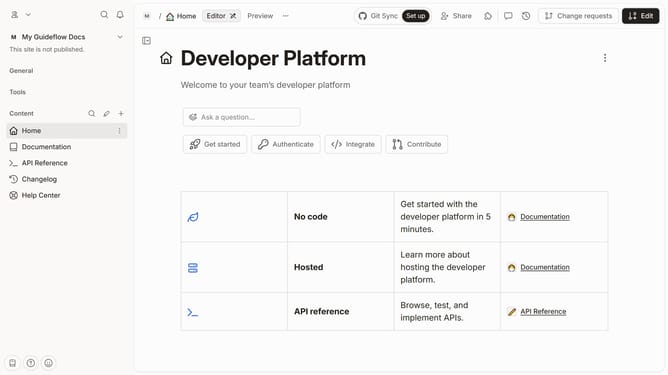
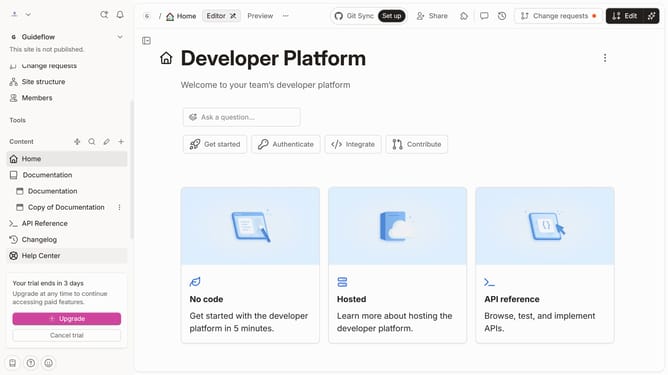
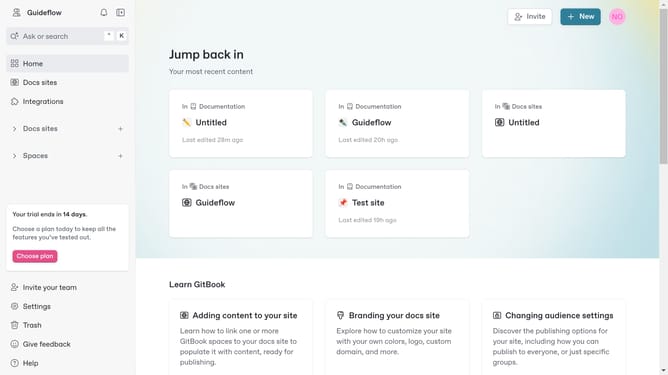
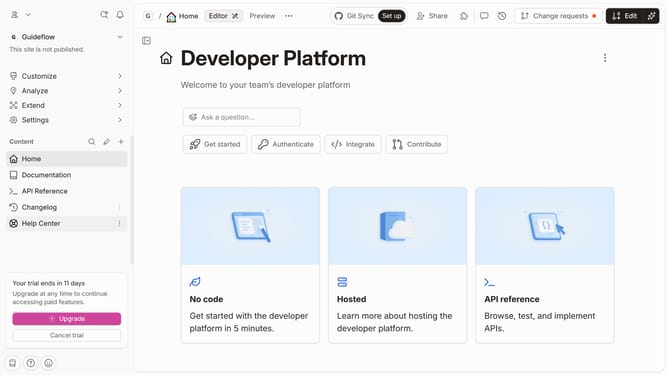
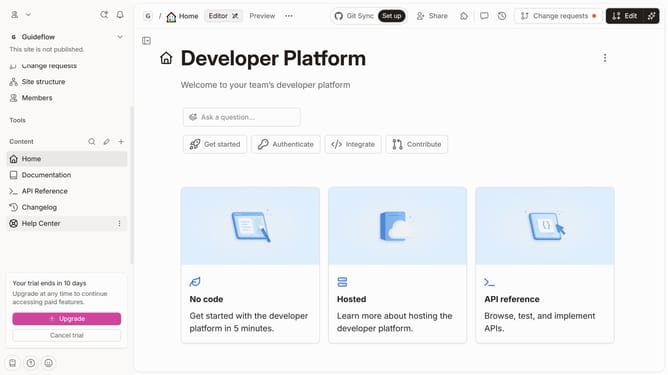
- First, click on the 'Home' item in the left sidebar
- Then, click on the 'Edit' button in the header
- Next, click on the 'Click for block options' button
- Then, select 'Add column' from the dropdown menu
- Next, select 'Image' from the expanded menu
- Finally, click on the 'Merge' button in the header
Why should you add a image column in a table in homepage in Gitbook
Gitbook is a versatile platform designed to simplify documentation and team collaboration.
Enhancing your homepage with a table that includes an image column can significantly improve the visual appeal and clarity of content presentation. By adding images to tables, users can quickly visualize data and understand complex information at a glance.
This feature is particularly beneficial in creating engaging, easy-to-navigate documentation that captures and retains the user's attention. Images can transform a static data representation into an interactive, user-friendly experience.
Last update