How to add a date picker field in a form in Zapier
Here is how to add a date picker field in a form in zapier
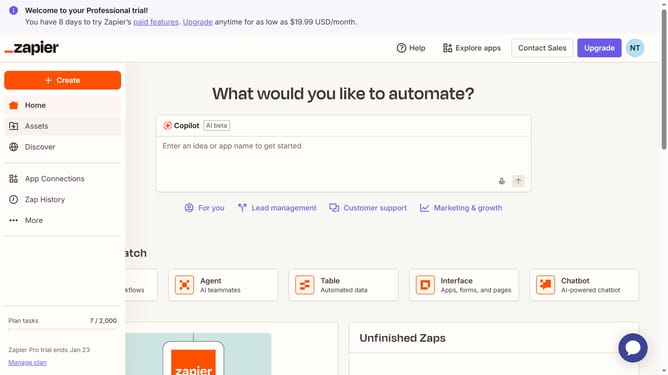
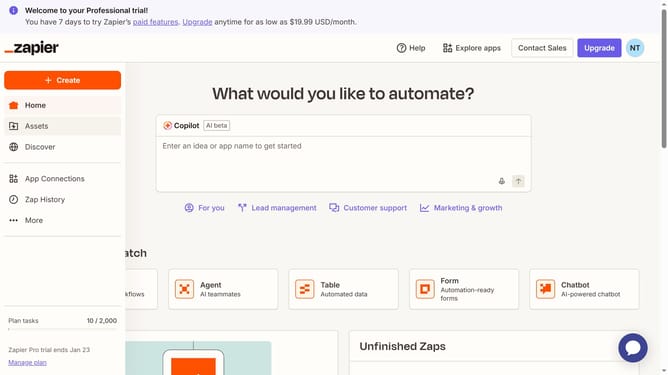
- First click on "Assets" in the left sidebar navigation menu
- Then click on "Forms" in the left sidebar navigation menu
- Next click on the form you want to edit from the list to open it
- Then click on the form card in the "Pages" section
- Next click on "Add field" button in the form editor toolbar
- Click on the "Field name in Table" tab and enter the field title in the input box
- Next click on the "Type" dropdown menu to select field type
- Then select "Date picker" option from the type dropdown menu
- Finally click on "Create field" button at the bottom of the right panel
Why should you add a date picker field in a form in Zapier
Zapier is a powerful automation tool that connects your apps to streamline workflows efficiently.
Adding a date picker field in a form within Zapier can significantly enhance your data collection process. It allows users to easily select dates without manual entry errors, ensuring more reliable data.
This feature is particularly beneficial in scenarios where precise scheduling is crucial, such as event planning, booking services, or project management. By simplifying date inputs, it helps save time and reduces friction in user interactions.
Last update