Your customer pauses a seven-minute recording, opens the product, and tries to find the button you just showed them. They rewind. They pause again. Then they open a support ticket.
The video existed. The problem persisted. That gap, between watching a process and completing it, is what video tutorial software is supposed to close, but the tool you pick determines whether customers actually get there.
According to Training magazine (2025), 77% of U.S. organizations used video or webcasting technology for learning in 2025. The demand for video-based product education is not the question. The right format and tool for your CS team is. Some teams need quick narrated clips. Others need polished training libraries, AI-generated voiceovers, or clickable interactive demos that show users exactly where to click.
This guide cuts through the category to help you choose.
What's inside
This guide compares 15 video tutorial software tools for 2026, chosen for CS, onboarding, support, and product education teams. Selection criteria:
- Screen capture and editing quality: Can the tool record product flows clearly and add context without a full production workflow?
- Analytics and measurement: Does it track completion rate, drop-off, or viewer behavior, not just views?
- Publishing and stack fit: Does it embed in help centers, sync with Intercom or HubSpot, or work inside existing CS workflows?
- Pricing and accessibility: Is there a free tier or trial that lets small teams get started without a procurement cycle?
- Pricing and G2 ratings were verified against live sources at drafting time.
TL;DR
- Best for interactive how-to content: Guideflow lets customers follow a guided product experience, tracking completion and drop-off at each step, so CS teams see where users actually get stuck
- Best for polished software tutorial production: Camtasia gives teams deep timeline editing, cursor effects, and AI-assisted captions for structured training libraries
- Best for quick async screen capture: Loom covers the "fast clip with narration" use case that most CS reps reach for first
- Best for customer-facing video hosting and analytics: Vidyard fits teams that need video engagement data tied to GTM workflows
- Best for AI avatar training videos: Synthesia and Vmaker AI produce presenter-style videos without filming anyone on camera
- Best free technical recording option: OBS Studio costs nothing and gives technical teams full control over capture settings
What is video tutorial software?
Video tutorial software helps teams record, edit, publish, and measure instructional videos that teach users how to complete a task in a product or process. It sits between basic screen capture utilities and enterprise learning management systems, covering everything a CS team needs to turn a repeated explanation into a reusable asset.
Unlike general-purpose video editors, tutorial creation software is built around product workflows: Recording what happens on a screen, adding context through narration or captions, and sharing the result with someone who needs to replicate the steps.
Key capabilities to look for across the category:
- Screen capture: Records product flows, browser sessions, webcam, or desktop activity
- Editing: Adds cuts, zooms, callouts, annotations, and step labels
- Audio: Supports narration, voiceovers, text-to-speech, or separate audio tracks
- Accessibility: Adds captions, subtitles, transcripts, and localization
- Publishing: Exports to MP4, embeds in help centers, or shares by link
- Analytics: Tracks views, completion rate, engagement, or drop-off step
- Interactivity: Lets users click through guided product education rather than only watching
That last point is where the category splits. Most video tutorial tools produce passive recordings. Interactive demo platforms sit adjacent to this category and are worth considering when you want customers to follow a product flow rather than watch one. For CS teams trying to close the gap between watching and doing, that distinction matters.
The tools below cover the full spectrum: From simple screen recorders to AI avatar generators to demo automation platforms built around product adoption metrics.
When to use video tutorial software
Onboard customers without repeating live calls
CS teams lose hours each week explaining the same setup steps across different accounts. A short product tutorial covering tasks like inviting teammates, configuring integrations, or building a first dashboard turns that one-to-many explanation into a reusable asset. The impact shows up in time-to-value, activation rate, and onboarding completion without adding a single call to the queue.
Deflect repetitive support questions
The most common tickets in most SaaS products are "how do I" questions: Exporting a report, connecting an integration, inviting a user. Video tutorials answer these visually before the ticket gets opened, in a format that text docs rarely match. For CS teams tracking ticket volume, tutorials work best when they are discoverable, short, and directly linked from help center articles or chatbot flows.
Drive adoption of underused features
Feature adoption usually stalls not because customers decided against a feature, but because they never saw it demonstrated at the right moment. CS teams can embed short tutorial assets in lifecycle emails, QBR follow-up notes, and in-app messages. Measurement here matters: Completion rate, drop-off step, and repeat views tell you whether the tutorial is actually moving users to the next action.
Video tutorial software comparison
The table below covers all 15 tools with verified pricing and G2 ratings. Use it to narrow your shortlist before reading the full tool sections.
| # | Product | Best for | Key differentiator | Pricing | G2 rating |
|---|---|---|---|---|---|
| 1 | Camtasia | Polished software tutorial production | Full timeline editing with AI captions and cursor effects | From $39/year | 4.6/5 |
| 2 | Loom | Quick narrated async screen recordings | Fast screen and camera capture with instant share links | Free; Business from $18/user/month | 4.7/5 |
| 3 | Vidyard | Customer-facing video hosting and analytics | Video engagement tracking for GTM and CS teams | Free; Starter from $59/seat/month | 4.5/5 |
| 4 | Guideflow | Interactive how-to content | Clickable product education with step-level completion and drop-off analytics | Free; Solo from $35/month | 5.0/5 |
| 5 | ScreenPal | Affordable screen recording and editing | Simple capture, editing, hosting, and interactive quizzes | Free; Deluxe from $4/month | N/A |
| 6 | Guidde | AI-assisted how-to video generation | Turns browser-captured workflows into narrated guides with 200+ voices | Free; Pro from $19/creator/month | 4.8/5 |
| 7 | Synthesia | AI avatar training videos | Presenter-style videos from scripts, no filming required | Free; Starter from $29/month | 4.6/5 |
| 8 | ngram Studio | AI-assisted software tutorial production | Script-to-video with brand kits, avatars, and hosted quizzes | Free; Basic from $29/month | 4.5/5 |
| 9 | Browser Handoff | Browser-based tutorial capture | Captures authenticated workflows directly from your product | Free; Basic from $29/month | 4.5/5 |
| 10 | OBS Studio | Free advanced recording setup | Open-source recording and streaming with full scene control | Free | 4.6/5 |
| 11 | ScreenFlow | Mac tutorial video editing | Screen recording plus professional timeline editing on macOS | $199 one-time | 4.5/5 |
| 12 | Vmaker AI | AI-assisted screen and webcam tutorials | Screen capture with AI editing, subtitles, and avatar generation | Free; Starter from $18/month | 4.7/5 |
| 13 | VideoMule | AI tutorial creation | AI-assisted tutorial creation platform | Contact for pricing | N/A |
| 14 | Trainn | Customer training and product education | AI video generation from screen recordings with an LMS and knowledge hub | Creator from $19/month | 4.5/5 |
| 15 | Visla | AI video creation and editing | Script-to-video with voice cloning, avatars, and collaborative workspaces | Free tier available; paid tiers: Contact for pricing | 4.6/5 |
Best 15 video tutorial software tools for 2026
1. Camtasia
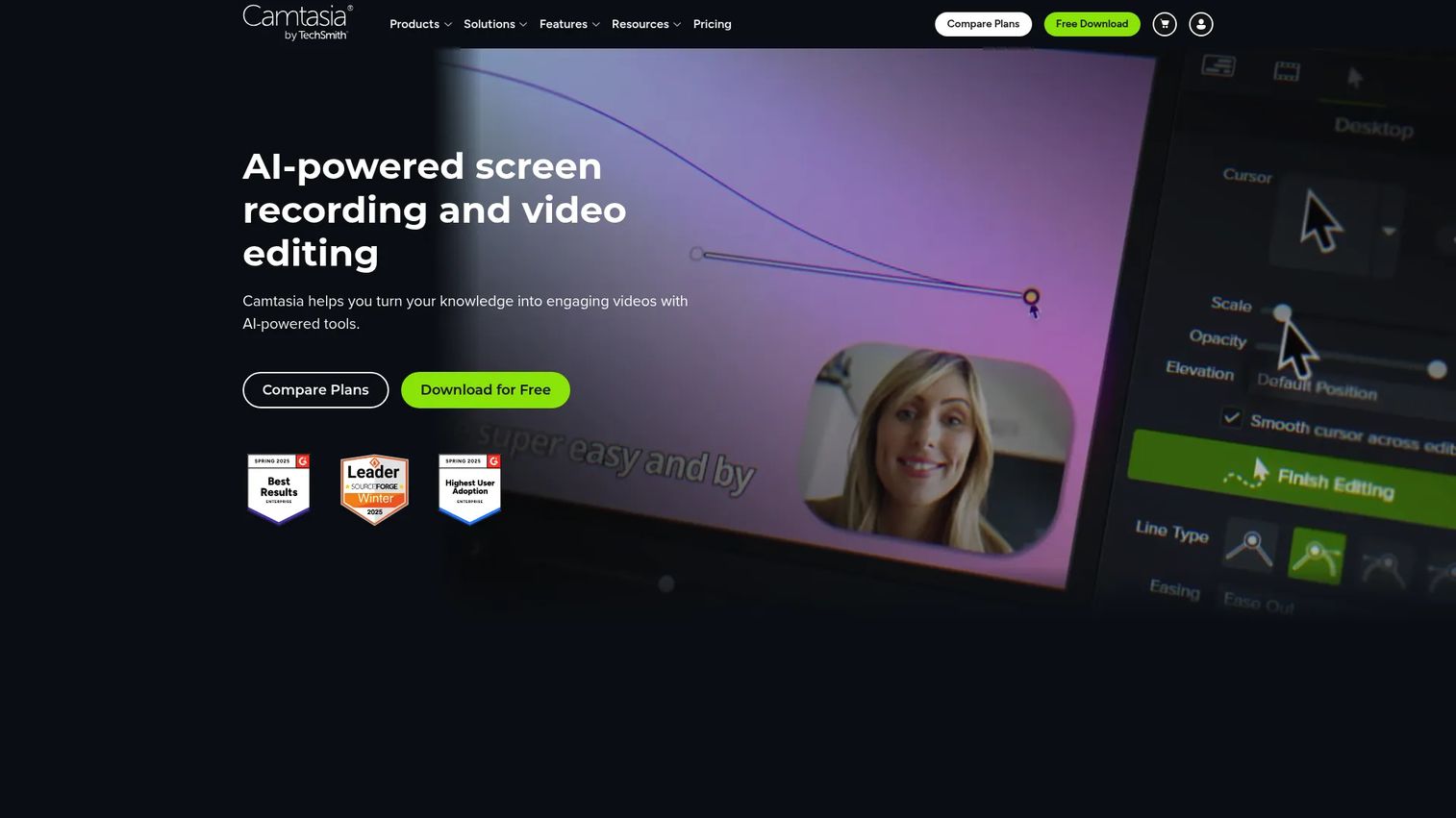
Camtasia is a mature screen recording and video editing platform from TechSmith, built for teams that need production-quality software tutorials without hiring a video production team. It covers the full workflow from capture to export, with a timeline editor, cursor effects, annotations, and AI-powered features including automated captions, background removal, and script generation. CS and training teams use it to build onboarding libraries, certification content, and product explainers that hold up over time.
Best for: Customer education and training teams producing polished software tutorials and formal onboarding libraries.
Key features
- Screen, webcam, and system audio recording with mouse highlighting
- Multitrack timeline editor with transitions, animations, and annotations
- AI-powered captions, transcription, background removal, and noise cleanup
- Script generation and AI voiceover for narration
- Templates and themes for brand consistency
Why choose Camtasia: Choose Camtasia when tutorial quality and longevity matter more than production speed. It earns its place for evergreen product education, certification programs, and onboarding assets that need a polished finish rather than a quick turnaround.
Camtasia pricing: Plans start at $39 per year (Starter), with Essentials at $179.88 per year and Create at $249 per year. The Pro plan runs $599 per year and adds advanced AI features and premium assets. A free trial is available.
G2 rating: 4.6/5
2. Loom
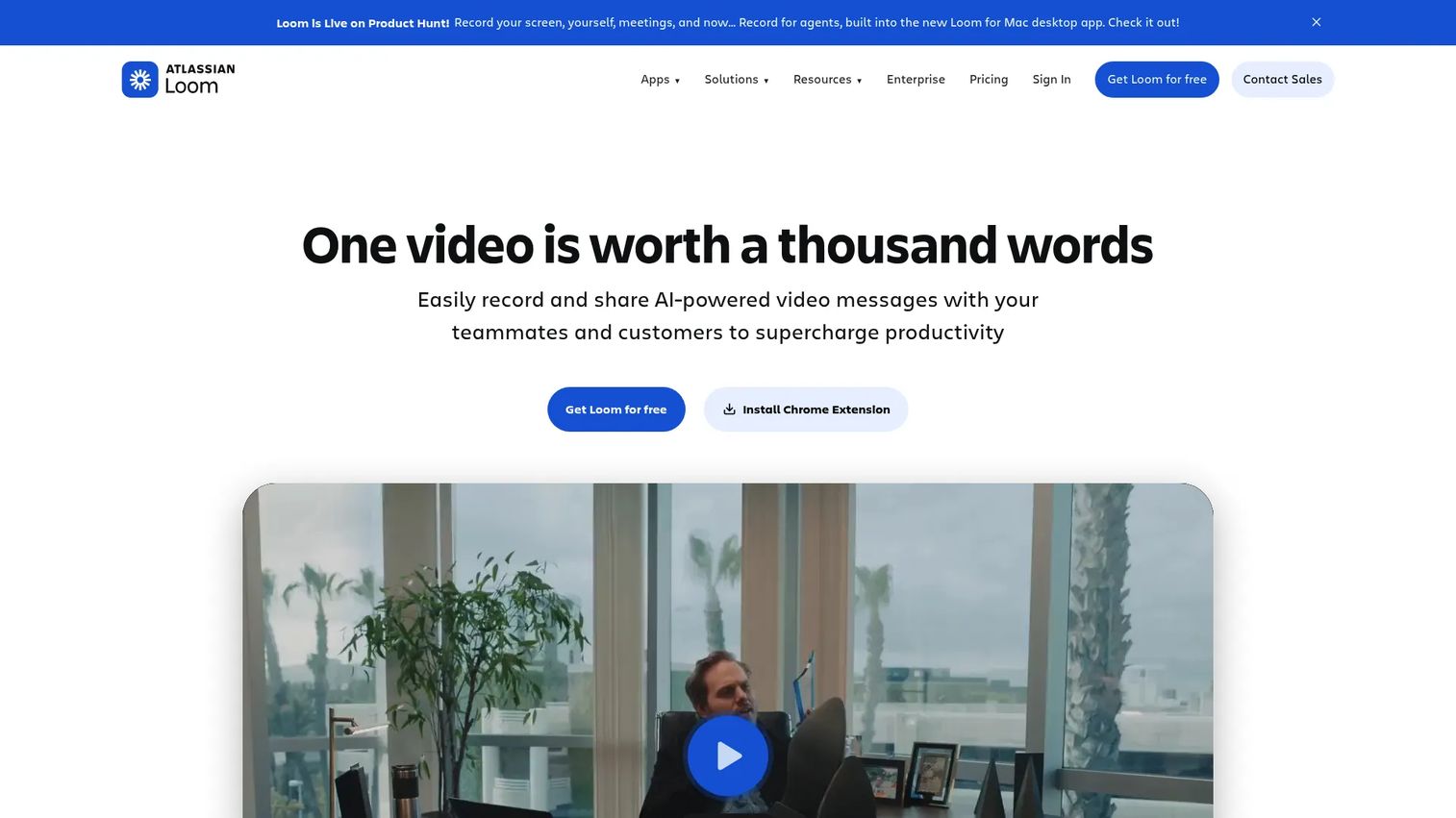
Loom is the tool most CS reps already have open in a browser tab. It records your screen, camera, or both, generates a shareable link immediately, and handles transcripts and captions automatically. The free Starter plan covers basic recording needs. Paid plans add unlimited video length, AI features, and workspace management. Loom works best for one-to-one explanations, quick support follow-ups, and short internal handoffs where personal context adds value.
Best for: CSMs who need fast async video for one-to-one customer explanations or internal team walkthroughs.
Key features
- Screen and camera recording with instant share links
- Video editing with trim, stitch, overlays, and background options
- Transcripts and auto-generated captions in 50+ languages
- Viewer engagement insights and reaction tracking
- Workspace video library with folders and permissions
Why choose Loom: Choose Loom when speed and personal presence matter more than structured production. It is well-suited to quick answers and reactive CS work, though it offers less structure for training libraries that need completion tracking or interactive elements.
Loom pricing: The Starter plan is free. Business plans cost $18 per user per month, and Business with AI adds up to $24 per user per month. Enterprise pricing requires a sales conversation.
G2 rating: 4.7/5
3. Vidyard
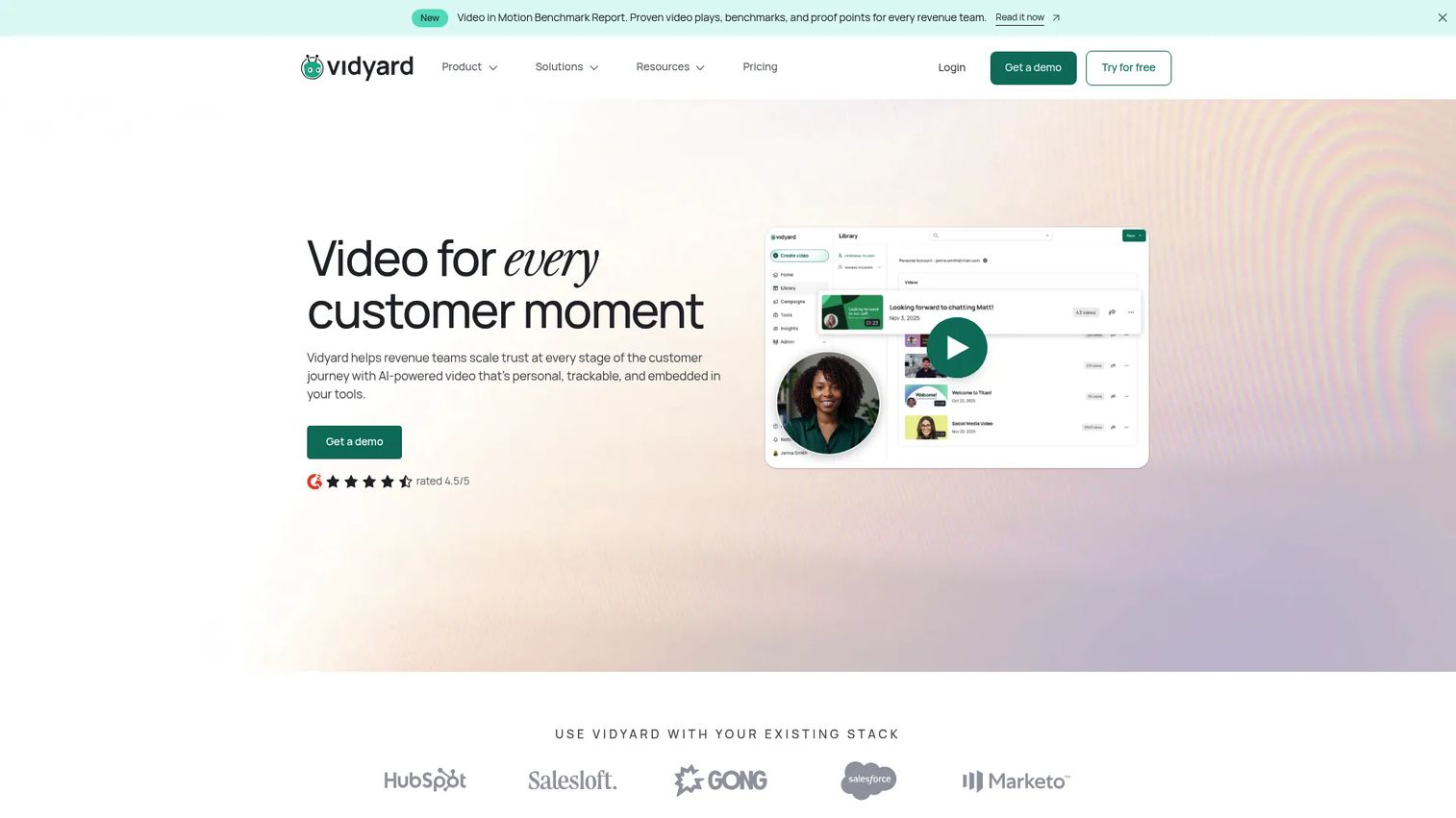
Vidyard is a business video platform for sales, marketing, and customer-facing teams. Beyond screen recording, it offers video hosting with branded sharing pages, viewer analytics, personalized video sharing, and CRM integrations. CS teams use it for customer-facing tutorial libraries where knowing who watched, how far they got, and whether they clicked a CTA matters as much as the video itself. Vidyard also includes AI Avatars and Video Agent workflows for teams scaling video without adding recording time.
Best for: Customer-facing teams that need video hosting, engagement analytics, and CRM-connected distribution for onboarding video software.
Key features
- Video recording, editing, and hosting with branded share pages
- Viewer analytics including watch time, completion, and CTA clicks
- AI Avatars and automated Video Agent workflows
- Personalized video sharing and password protection
- Integrations with HubSpot, Salesforce, and marketing automation tools
Why choose Vidyard: Choose Vidyard when distribution and measurement matter as much as recording. It fits CS teams running customer education at scale who want engagement data tied back to pipeline or account health signals.
Vidyard pricing: A free plan covers basic recording and sharing. The Starter plan runs $59 per seat per month (billed annually). Teams and Enterprise plans use custom pricing and add advanced analytics, permissions, and security.
G2 rating: 4.5/5
4. Guideflow
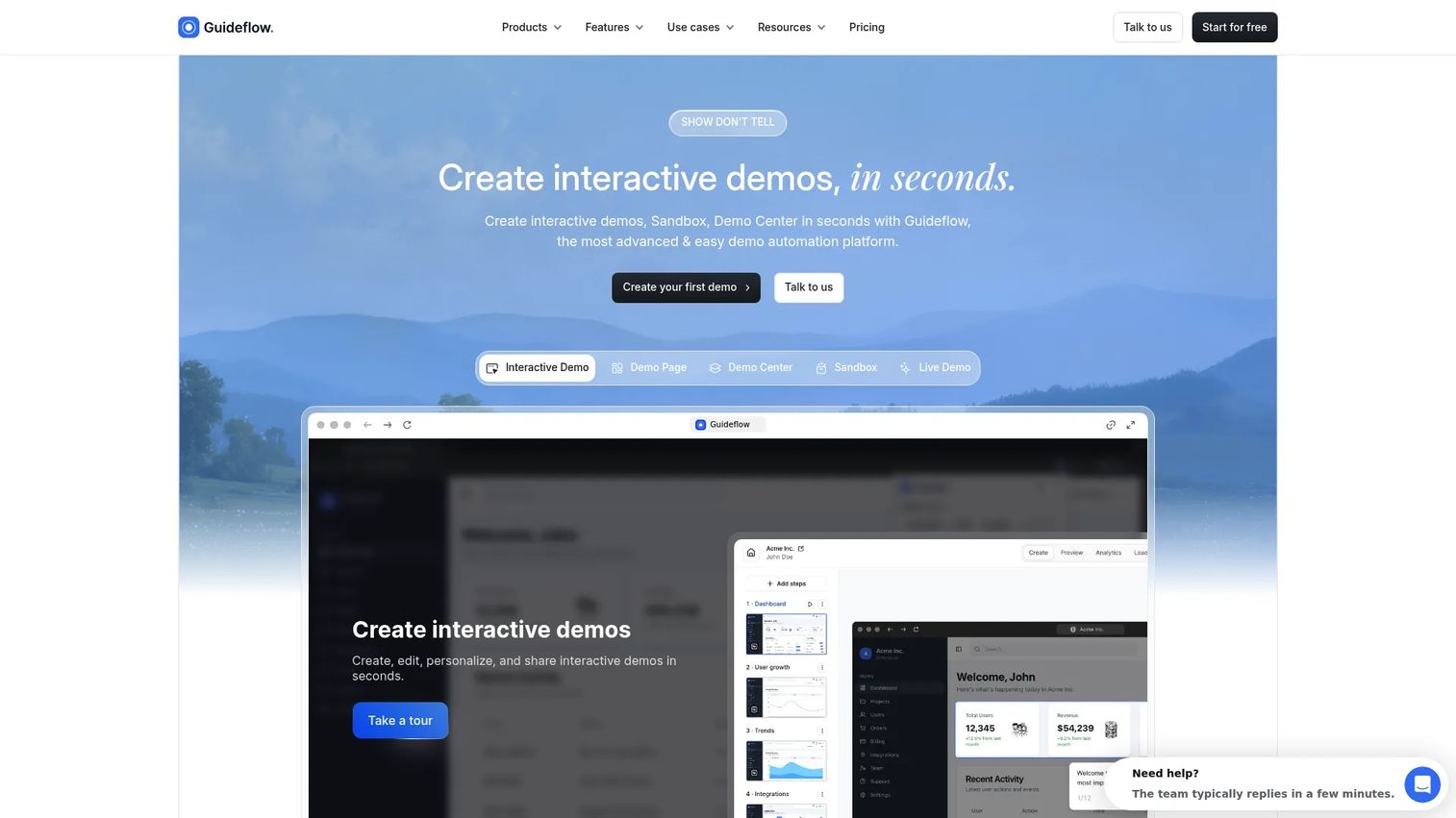
Guideflow is a demo automation platform that sits adjacent to conventional video tutorial software. Instead of producing a clip customers watch, it creates a clickable product experience customers follow, step by step, inside a guided interface that mirrors your actual product. CS teams use it for onboarding flows, feature adoption campaigns, support documentation, help center embeds, and self-serve training, anywhere the learning outcome depends on doing rather than watching.
The core difference for CS: A video tutorial shows the path. A Guideflow interactive demo puts the customer on it. Step-level analytics reveal completion rate and the exact drop-off step, so you know which part of onboarding is losing people before they open a ticket. Guideflow's suite covers Interactive Demo, Sandbox, Demo Center, Mobile Demo, and Live Demo as complementary formats for different moments in the customer journey.
Best for: CS teams that need customers to actively follow product flows, with measurable completion and drop-off at each step.
Key features
- Interactive demos, sandboxes, and demo centers in one platform
- Step-level analytics: Completion rate, drop-off, and viewer identity
- Demo personalization with editable text, images, and datasets
- Lead forms, surveys, and CRM integrations
- Mobile demos and live demo formats for different delivery contexts
Why choose Guideflow: Choose Guideflow when customers keep rewinding the video because they are trying to match a recording to their own account. For onboarding, feature adoption, and support education where CS leadership needs to prove impact, the engagement data it generates, specifically what step users abandon, is the measurement that passive video cannot provide.
Guideflow pricing: A free plan is available. Solo costs $35 per month (billed annually). Growth runs $499 per month and Advanced $1,499 per month. Enterprise pricing starts at approximately $2,999 per month. A monthly billing option is also available at higher rates.
G2 rating: 5.0/5
Start your journey with Guideflow today!
5. ScreenPal
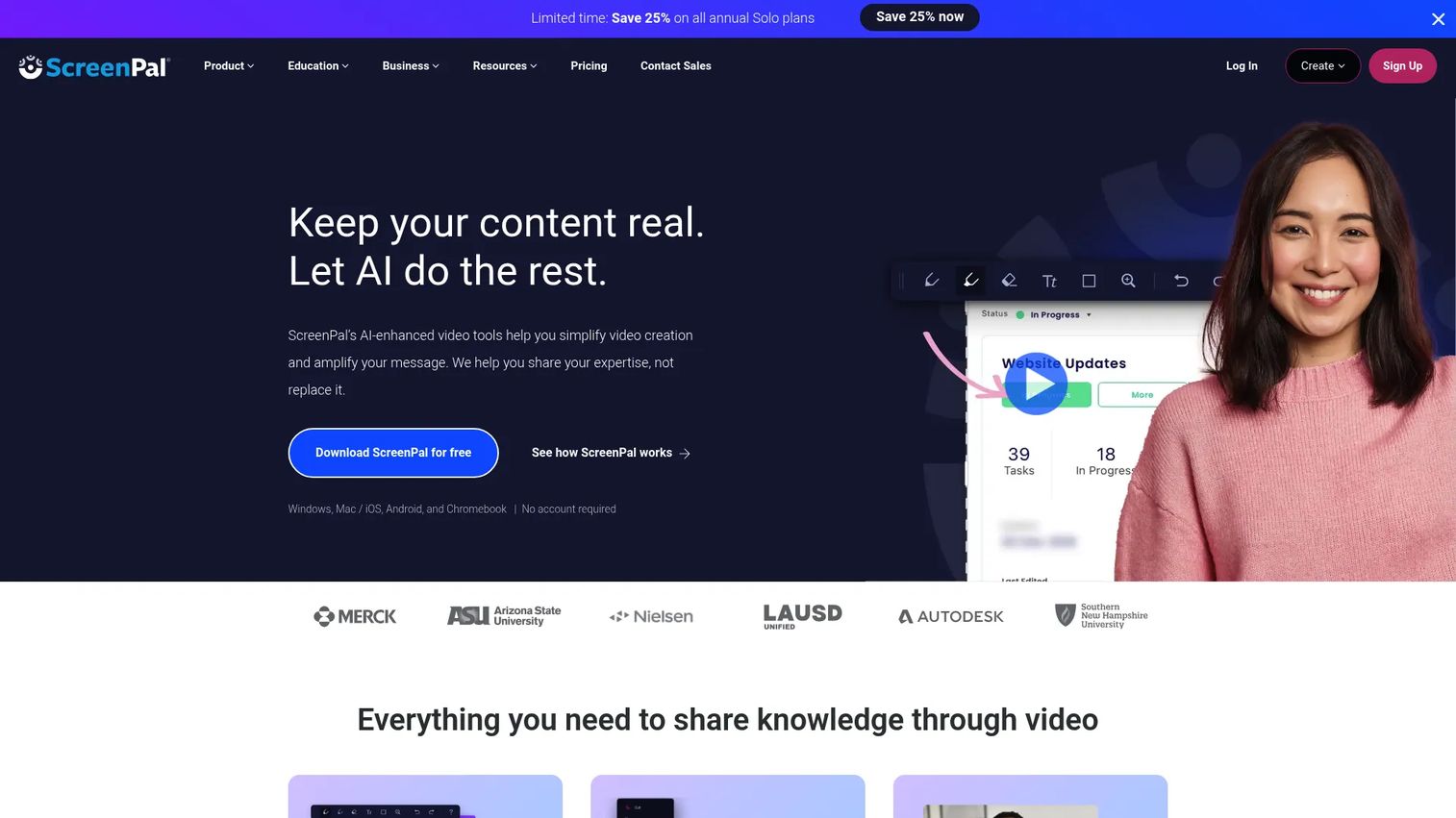
ScreenPal covers screen recording, video editing, hosting, and interactive video features at a price point that suits individual contributors and small CS teams. It records screen and webcam together, includes a lightweight editor, and hosts the output with sharing controls. Paid plans add AI-generated transcripts, captions, translations, and interactive quizzes or polls you can embed inside the video itself. For teams creating many simple how-to videos without a dedicated production workflow, ScreenPal reduces the tool count without sacrificing the basics.
Best for: Teams producing high volumes of simple tutorial videos affordably, without needing a heavy editing workflow.
Key features
- Screen and webcam recording with annotation tools
- Video editor with trim, cuts, text overlays, and music
- AI-generated transcripts, captions, chapters, and summaries
- Interactive quizzes, polls, and buttons inside videos
- Secure hosting and sharing with access controls
Why choose ScreenPal: Choose ScreenPal when budget is a constraint and the tutorial job is straightforward. It handles the core CS use case, recording a process and sharing it with a customer, without requiring a subscription that rivals more expensive options.
ScreenPal pricing: A free plan covers core recording, editing, and hosting. The Deluxe plan costs $4 per month. Max runs $10 per month, and the Business plan is $8 per user per month. Billing details vary by plan.
6. Guidde
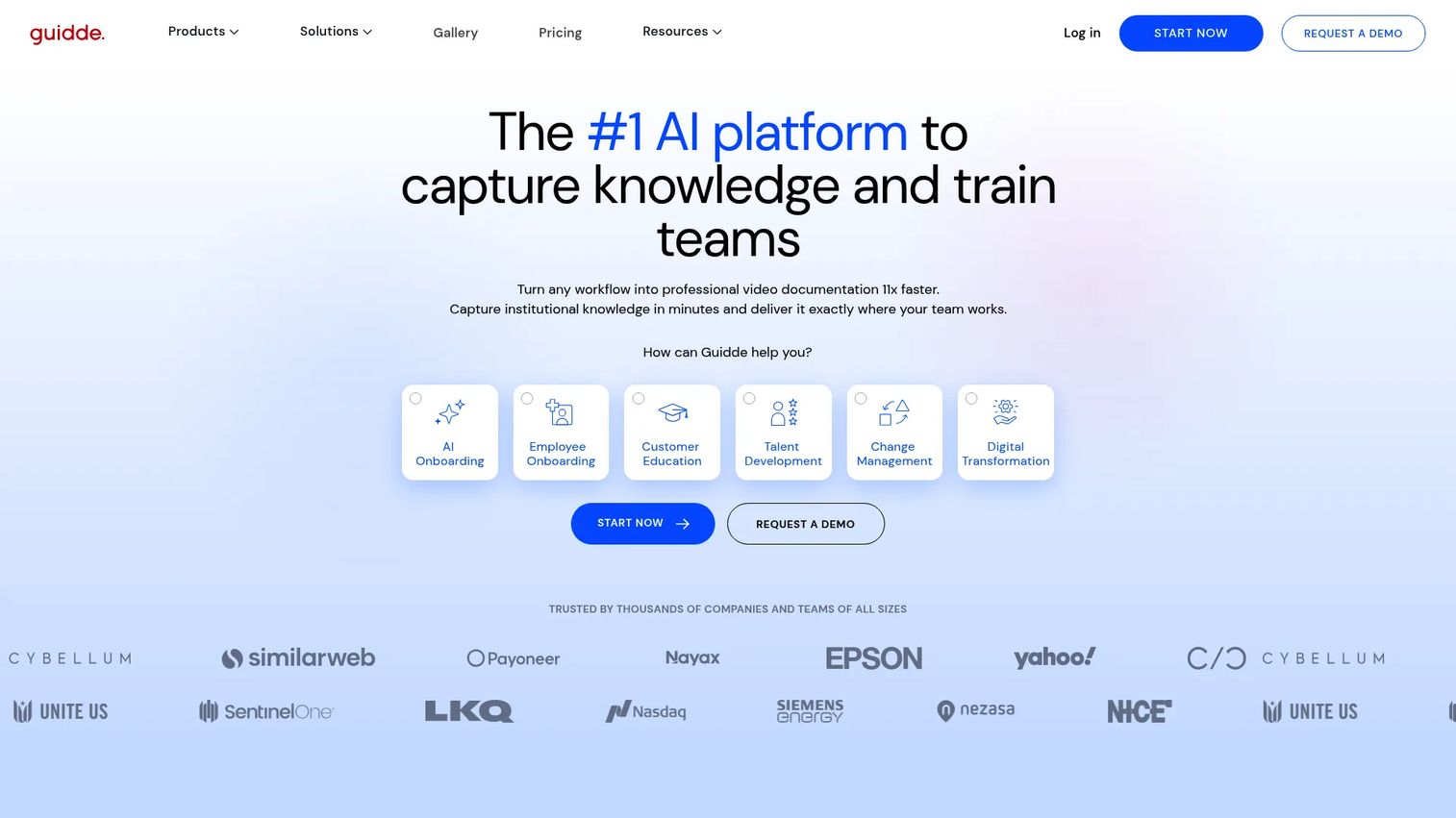
Guidde captures workflows through a browser extension, mobile app, or desktop app, then uses AI to generate a structured step-by-step script, narration with 200+ voices, and a shareable guide in minutes. For CS teams drowning in repeated "how do I" questions, Guidde converts those answers into reusable how-to videos without requiring recording time or editing skills. It also auto-translates into 50+ languages, which matters for global customer bases.
Best for: Teams turning repeated customer questions into narrated process guides quickly, without manual recording or scripting.
Key features
- Browser extension, mobile, and desktop workflow capture
- AI-generated step scripts and voiceover with 200+ voices
- Advanced editor for scripts, design, audio, and interactive links
- Auto-translation into 50+ languages
- Smart sharing and PDF, MP4, or embed export
Why choose Guidde: Choose Guidde when documentation and video need to come from the same captured workflow and manual scripting is the bottleneck. It compresses the time from "I explained this on a call" to "here is the shareable guide" significantly.
Guidde pricing: A free plan covers up to 25 how-to videos. Pro costs $19 per creator per month (billed annually) and removes the watermark and limits. Business runs $39 per creator per month and adds interactive demos, analytics, and desktop app support. Enterprise pricing is custom.
G2 rating: 4.8/5
7. Synthesia
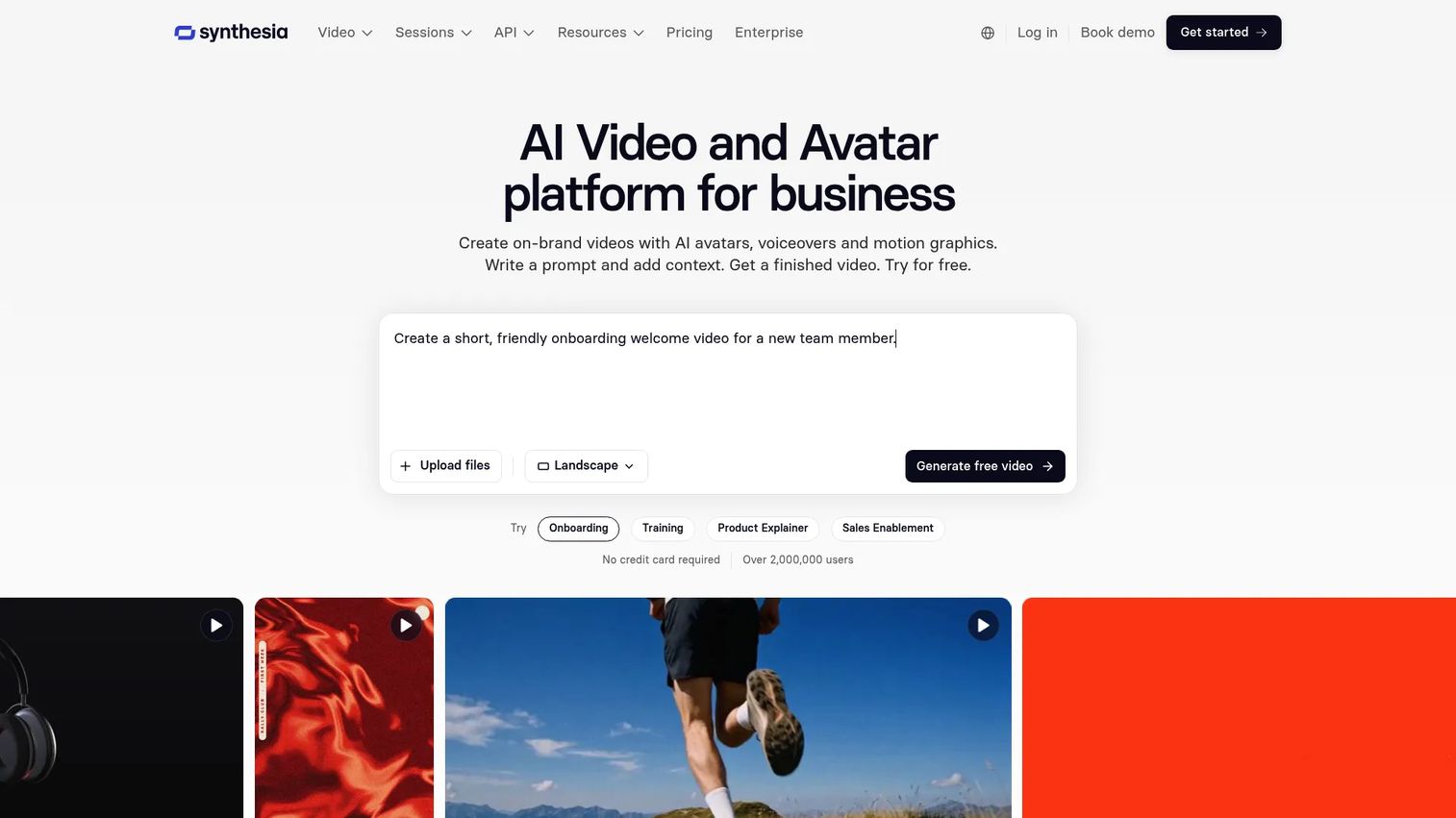
Synthesia generates training and onboarding videos from a script, using AI avatars in place of a human presenter. You write the content, pick an avatar and language, and Synthesia produces a presenter-led video without anyone needing to sit in front of a camera. It is not primarily a screen recorder, so for tutorials that require showing specific product UI steps, teams often pair it with a screen capture tool. Its strength is consistent, scalable, multilingual training content.
Best for: CS and training teams producing consistent presenter-style videos, compliance explainers, or multilingual onboarding content without filming.
Key features
- AI avatars with customizable appearance and voice
- Script-to-video generation from documents and prompts
- Video dubbing and translation into multiple languages
- Video templates for training and communications
- Brand kits for consistent styling
Why choose Synthesia: Choose Synthesia when the team needs to produce a large volume of narrated training videos and the camera is the bottleneck. Screen-specific software tutorials will still need a separate capture step, but Synthesia handles the presenter layer at scale.
Synthesia pricing: A Basic free plan is available. Starter costs $29 per month and Pro costs $89 per month on monthly billing. Enterprise pricing is custom and includes advanced avatar and security features.
G2 rating: 4.6/5
8. ngram Studio
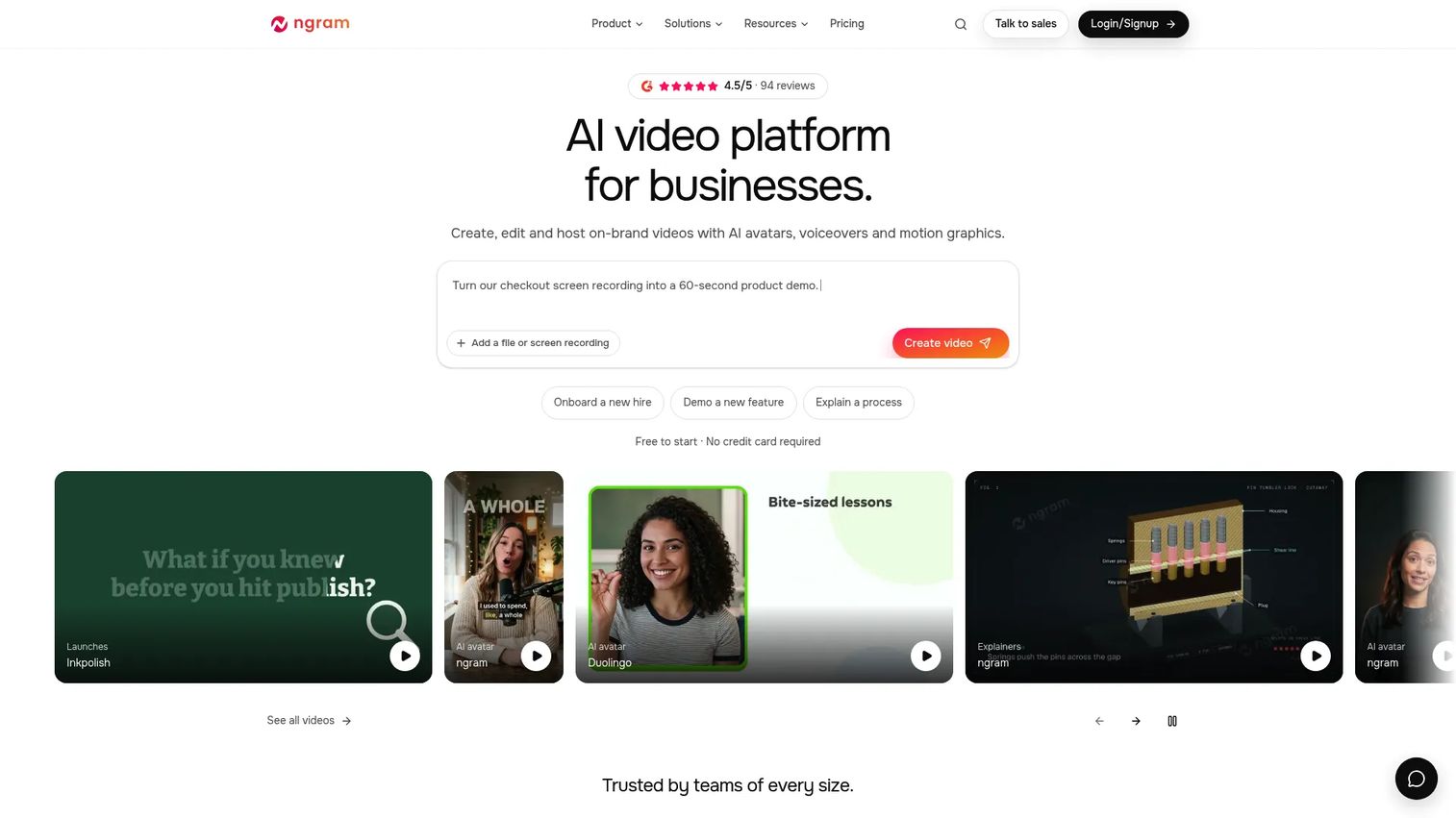
ngram Studio is an AI video creation platform that produces business and product videos from prompts, source material, existing recordings, or screen captures. Product and CS teams use it to create branded tutorial content with AI avatars, voiceover, and storyboards, then host the results with quizzes, embeds, and access controls. It supports brand kits and team collaboration, making it a reasonable fit for teams that need structured tutorial production beyond one-off recordings.
Best for: Product, marketing, and CS teams creating branded tutorial videos with AI assistance, structured workflows, and hosting in one platform.
Key features
- AI video generation from prompts, source material, and recordings
- AI avatars, voiceover, visuals, and storyboard generation
- Video editor with script, canvas, timeline, and caption tools
- Brand kits and team collaboration
- Video hosting with embeds, quizzes, and action buttons
Why choose ngram Studio: Choose ngram Studio when you need a structured production workflow for software tutorials that goes beyond ad hoc screen recording. The credit-based model suits teams with predictable monthly output volumes.
ngram Studio pricing: A free plan includes 1,000 monthly credits. The Basic plan costs $29 per month ($23.20 per month on annual billing). Premium runs $59 per month and Ultimate $299 per month, with annual discounts available. Enterprise pricing is custom.
G2 rating: 4.5/5
9. Browser Handoff
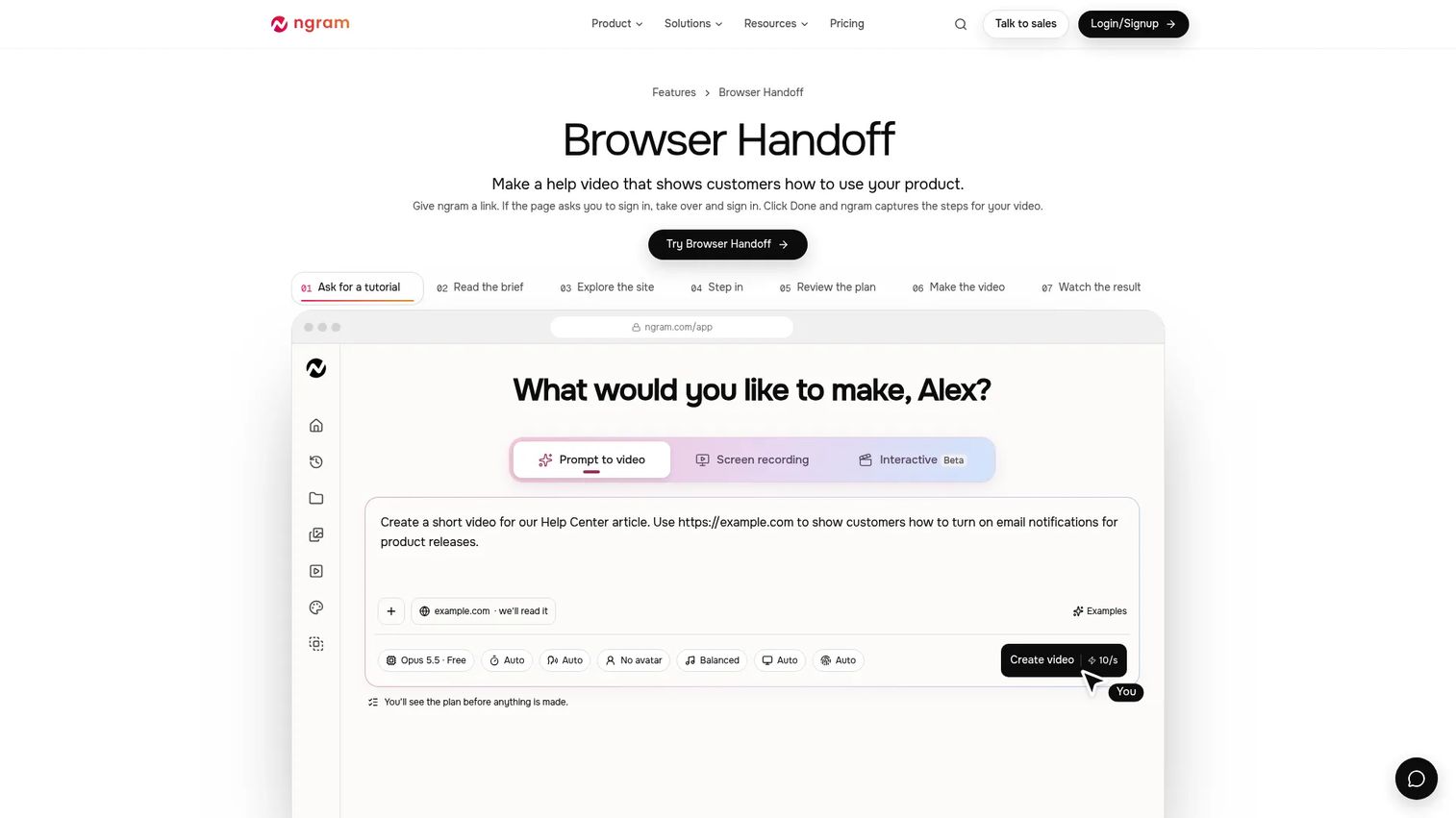
Browser Handoff is a feature within the ngram platform that lets the AI browse your product interactively, including screens behind a login, to capture workflows for help center tutorial videos. You hand control to ngram's browser, sign in yourself, and navigate the flow you want to document. ngram then proposes scenes and narration based on what it captured. This solves a real CS problem: Creating accurate tutorials for authenticated product screens without manually recording every step yourself.
Best for: Support and CS teams creating tutorials for workflows that live behind a login screen, without manual screen-by-screen recording.
Key features
- Interactive browser exploration of product URLs including authenticated workflows
- User-controlled sign-in during the capture session
- AI-generated scene proposals and narration from captured steps
- Supported by attended Studio sessions for private or complex flows
- Integrates with ngram's full video editing and hosting suite
Why choose Browser Handoff: Choose Browser Handoff when the tutorials you need to create live inside your product and manual recording is the time cost you want to cut. Because it sits inside ngram, the output feeds directly into the full editing and hosting workflow.
Browser Handoff pricing: Pricing follows the ngram model. Free plan includes 1,000 credits per month. The Basic plan is $29 per month, Premium $59 per month, and Ultimate $299 per month. Annual billing reduces rates, and Enterprise pricing is custom.
G2 rating: 4.5/5 (rated as ngram)
10. OBS Studio
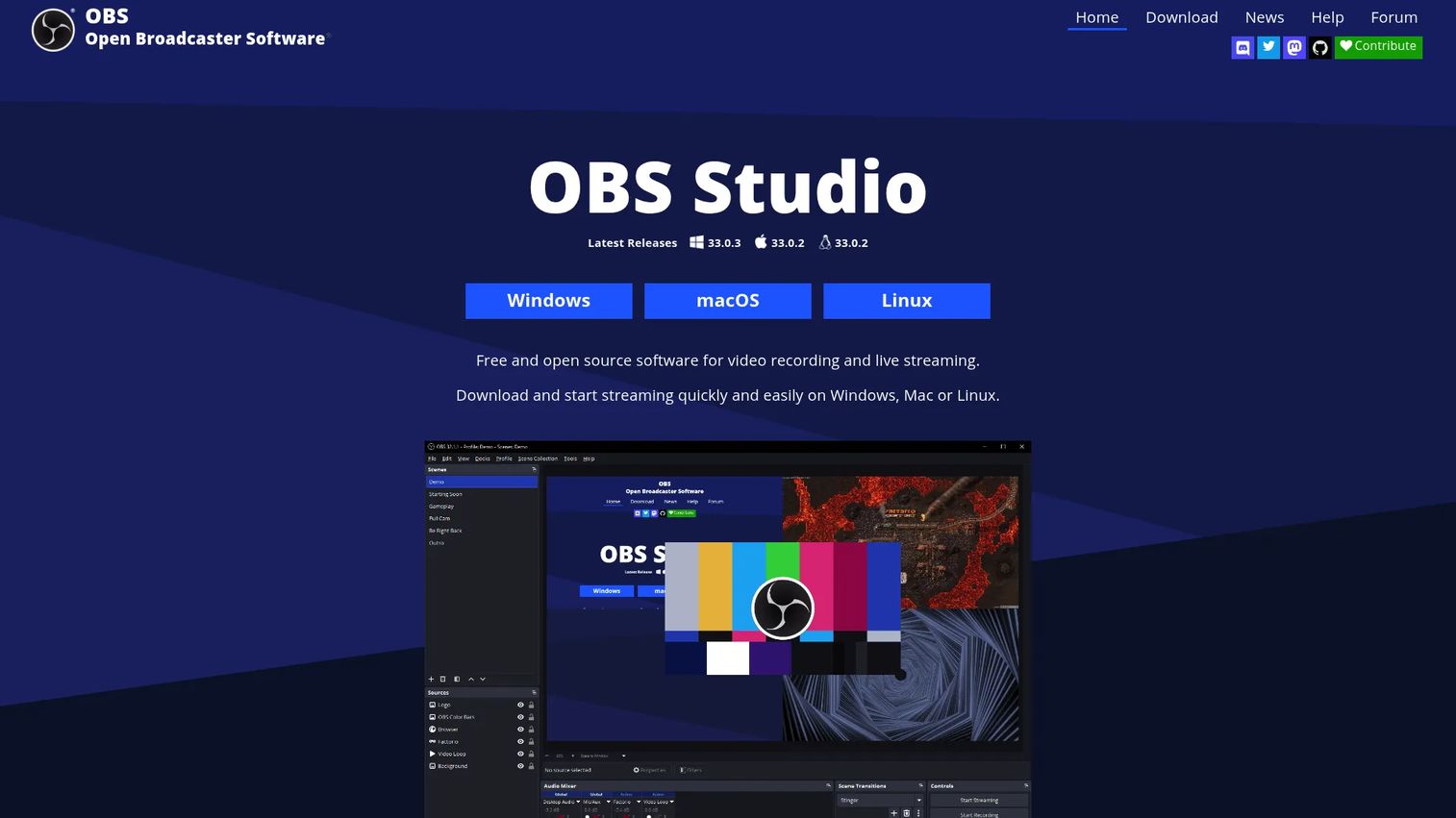
OBS Studio is free, open-source recording and streaming software used by educators, content creators, and technical teams worldwide. It gives you full control over scenes, audio sources, capture inputs, and streaming outputs, with no watermarks and no paywalled features. The setup takes more configuration than consumer-friendly screen recorders, so it rewards teams with someone comfortable managing recording settings. For CS teams without a tool budget, it covers the capture layer completely.
Best for: Technical teams that need a free, fully controllable recording setup and are comfortable managing scene and audio configuration.
Key features
- Real-time video and audio capture and mixing
- Multiple scene composition with any combination of sources
- Customizable scene transitions and Studio Mode for preview
- Audio mixer with per-source filters and equalization
- Plugin and script support for extended functionality
Why choose OBS Studio: Choose OBS Studio when cost is the hard constraint and someone on the team can handle the initial setup. The recording quality ceiling is high, but CS teams will likely need separate tools for editing, hosting, and analytics on top of it.
OBS Studio pricing: Completely free. No paid tiers exist.
G2 rating: 4.6/5
11. ScreenFlow
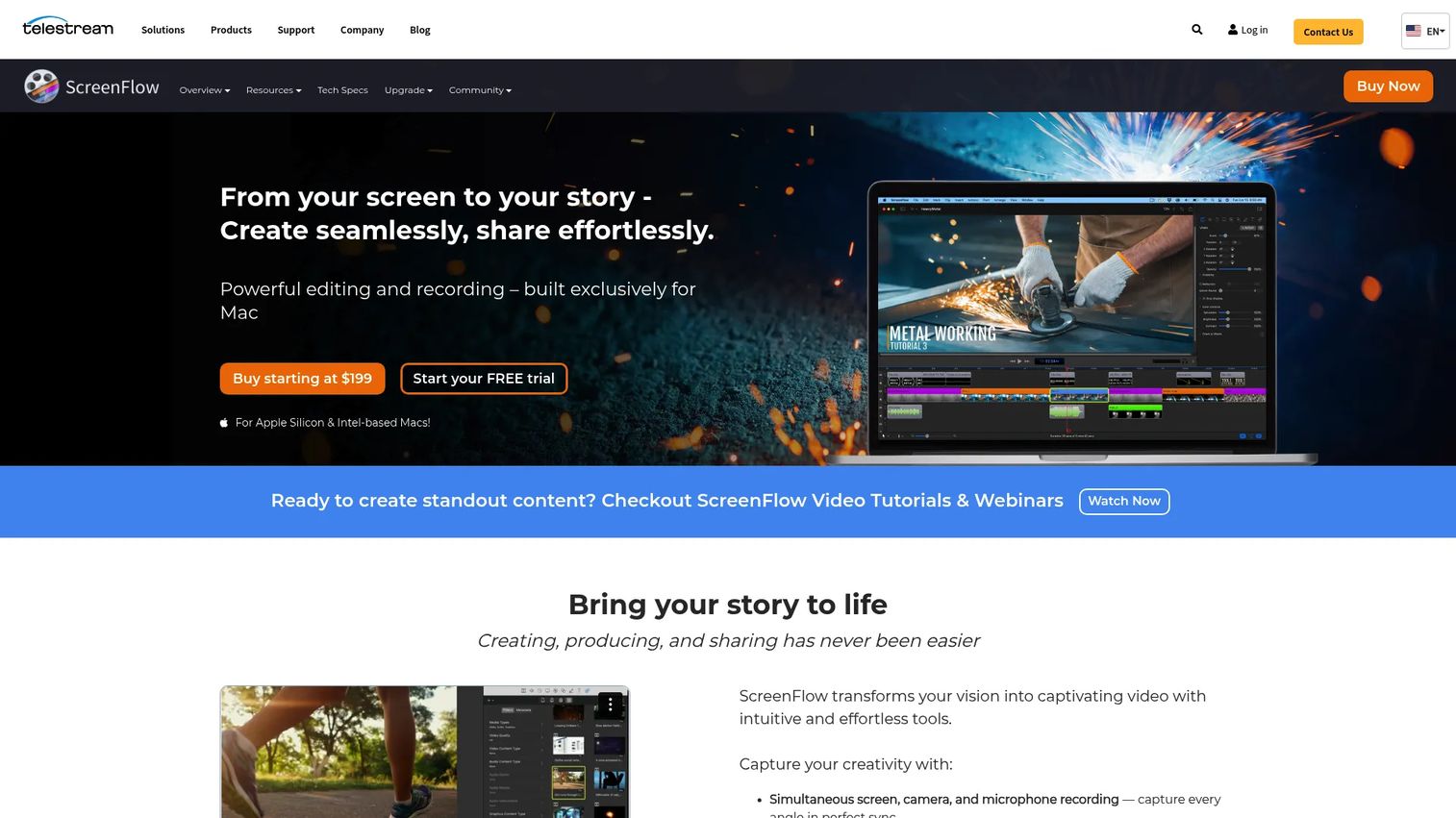
ScreenFlow is a Mac screen recording and video editing application sold as a one-time purchase rather than a subscription. It records screen, camera, microphone, and system audio simultaneously, then provides a timeline editor with transitions, text animations, motion graphics, and multi-channel audio. Mac-based CS teams that want polished editing control without committing to monthly fees tend to find ScreenFlow a sensible fit. A free trial is available with watermarked exports.
Best for: Mac users who want one-time-purchase screen recording and editing for training videos and product documentation.
Key features
- Simultaneous screen, camera, and microphone recording
- Timeline editor with transitions, text animations, and annotations
- iOS recording support
- Built-in stock media library
- ProRes and MP4 export, plus animated GIF export
Why choose ScreenFlow: Choose ScreenFlow when your team works on Mac, wants strong editing control, and prefers a one-time cost over a monthly subscription. Teams needing interactive product education or completion analytics will want a separate tool alongside it.
ScreenFlow pricing: ScreenFlow costs $199 as a one-time purchase. A Super Pak bundle with the Stock Media Library is $275, and a Super Pak+ with premium support is $325. The Stock Media Library renews at $99 per year after the first year.
G2 rating: 4.5/5
12. Vmaker AI
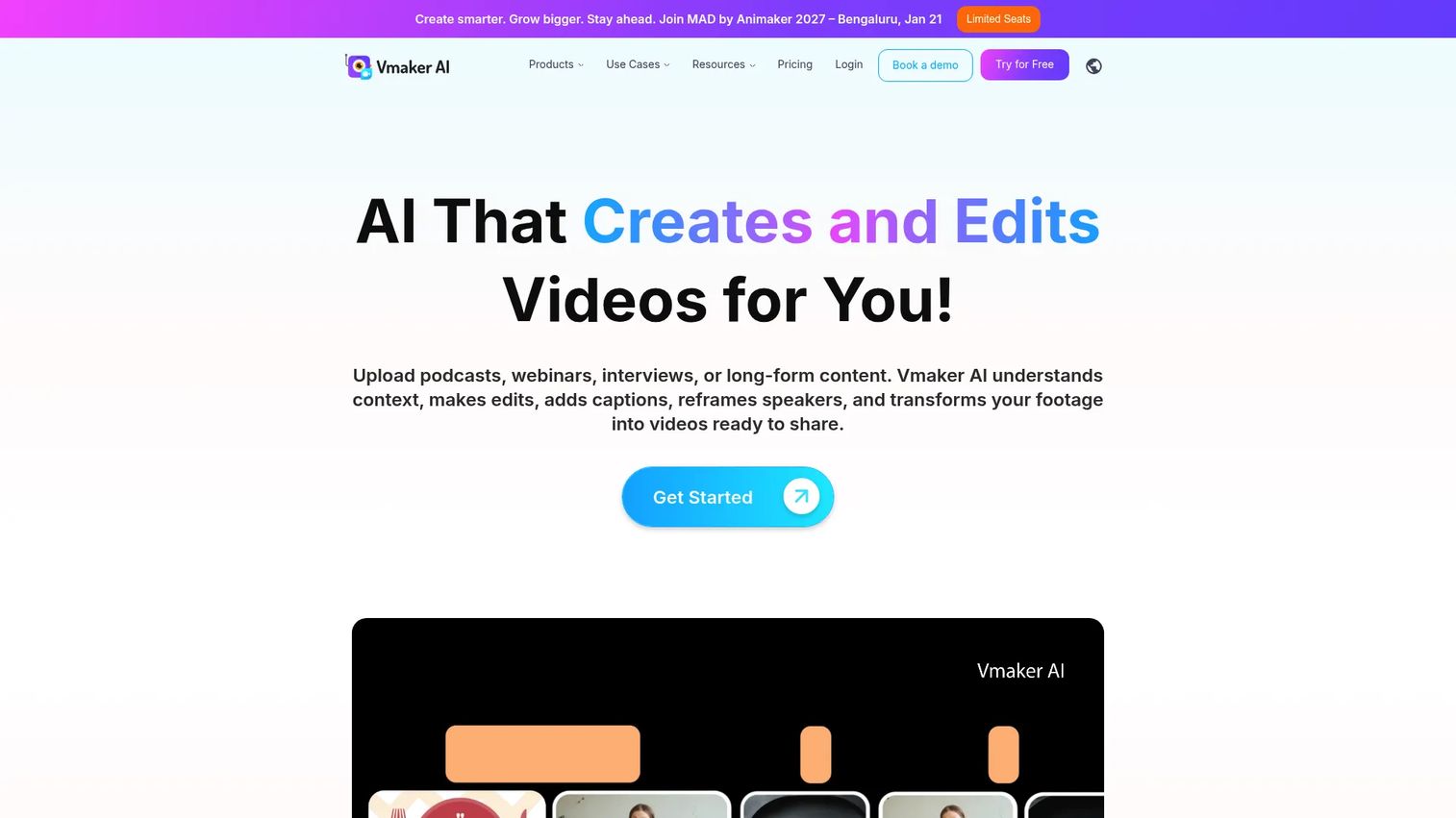
Vmaker AI combines screen and webcam recording up to 4K with an AI-powered editing suite that handles subtitle generation in 35+ languages, long-to-short video conversion, background removal, B-roll suggestions, and AI avatar video generation. For CS teams creating tutorial videos without a dedicated editor, Vmaker AI compresses the gap between recording and a finished, shareable asset. The document-to-video feature is useful for turning existing help content into narrated video.
Best for: Teams wanting to go from screen recording to edited, subtitled tutorial video without manual editing work.
Key features
- Screen and webcam recording up to 4K
- AI video editor with reframing, B-roll, and subtitle generation in 35+ languages
- AI avatar video generation
- Document-to-video conversion
- Video background removal
Why choose Vmaker AI: Choose Vmaker AI when the editing step is what slows tutorial production. Its AI handles the parts that usually require a dedicated editor, making it a practical fit for CS teams creating high volumes of product education videos quickly.
Vmaker AI pricing: A free plan is available. The Starter plan costs $18 per month (billed annually at $216). Teams costs $25 per month (billed annually at $300). Enterprise pricing is custom.
G2 rating: 4.7/5
13. VideoMule
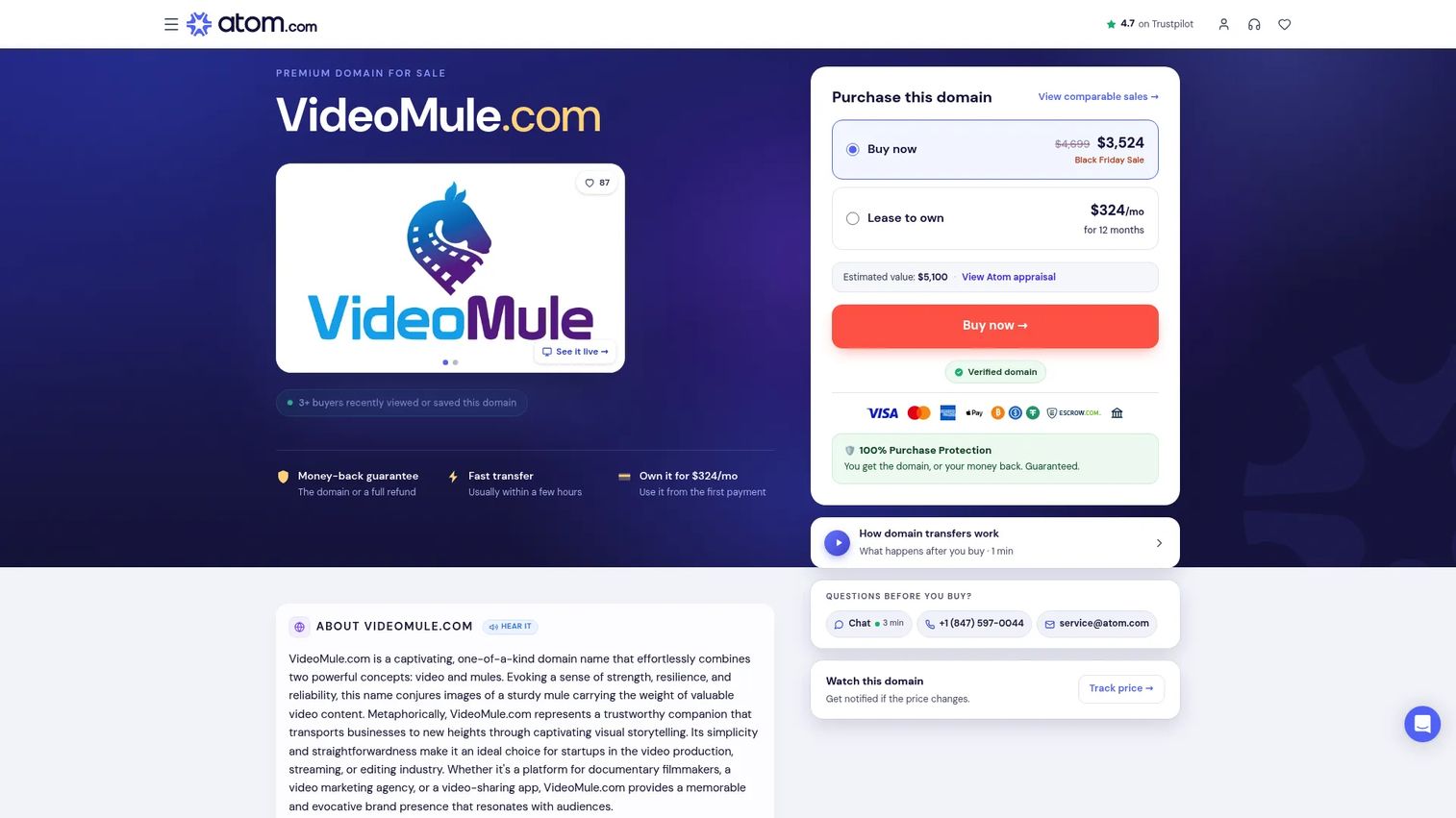
VideoMule appears in the AI tutorial creation space. At the time of this article's research, the domain associated with VideoMule redirected to a domain sales page rather than an active software product, and no first-party features, pricing, or G2 rating could be confirmed. If you are evaluating VideoMule, check the current site status directly before proceeding. For teams looking for an AI-assisted tutorial creation tool in this space, Vmaker AI, Guidde, and Synthesia are verified alternatives with live products.
Best for: Verify current product status before evaluating.
Key features
- AI tutorial creation
- Script support
- Voiceover generation
- Editing assistance
- Beginner templates
Why choose VideoMule: Evaluate only after confirming the product is currently active and accepting new users. The features listed above reflect the tool's stated positioning prior to the current site redirect.
VideoMule pricing: Contact the vendor directly to verify current availability and cost.
14. Trainn
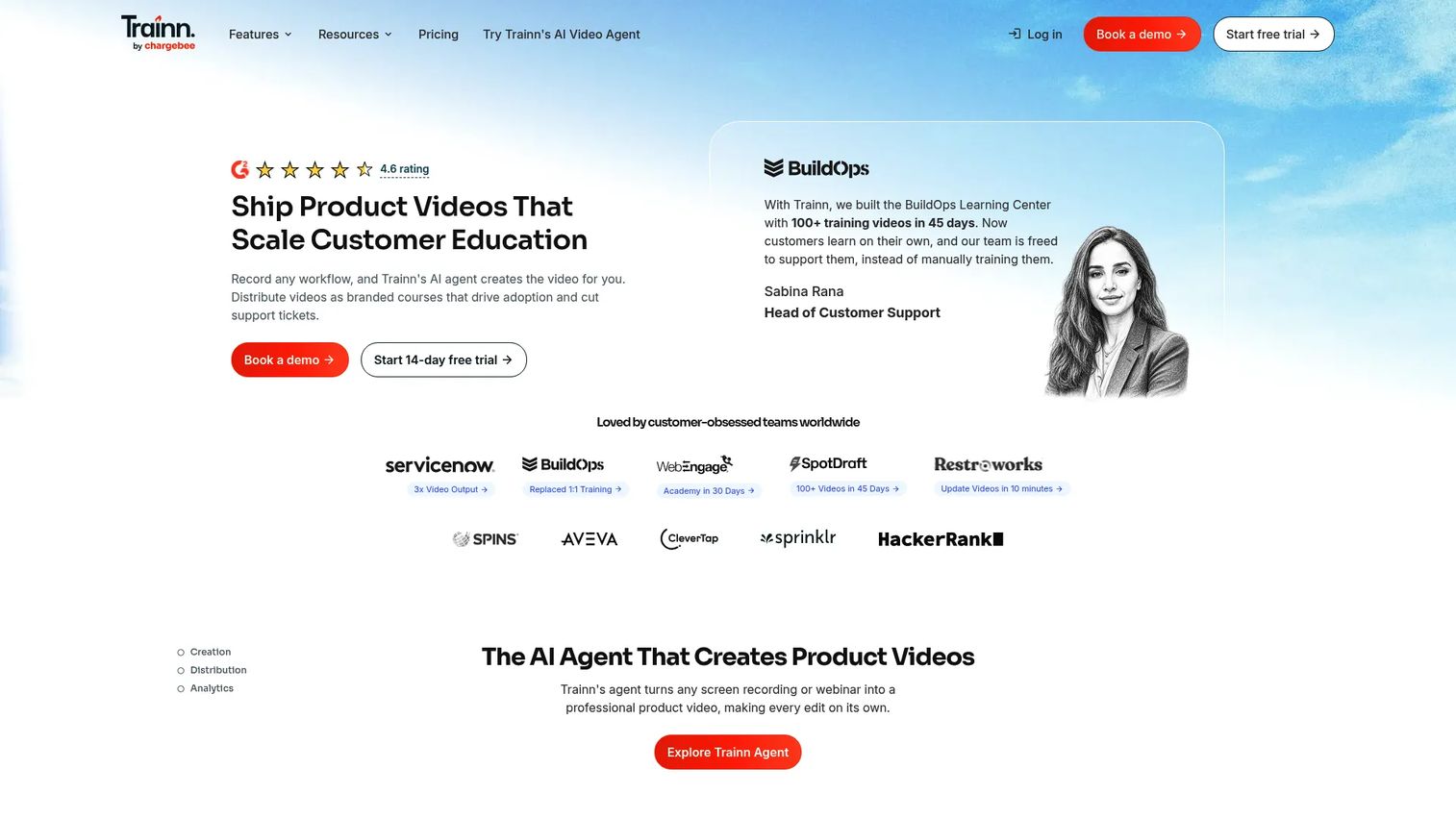
Trainn is an AI-powered customer education platform for SaaS teams creating product training content at scale. It generates videos and step-by-step guides from screen recordings using AI voiceover, captions, zooms, and spotlights. The platform includes a knowledge hub, an LMS with learner tracking, and in-app tutorial delivery. For CS teams building a formal customer education program with structured courses and measurable completion, Trainn covers the full stack from content creation to delivery.
Best for: SaaS CS teams building repeatable customer education programs with video, guides, an LMS, and a branded knowledge hub.
Key features
- AI video and guide generation from screen recordings
- AI voiceovers, captions, summaries, zooms, and spotlights
- Shareable links, embeds, and in-app tutorial delivery
- LMS with learner tracking and course structure
- Branded knowledge hub for customer self-service
Why choose Trainn: Choose Trainn when customer training is the primary job and you need a platform that handles creation, delivery, and measurement in one place. The LMS and knowledge hub make it a stronger fit for structured education programs than for quick one-off video creation.
Trainn pricing: The Creator plan costs $19 per month and covers one user and 15 videos or guides. Launch costs $2,400 per year and covers three users. Scale runs $10,000 per year with five users, an LMS, and a branded knowledge hub. Enterprise is $39,900 per year. Trials are available for paid plans.
G2 rating: 4.5/5
15. Visla
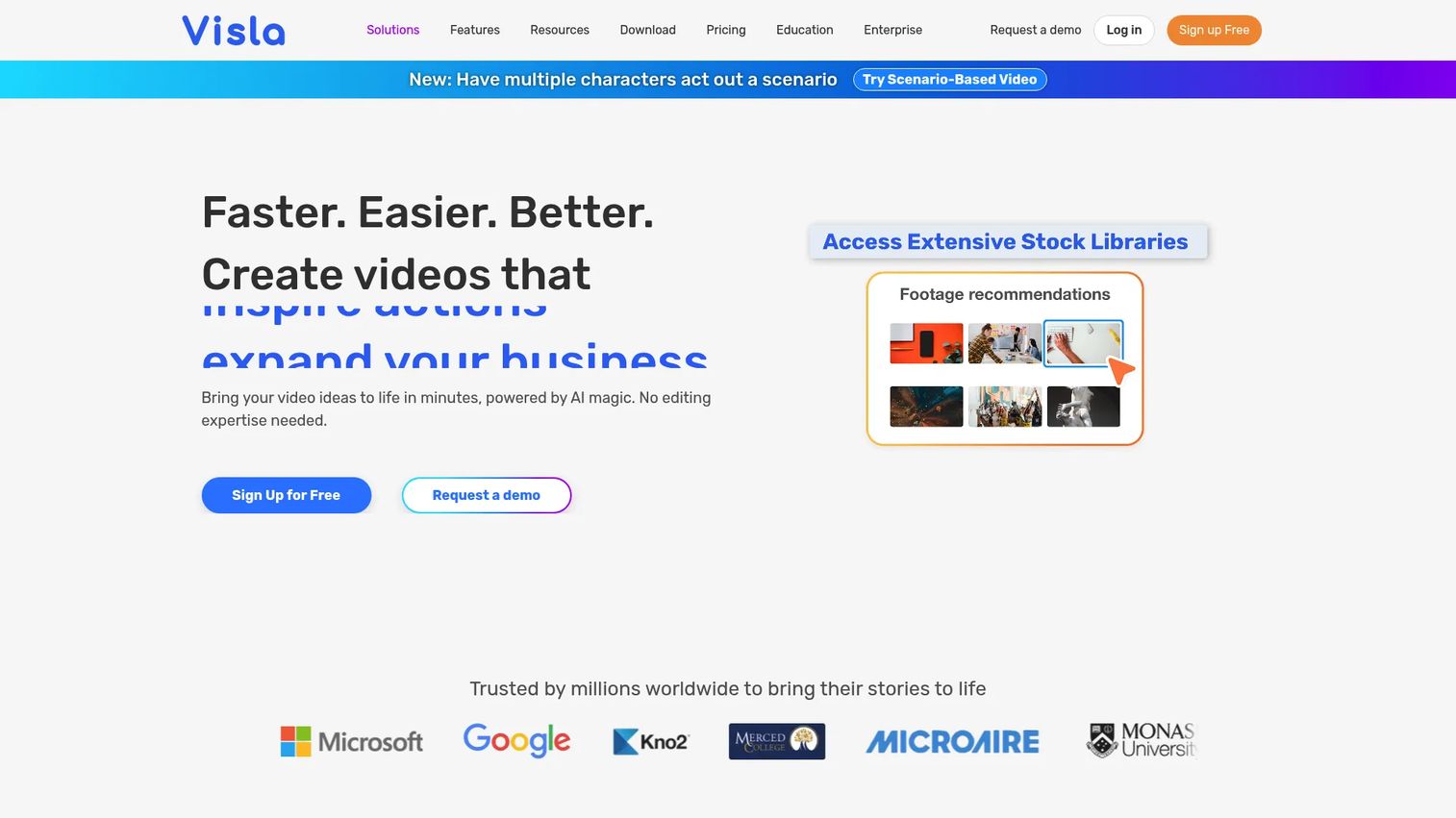
Visla is an AI video creation and editing platform for businesses and teams. It generates videos from scripts, text, webpages, PDFs, and presentations, and supports transcript-based editing, screen and meeting recording, voice cloning, synthetic voiceover, and avatar generation. Teams use it for collaborative video production where multiple people contribute to a shared workspace. For CS teams creating broader tutorial and training content beyond screen capture, Visla handles the AI-assisted assembly layer.
Best for: Teams that need AI-assisted video creation beyond basic screen capture, with script-to-video, collaboration, and multilingual output.
Key features
- AI video creation from scripts, text, webpages, and PDFs
- Transcript-based and scene-based video editing
- Screen, video, and meeting recording
- Voice cloning, synthetic voiceover, and avatar generation
- Collaborative workspaces with comments, sharing, and embedding
Why choose Visla: Choose Visla when tutorial creation involves scripted content, team collaboration, or broader video production that goes beyond product screen recording. It handles more of the AI content generation layer than a dedicated screen recorder.
Visla pricing: A free tier is available. Paid plan names include Pro, Business, and Enterprise, but numeric pricing was not publicly displayed at drafting time. Contact Visla directly for current rates.
G2 rating: 4.6/5
Considerations when choosing video tutorial software
Match the output to the learning job
A polished training video and a quick screen capture serve different purposes. Before choosing a tool, ask: "Will the customer finish this and take the next action?" For multi-step product flows where active participation drives retention, passive video may not be the right format. If the goal is adoption, consider whether a clickable product experience would close the gap faster than a recording.
Check how much editing your team can sustain
A well-produced tutorial is only useful if the team can update it when the product changes. If your product ships updates frequently, favor tools with reusable assets, easy single-step edits, or formats that do not require a complete re-record for small UI changes. OBS and Camtasia produce high-quality outputs, but those outputs need manual maintenance. Shorter tutorials and tools that simplify editing reduce that burden.
Measure more than views
Views do not confirm that a customer learned anything or completed the task. Push vendors on whether they provide completion rate, drop-off step, repeat views, viewer identity, and downstream signals like ticket volume reduction or feature adoption. CS teams that connect tutorial engagement to customer outcomes, rather than just view counts, are the ones able to show leadership that the investment is working.
Plan for captions, accessibility, and localization
CS content reaches customers with different language preferences, learning styles, and accessibility needs. Evaluate whether the tool generates captions automatically, supports subtitle export, and covers the languages your customer base uses. Tools like Guidde (50+ languages) and Vmaker AI (35+ subtitle languages) are worth noting if your customer base is international.
Verify publishing and stack fit
Check whether a tool supports your help center platform, allows private link sharing with expiration, exports for LMS systems, or syncs with Intercom, Zendesk, HubSpot, or Salesforce. A tutorial that cannot be embedded where customers actually look for answers will not deflect tickets regardless of its production quality.
Conclusion
No single tool wins across every CS use case. The right pick follows the job.
For polished, long-form training content that needs to hold up in a formal library, Camtasia and ScreenFlow give Mac and Windows teams the editing controls to get there. For quick narrated explanations a CS rep can send in minutes, Loom and ScreenPal cover the need without a production workflow. For hosting and analytics tied to GTM workflows, Vidyard adds the measurement layer.
For teams whose customers keep rewinding a video to find one button, Guideflow closes that loop by turning a passive recording into an interactive how-to experience that customers click through themselves, with step-level completion data showing exactly where they drop off.
AI avatar platforms like Synthesia, Vmaker AI, and Visla serve teams creating presenter-style or scripted training at scale without on-camera recording. Guidde speeds up the process from "I answered this on a call" to "here is a shareable narrated guide." Trainn adds the LMS and knowledge hub layer for teams building formal customer education programs.
The measurement gap is the real differentiator. Pick a tool that tells you not just how many people watched, but whether they finished and what they did next.
Start your journey with Guideflow today!
FAQs
The answer depends on what kind of onboarding you are building. For polished structured training, Camtasia or Trainn gives you the editing and delivery layer you need. For quick one-to-one explanations during early onboarding, Loom is fast to deploy. For self-serve onboarding flows where customers need to follow the product steps rather than watch them, an interactive how-to platform handles the learning outcome differently from a passive recording.
CS teams should prioritize screen capture quality, analytics beyond view counts (specifically completion rate and drop-off step), captions and accessibility, publishing flexibility for help centers or in-app delivery, and integration with tools like Intercom, Zendesk, or HubSpot. Easy editing matters too: Tutorials tied to a fast-shipping product need to be updatable without re-recording the entire video.
For simple, single-step explanations, screen recording is sufficient. For complex multi-step workflows where users need to follow a sequence across multiple product areas, teams often find that a recording alone creates context-switching burden. Customers pause the video, switch to the product, lose their place, and rewind. Layering in captions, annotations, or an interactive format reduces that friction depending on the complexity of the task.
Tutorials deflect tickets by answering "how do I" questions before customers think to open one. The mechanism only works when tutorials are discoverable, accurate, and short enough to actually finish. Teams that link tutorial videos directly from chatbot responses, help center articles, or in-app tooltips see the greatest deflection impact. Tracking ticket volume before and after publishing tutorials for specific workflows shows whether a given asset is working.
Video tutorials are watched: The customer observes someone completing a task. Interactive demos are navigated: The customer clicks through the actual product interface at their own pace, with guidance appearing at each step. Videos are better suited to storytelling, overviews, and contexts where narrated explanation adds value. Interactive product education excels when the customer needs to replicate specific steps in their own account, because the format removes the translation step between watching and doing.
Yes. Tools like Guidde, Synthesia, Vmaker AI, and ngram Studio use AI to generate scripts, voiceovers, captions, avatars, scene composition, and translations. AI accelerates the production timeline significantly for teams without video editing skills. The limitation is accuracy: AI cannot replace a human review of whether the product steps shown in a tutorial are still correct after a UI update. Clear learning objectives and a review step before publishing remain necessary regardless of how the content was generated.
Start with views, then go further: Completion rate, drop-off step, repeat views, and whether the customer took the intended next action after finishing. For CS specifically, the most useful downstream metrics are ticket volume reduction for the topics covered, feature adoption rates, and time-to-value for newly onboarded accounts. Tools that surface viewer-level data, rather than aggregate counts, give CS teams the signal they need to act on individual accounts rather than just optimize content in aggregate.
Keep tutorials short. A two-minute tutorial covering one workflow is faster to re-record than a ten-minute product tour. Assign ownership to a specific person for each tutorial, and tie your re-capture cadence to your product release schedule so updates happen predictably rather than reactively. Centralizing tutorials behind a single destination, such as a demo center or knowledge hub, means one update propagates everywhere the tutorial is embedded, instead of requiring edits across multiple locations.