You need one screen on another screen. Simple ask. Then reality hits.
Your phone is Android, your laptop is a Mac, the conference room runs a smart TV nobody can find the remote for, and the person you want to show it to is in a different building on a different network. The "right" screen mirroring software depends on all of that, plus whether you need local mirroring, remote mirroring, or a clean cast to a TV.
The market is growing fast enough that the tooling keeps improving. The screen mirroring software market was valued at USD 1.2 billion in 2024 and is projected to reach USD 3.5 billion by 2033, according to Verified Market Reports (2024). More options is good. More options also means more ways to pick wrong.
This guide cuts that down to five tools worth your time, with a comparison table, per-tool breakdowns, and buyer criteria built for people who care about setup overhead and reliability, not just consumer convenience.
What's inside
This guide is for anyone evaluating screen mirroring software across a mixed device fleet: Windows, Mac, iPhone, Android, and TV. It leans practical, so a product manager, IT lead, or support agent can pick based on operational fit rather than marketing copy.
We selected the five tools on four criteria that actually move the decision:
- Device and ecosystem coverage across phones, desktops, TVs, and consoles
- Pairing speed and method (QR code, cast code, Wi-Fi, USB)
- Remote mirroring support for people not on the same network
- Privacy and reliability signals that matter for team or internal use
TL;DR
- Best for cross-platform teams: AirDroid Cast, with QR, cast code, USB, remote mirroring, and phone control in one tool
- Best free starting point: LetsView, free across Windows, Mac, iOS, Android, and TV
- Best simple receiver-style mirroring: EasyCast, wireless phone-to-display without heavy setup
- Best broad TV and device support: Screen Mirroring App, with AirPlay, Chromecast, Miracast, and SmartView coverage
- Best Windows and Xbox receiver: EasyCast - Screen Mirroring Receiver, aimed at putting phone screens on a PC or console
What is screen mirroring software
Screen mirroring software displays one device's screen on another device in real time, so what happens on a phone, tablet, or computer shows up live on a PC, laptop, TV, or streaming device.
That is the core job. The variation lives in how each tool connects, what it can target, and whether it adds control or recording on top.
Core features to expect from a screen mirroring app:
- Wireless mirroring over Wi-Fi, so no cable is required
- QR code or code-based pairing to connect two devices quickly
- Audio support so sound travels with the picture
- Local and remote options, meaning same-network or across-network mirroring
- TV and computer targets, including smart TVs and streaming sticks
- Optional control features, letting you operate a phone from a PC
One distinction trips people up: mirroring versus casting. Mirroring shows an exact live copy of your screen, including menus, notifications, and everything you tap. Casting sends a specific piece of content, like a video or a tab, to another screen while your device keeps doing its own thing. Mirroring is a live duplicate. Casting is a handoff of one thing.
Most modern tools do both, but they lead with one. A receiver-style app tends to prioritize mirroring to a target display. A cast-first tool tends to prioritize sending media to a TV. Knowing which behavior you need saves you from installing the wrong category entirely.
For phone mirroring to PC, mirroring is usually what you want. For playing media on a TV, casting is often enough.
When to use screen mirroring software
Share a phone screen to a PC or laptop
Phone mirroring to PC is the everyday case. You want to record an app flow, walk a colleague through a bug, or review a mobile layout on a bigger display. Wireless phone mirroring beats a cable when you move around, present to a small group, or switch between multiple phones during testing. A cable still wins when you need the lowest possible latency or a rock-steady connection for a long recording session.
Mirror to a TV or big display
Screen mirroring to a TV covers presentations, media playback, and shared viewing in a room. Most smart TVs and streaming devices support at least one standard, so the question is which one your tool speaks. AirPlay covers Apple, Chromecast and Miracast cover a broad Android and Windows range, and SmartView is Samsung's flavor. Match the protocol to your display and the connection usually just works.
Mirror across locations or networks
Remote screen mirroring matters when people are not on the same Wi-Fi. Think a support session with a customer, a demo for a stakeholder in another office, or a quick screen share with a remote teammate. Remote mirroring usually rides an internet connection instead of the local network, which raises two questions worth asking up front: how stable is the connection, and how does the tool handle the data passing through it.
Comparison table
The table below compares all five tools by best fit, key differentiator, pricing, and G2 rating where a verified one exists. Use it as a shortlist filter, then read the section for whichever two or three match your device mix.
| # | Product | Best for | Key differentiator | Pricing | G2 rating |
|---|---|---|---|---|---|
| 1 | AirDroid Cast | Cross-platform teams needing local and remote | QR, cast code, USB, remote mirroring, and phone control | Free plan; paid from $1.67/mo | 4.9/5 |
| 2 | LetsView | Free general-purpose mirroring | Free across Windows, Mac, iOS, Android, TV | Free tier; paid Pro and Business | 4.3/5 |
| 3 | EasyCast | Simple wireless phone-to-display | Broad consumer device support, receiver-style | Not publicly listed | Not available |
| 4 | Screen Mirroring App | Broad TV and protocol coverage | AirPlay, Chromecast, Miracast, SmartView, plus over-internet | Free and one-time Pro upgrade | Not available |
| 5 | EasyCast - Screen Mirroring Receiver | Windows and Xbox as the target | Receiver mode for PC and console | Not publicly listed | Not available |
Best screen mirroring software for 2026
1. AirDroid Cast
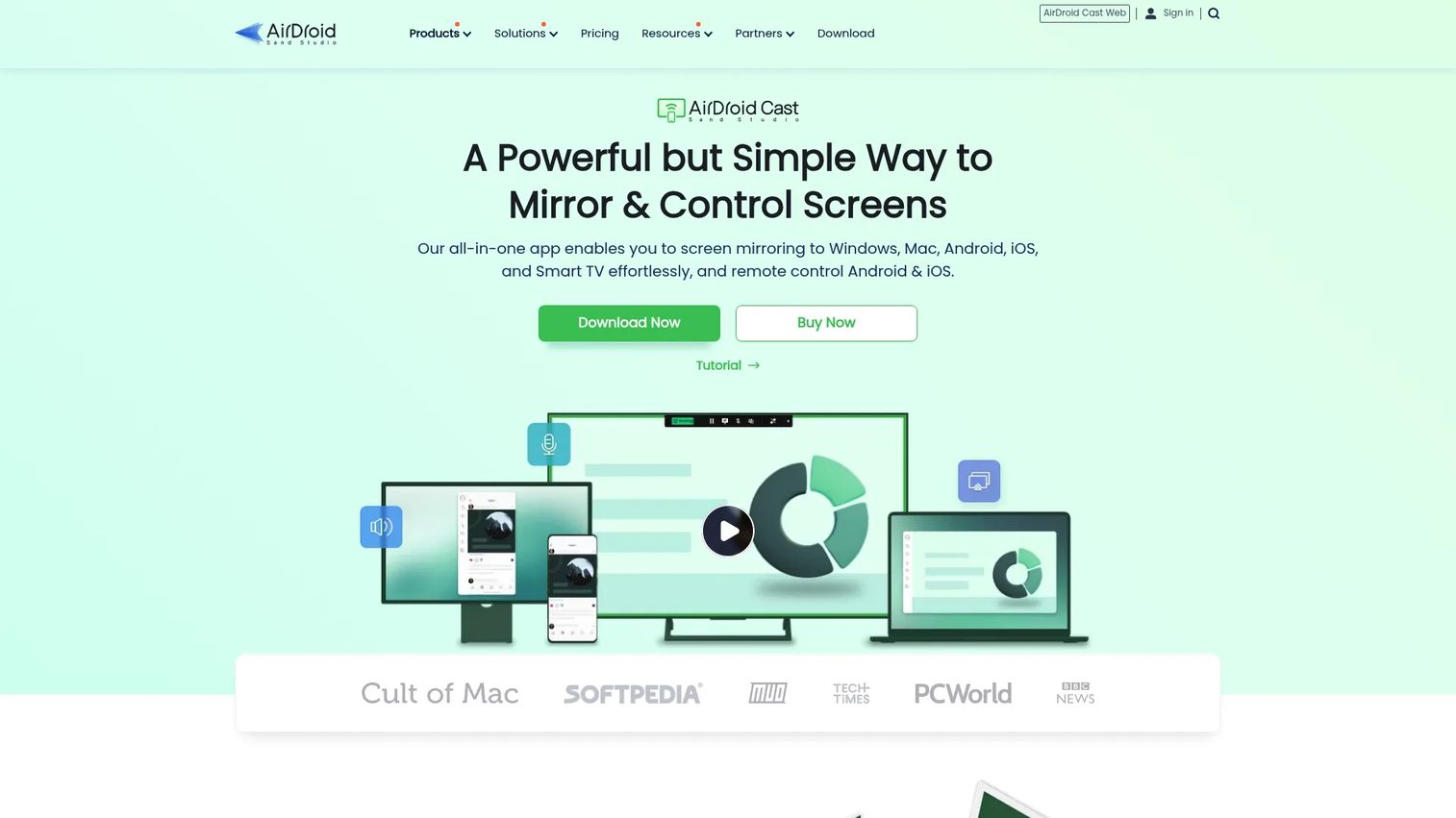
AirDroid Cast is a screen mirroring and control tool that casts iOS, Android, PC, and web screens to larger displays. It stands out because it does not force you to pick a single connection method. QR code, cast code, USB, local network, and remote-over-internet all live in one app, and you can control an iOS or Android device from your PC on top of mirroring it.
For a product or support team juggling multiple platforms, that range removes a lot of the "which app do I open" friction. One tool covers the phone-to-PC review, the TV demo, and the cross-office remote session.
Best for: Cross-platform teams that need Windows, Mac, iOS, Android, and TV workflows plus optional remote control in a single tool.
Key features
- Cast iOS and Android screens
- Cast PC screens to larger displays
- Control iOS and Android from a PC
- Local and remote network mirroring
- QR code, cast code, and USB pairing
Why choose AirDroid Cast: Choose it when your reality is genuinely mixed and you need both local and remote mirroring without stitching two apps together. It is the most complete all-rounder on this list.
AirDroid Cast pricing: A free plan covers local-network casting. Basic starts at $1.67/mo billed as $19.99 for one year, Standard is $2.50/mo billed as $29.99 for one year, and Team is $30.00/mo billed as $359.99 for one year.
AirDroid Cast reviewers rate the vendor profile 4.9 out of 5 on G2.
2. LetsView
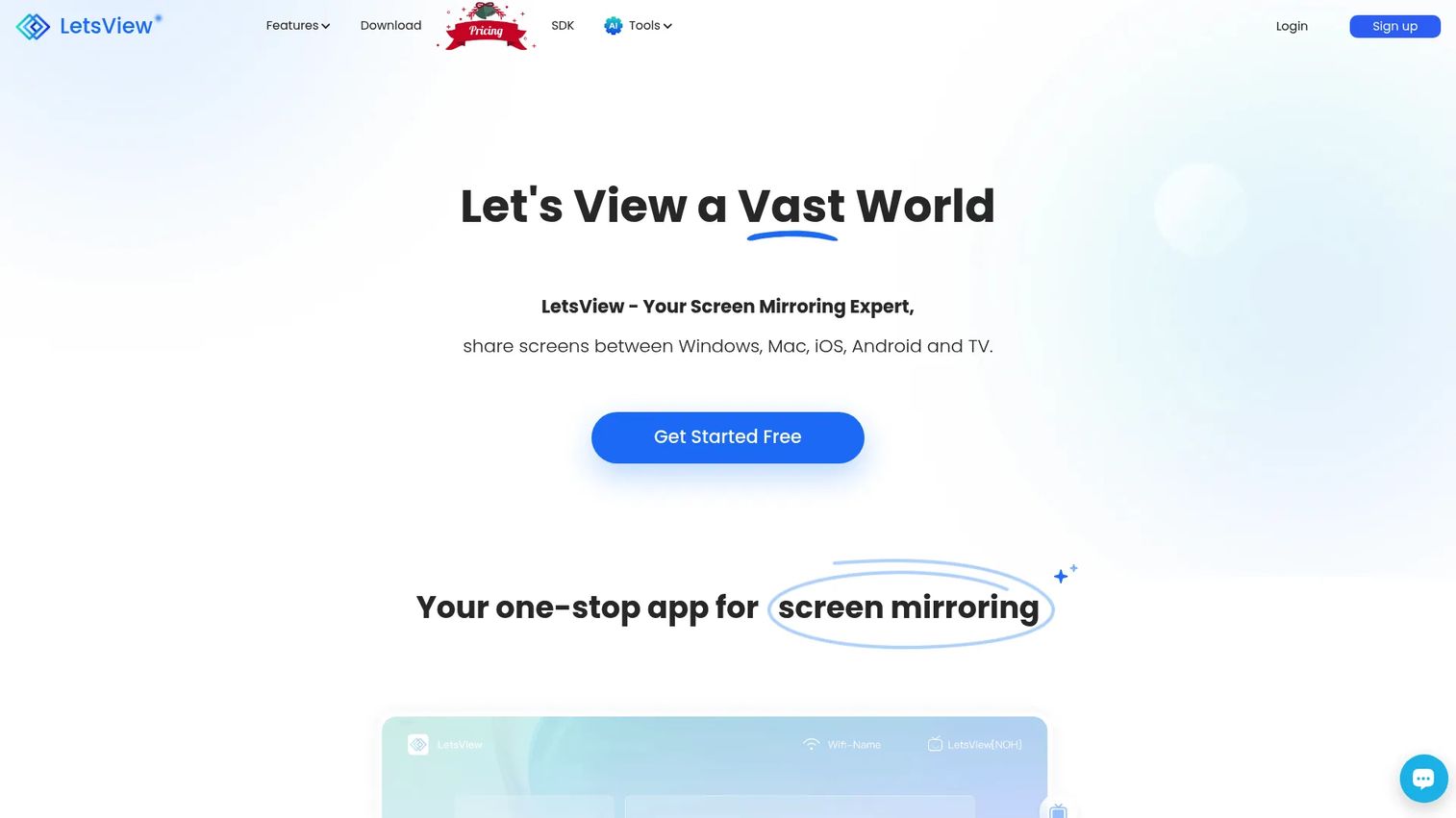
LetsView is cross-platform screen mirroring software that works across Windows, Mac, iOS, Android, and TV. Its pitch is straightforward: a free, general-purpose mirroring app that also handles screen recording and adds remote and control features. If you want to try mirroring across a mixed fleet without a purchase decision, it is a low-commitment place to start.
The breadth is the draw. One free download covers most of the common phone-to-PC and phone-to-TV cases a small team runs into.
Best for: Teams or individuals who want a free, broad mirroring app before committing budget to anything heavier.
Key features
- Free screen mirroring across devices
- Windows, Mac, iOS, Android, and TV support
- Wi-Fi pairing
- Screen recording
- Remote and control features
Why choose LetsView: Choose it when budget matters and you need coverage across many device types rather than depth in one. It is the natural free comparison point against any paid tool here.
LetsView pricing: LetsView offers a free Basic plan, plus Pro and Business plans billed annually and a multi-year Pro option. Numeric prices for the paid plans were not publicly visible at the time of writing.
LetsView holds a 4.3 out of 5 rating on G2.
3. EasyCast
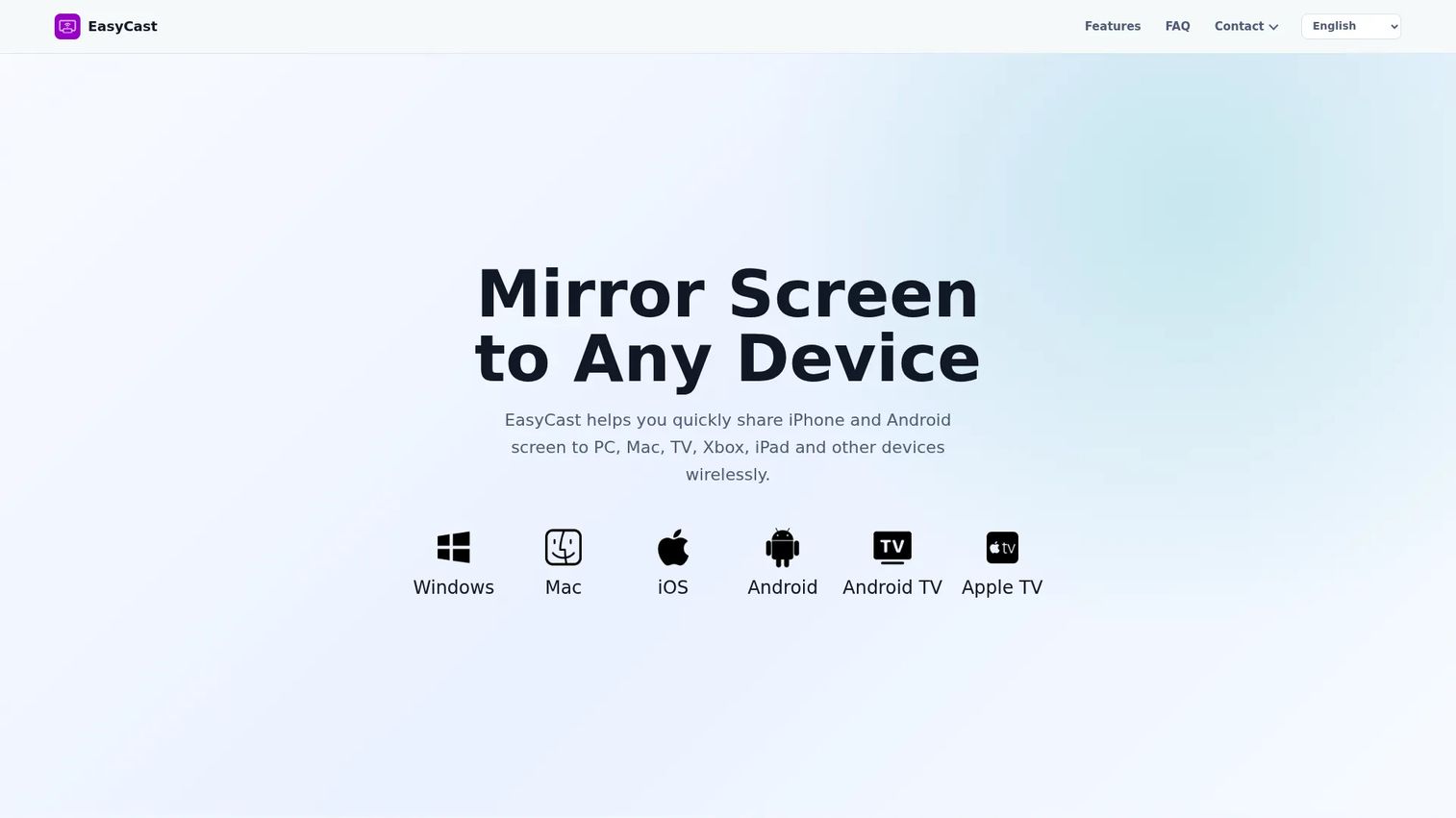
EasyCast is screen mirroring software that shares iPhone and Android screens to PCs, Macs, TVs, Xbox, iPads, and other devices wirelessly. The appeal is right there in the name: a lightweight, wireless way to put a phone screen on a larger display without a heavy setup or a stack of options to configure.
If your need is "put this phone on that screen, over Wi-Fi, now," EasyCast is built for exactly that lane.
Best for: Users who want simple wireless phone-to-screen mirroring across common consumer devices.
Key features
- Wireless mirroring to multiple device types
- iPhone and Android casting
- Windows and Mac support
- Android TV and Apple TV support
- Straightforward, low-configuration workflow
Why choose EasyCast: Choose it when you want a clean, single-purpose mirroring workflow and do not need remote sessions or phone control. It trades breadth of connection methods for simplicity.
EasyCast pricing:EasyCast doesn't show pricing on its site. Best to confirm the current cost directly with the vendor before standardizing on it.
4. Screen Mirroring App
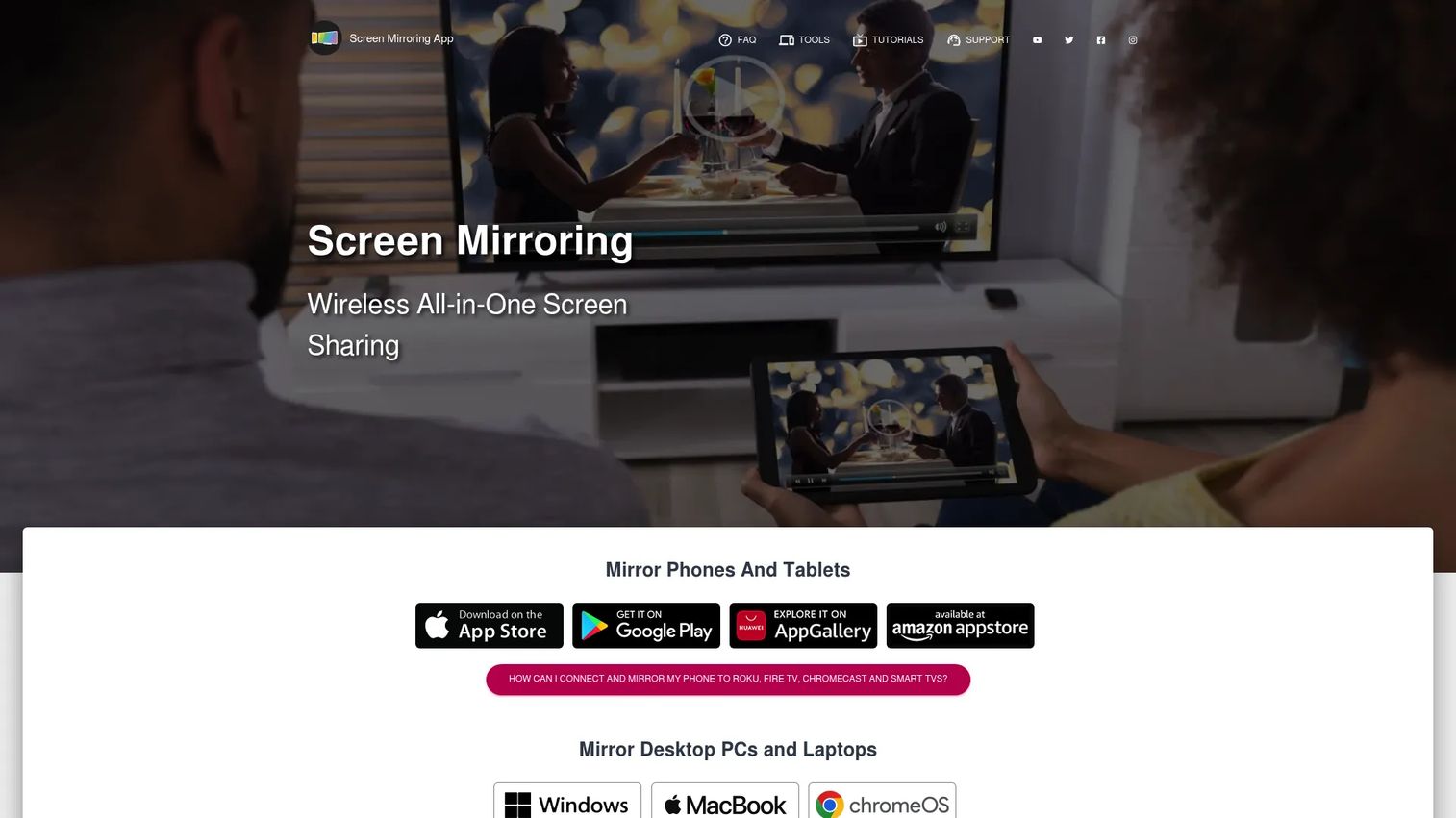
Screen Mirroring App is a cross-device mirroring tool for phones, tablets, computers, TVs, and browsers. Its strength is protocol coverage. It speaks AirPlay, Chromecast, Miracast, and SmartView, and it supports both Wi-Fi mirroring and mirroring over the internet, which pulls remote scenarios into the same app.
That breadth makes it useful when you cannot predict what display you will face. Mixed office, mixed TVs, mixed protocols: one app tries to cover them.
Best for: People who need to mirror or extend screens across mixed devices and TV platforms.
Key features
- Mirrors iPhone, Android, Windows, Mac, Chromebook screens
- Roku, Fire TV, Chromecast, and smart TV support
- AirPlay, Chromecast, Miracast, SmartView protocols
- Wi-Fi and over-internet mirroring
- Second-screen and extension modes
Why choose Screen Mirroring App: Choose it when your device set is wide and unpredictable and you value one tool that speaks every major casting protocol. It is the flexibility pick.
Screen Mirroring App pricing: The app comes in Free and Pro editions, and the site states that paid apps and upgrades are one-time purchases with no subscription. Specific prices were not publicly visible on the brand site at the time of writing.
5. EasyCast - Screen Mirroring Receiver
EasyCast - Screen Mirroring Receiver is a wireless mirroring tool built around receiving phone screens on a PC, Mac, TV, or console. The framing is what matters here: it treats the computer or Xbox as the destination, so the phone throws its screen and the receiver catches it. QR-code pairing and nearby-device connection keep the setup short.
If your target is consistently a Windows machine or an Xbox rather than a TV, this receiver-first angle fits the workflow better than a general TV-cast tool.
Best for: Windows-centric or console-centric setups where the computer or Xbox is the display.
Key features
- Wireless mirroring from iPhone and Android
- PC, Mac, and TV support
- Xbox and Android TV support
- Apple TV support
- QR-code receiver pairing
Why choose EasyCast - Screen Mirroring Receiver: Choose it when the target device is the computer or console, not the phone, and you want a simple receiver to catch incoming screens.
EasyCast - Screen Mirroring Receiver pricing: Pricing isn't shown on the official site. Worth checking the current store listing or asking the vendor directly before rollout.
Considerations
Before you standardize on one tool, run through these criteria against your actual environment, not the ideal one.
Device mix and ecosystem fit
List the devices you actually mirror from and to: Windows, Mac, iPhone, Android, smart TV, Xbox. The best tool solves both sides of your most common connection. Avoid a tool that only handles the source or only the destination you use, because you will end up installing a second app to close the gap.
Setup speed and pairing method
Check whether pairing uses QR codes, a passcode, Wi-Fi discovery, or USB. For ad hoc sessions and repeated daily use, faster pairing compounds into real time saved. If you run mirroring in front of an audience, a two-tap connection beats a multi-step one every time.
Local versus remote mirroring
Decide whether every session happens on the same Wi-Fi or whether you need to reach someone in another location. Remote screen mirroring usually rides the internet and often changes which plan or feature tier you need. If remote is a rare exception, do not pay for it as a core feature.
Privacy and data handling
For product, support, and internal teams, ask what happens to the mirrored stream. Is anything stored, does it route through a vendor server, and what security claims does the vendor make. Remote mirroring in particular sends your screen somewhere outside your network, so confirm the data path before you put anything sensitive on screen.
TV and big-screen workflows
If TVs are in scope, verify support for the specific platforms you own: smart TV brand, Roku, Fire TV, Chromecast, or console. Protocol coverage (AirPlay, Chromecast, Miracast, SmartView) determines whether the connection is one tap or a troubleshooting session.
Conclusion
Pick by fit, not feature count. If your world is genuinely mixed and you need both local and remote mirroring plus phone control, AirDroid Cast is the most complete choice. If budget is the deciding factor and you want broad coverage to start, LetsView gives you a free way across Windows, Mac, iOS, Android, and TV.
For a simple wireless phone-to-display workflow, EasyCast keeps things lightweight. If you cannot predict which TV or protocol you will hit, Screen Mirroring App covers the widest range. When the destination is a PC or Xbox rather than a TV, EasyCast - Screen Mirroring Receiver fits the receiver-first pattern.
Next step: write down your two most frequent source-to-target pairs and the network they run on. That single sheet points you at the right two tools to trial. Test pairing speed and reliability on your real devices before you commit.
FAQs
AirDroid Cast is a strong pick because it casts Android screens to a Windows PC, adds phone control, and supports QR, cast code, USB, and remote connections. LetsView is the better free starting point if you want broad Windows and Android coverage without a purchase. Test both on your actual devices, since latency depends on your hardware and network.
Sometimes. USB mirroring works over a direct cable with no Wi-Fi, and some tools support a direct device-to-device connection. Wireless mirroring on the same network needs Wi-Fi, and remote screen mirroring needs an internet connection. If you cannot rely on Wi-Fi, look specifically for USB or direct-connection support.
Screen mirroring shows an exact live copy of your whole screen on another display, including menus and notifications. Casting sends one specific item, like a video or a browser tab, to another screen while your device keeps doing other things. Use mirroring to show everything, casting to hand off a single piece of content.
Yes. Most smart TVs and streaming devices support at least one mirroring standard, so the app you choose needs to speak it. AirPlay covers Apple, Chromecast and Miracast cover a wide Android and Windows range, and SmartView is Samsung's. A tool like Screen Mirroring App covers several protocols, which helps when you face different TVs.
It can be, but check the data path first. Local mirroring on your own network generally keeps the stream inside that network. Remote mirroring sends your screen over the internet, often through a vendor server, so confirm what is stored and what security the vendor claims before mirroring anything sensitive. Download apps only from official sites or stores.
AirDroid Cast supports remote mirroring over the internet alongside its local methods, which makes it a practical choice for cross-office or customer sessions. Screen Mirroring App also offers over-the-internet mirroring. For remote work, prioritize connection stability and the vendor's data-handling policy over raw feature count.
Install a mirroring app that supports iOS on both the iPhone and the PC, connect them on the same Wi-Fi or by the app's pairing method, then start the mirror. AirDroid Cast and EasyCast both support iPhone-to-PC mirroring, and many tools use a QR code or cast code to pair in a couple of taps. Use a USB option if you need the lowest latency.
Lag and drops usually trace back to the network. A weak or congested Wi-Fi signal, distance from the router, or heavy bandwidth use elsewhere all hurt the stream. Move closer to the router, cut other network load, or switch to a USB connection for a steadier link. Remote mirroring over the internet is more sensitive to bandwidth than local mirroring.