You hit record to explain a bug. Ten minutes later you have a 4-minute file, no captions, awkward pauses, and a sharing link that expires. Now you are editing the thing you recorded to save time.
That gap between capturing something and shipping it is where most screen recording software falls apart. For a product manager, the tool is not the point. Reaching a colleague, a customer, or a support queue with a clear explanation is the point, and rework kills that.
The category is not niche either. The global screen recording software market hit $2.10B in 2025 and is forecast to reach $4.62B by 2030, according to Mordor Intelligence (2025). Meanwhile, 72% of enterprises now use screen and video capture software for training and internal documentation, per Market Growth Reports (2026).
So the question is not whether to use a screen recorder. It is which one creates the least work after you stop recording. Here is how the top seven stack up.
If you spend most of your time explaining product behavior rather than recording it, interactive demos sit in a related but different lane. More on where each fits later.
What's inside
This guide is for product managers and their teams choosing a screen recorder for bug reports, walkthroughs, onboarding clips, and async updates. We ranked seven tools on the factors that actually change your workflow.
- Platform support: Windows, macOS, and mobile coverage
- Capture modes: screen, window, area, webcam overlay, microphone, and system audio
- Sharing and export: MP4 export, sharing link speed, watermark and time limits
- Editing depth: how much cleanup the tool saves you later
We used verified pricing, current G2 ratings, and hands-on-relevant details, not marketing claims.
TL;DR
- Best for interactive product captures: Guideflow turns a capture into a clickable demo in seconds
- Best all-around for PMs: Snagit combines screenshots, short recordings, and quick markup in one tool.
- Best balance of record and edit: ScreenPal pairs capture with a real editor and hosting.
- Best for async video: Loom is built for record-and-send team communication.
- Best for polished tutorials: Camtasia gives you timeline editing and transitions.
- Best free and open-source: OBS Studio handles multi-source recording and streaming.
- Best for no-watermark private sharing: ScreenRec offers instant cloud links with no time limit.
- Best for Mac polish: Screen Studio auto-adds zooms and smooth cursor motion.
What is screen capture software?
Screen capture software records what happens on your screen, plus optional webcam, microphone, and system audio, then lets you export or share the result as a video or image. It covers both static screenshots and full screen recordings, and most tools add lightweight editing and a sharing link on top.
For a product manager, it turns a hard-to-describe workflow into visual evidence you can send in seconds. Instead of writing a six-step bug report, you record the bug happening.
Screen capture apps generally cluster around a few feature buckets:
- Capture modes: full screen, single window, custom area, webcam overlay, and audio (microphone plus system audio)
- Editing: trimming, cutting, annotations, callouts, captions, and cursor effects
- Sharing: instant sharing link, cloud hosting, local saving, and embeds
- Export formats: MP4, GIF, PNG, and other common outputs
- Platform support: Windows, macOS, Android, and iPhone
- AI features: auto transcription, summaries, translations, and voiceovers
The line between a screen recorder and a screen capture program has mostly blurred. Most modern tools do both. What separates them is how much cleanup they save you, how fast they hand you a link, and which platforms they run on.
That last point matters more than people expect. A Mac-only tool is a non-starter for a Windows-heavy team, and a desktop-only recorder cannot document a mobile bug. Match the tool to where your product and your team actually live.
If your goal is a clickable, self-guided product walkthrough rather than a recorded video, a sandbox or guided demo covers hands-on validation, onboarding, and technical evaluation without a live environment. Recording captures a moment; interactive formats let someone explore.
When to use screen capture software
Record product walkthroughs without a live meeting
When you need to explain a workflow, a release change, or a design decision, a recording beats a scheduled call. The viewer watches on their own time, at their own pace, and can rewatch the tricky part. You skip the calendar tetris entirely.
This works well for cross-team updates where a live demo would pull five people into a room for a two-minute point.
Capture feedback, bugs, and support issues
A screenshot with an arrow, or a 30-second recording with narration, turns a vague ticket into something engineering can act on. You show the exact click sequence, the console error, and the broken state instead of describing them. Support teams use the same pattern to answer repetitive "how do I" questions once and reuse the clip.
Create tutorials and onboarding content
Training clips, help center videos, and internal enablement all start with a recording. Capture the flow, trim the dead air, add captions, and you have a reusable asset. When the UI changes, you re-record the affected step rather than rewriting a wall of text. This keeps documentation from rotting as the product ships.
Comparison table
Here is a compact readout of the seven tools ranked by fit for product management workflows, with Snagit first as the broadest all-rounder. Pricing and G2 ratings reflect verified, current values.
| # | Product | Best for | Key differentiator | Pricing | G2 rating |
|---|---|---|---|---|---|
| 1 | Guideflow | Interactive product demos | One capture becomes a clickable demo, no cleanup | Free; from $35/mo | 5.0/5 |
| 2 | ScreenRec | Instant private sharing | No time limit, no watermark, instant cloud links | Free; Pro from $8.32/mo | 4.7/5 |
| 3 | Loom | Async team communication | Record-and-send with AI summaries and chapters | Free; Business $18/user/mo | 4.7/5 |
| 4 | Screen Studio | Polished Mac tutorials | Automatic zooms and cursor smoothing | $9/mo billed yearly | 4.5/5 |
| 5 | Bandicam | Free Windows recording | Long-duration capture, game recording, webcam | Free trial; from $2.78/mo | 4.4/5 |
| 6 | Camtasia | All-in-one editing | Multitrack timeline plus AI avatars | Free; Starter $39/yr | 4.6/5 |
| 7 | OBS Studio | Advanced recording and streaming | Scene composition and live streaming, open-source | Free | 4.6/5 |
| 8 | Descript | Transcript-based editing | Edit video by editing the text | Free; Hobbyist $16/mo | 4.6/5 |
| 9 | Tella | Quick browser production | Auto-editing and polished output | Free; Creator $29/mo | Not listed |
What stands out: the free tier is strong across this list, so paying is about editing depth, hosting, and sharing controls, not basic recording. Snagit and Camtasia both come from TechSmith, which has made capture tools since 1987. The rest split cleanly by workflow, which is exactly how you should pick.
Best 8 screen capture tools for 2026
1. Guideflow
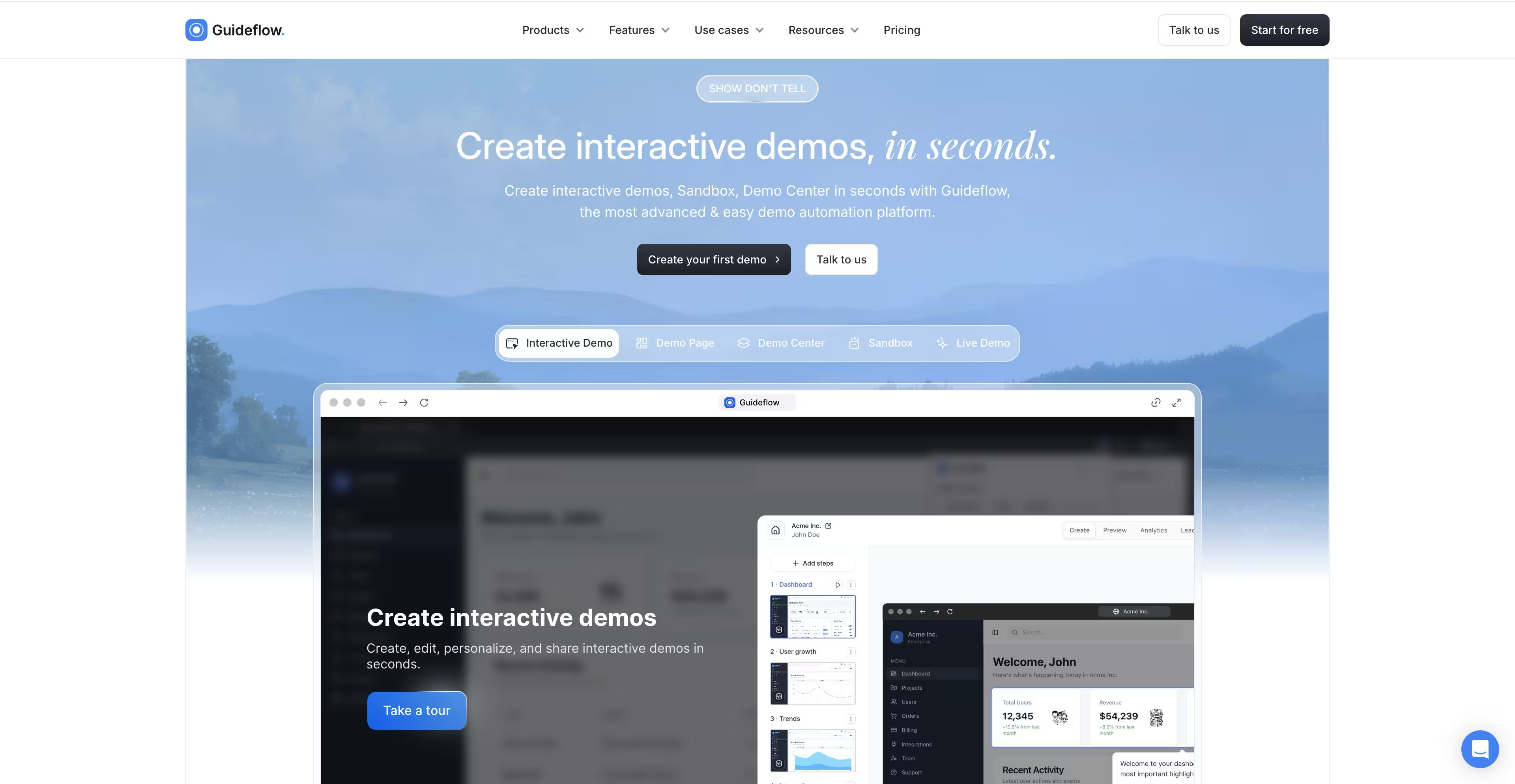
Guideflow is a demo automation platform for the captures a PM makes to show how a product works. Capture a flow with the Chrome extension or native app, and Guideflow turns it into an interactive demo with the step text and CTAs written automatically. A ready demo takes about 2 minutes 30 seconds.
There's no trimming a long recording either. You edit individual steps, change on-screen text and data, and blur sensitive info before sharing.
Best for: PMs who capture their software to explain features, onboard users or document processes.
Key features
- Chrome extension or native app capture
- Automatic step text and CTAs
- In-demo editing and data blurring
- AI voiceover and translation into 100+ languages
- Completion and drop-off analytics, synced to your CRM
Why choose Guideflow: Viewers click through the product instead of scrubbing a video, and you see where they stop. One capture also powers demo pages, demo centers, sandboxes, live demos and mobile demos.
Guideflow pricing: The Free plan is $0/month. Solo starts at $35/user/month, Growth at $499/month, Advanced at $1,499/month, all paid annually, and Enterprise from $2,999/month.
Guideflow holds a 5.0/5 rating on G2.
2. Snagit
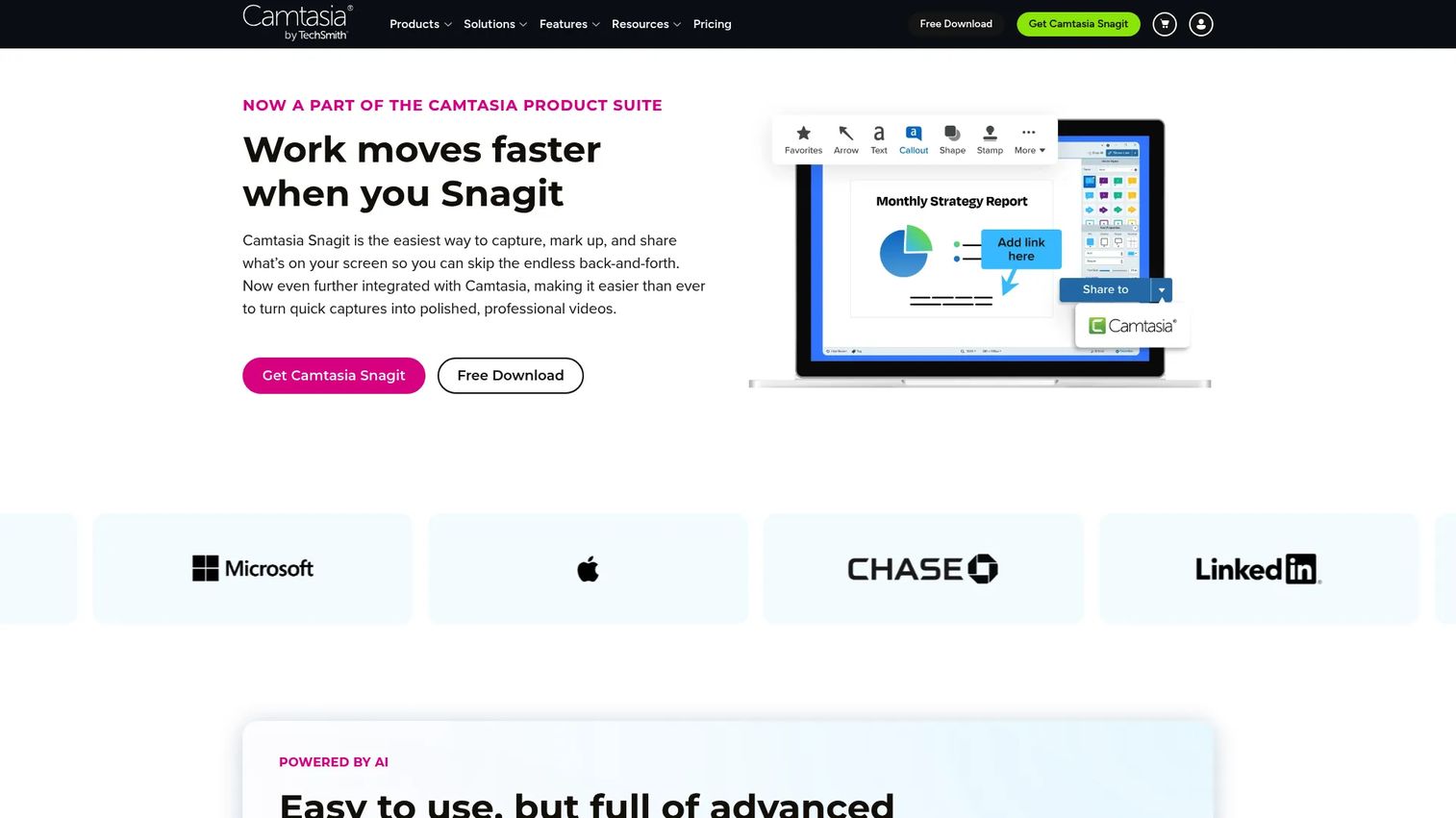
Snagit is TechSmith's screen capture and recording tool, built for the fast, everyday captures a PM actually makes. It records your screen, audio, and webcam as picture-in-picture, and it does screenshots with markup just as well. If your day is half screenshots and half short clips, Snagit covers both without switching apps.
Its standout is scrolling capture. You grab content that is not fully visible on screen, like a long web page or a wide data table, in one image. That alone saves the stitch-together dance most tools force.
Best for: PMs and teams who need screenshots, short videos, and quick markup in one place.
Key features
- Scrolling capture for full pages and long tables
- AI step capture for documentation
- AI smart redact for sensitive info
- Screen, audio, and webcam recording
- Annotations, callouts, and markup
Why choose Snagit: If most of your captures are quick and you value markup speed over deep video editing, Snagit is the least fussy option here. It fits documentation and bug-report workflows better than a heavy editor.
Snagit pricing: Snagit Individual runs $39.00 per year billed yearly, with a promotional first-year price of $31.20 on the current TechSmith store page. There is no free tier, though a free trial is available.
Snagit holds a 4.7/5 rating on G2.
3. ScreenPal
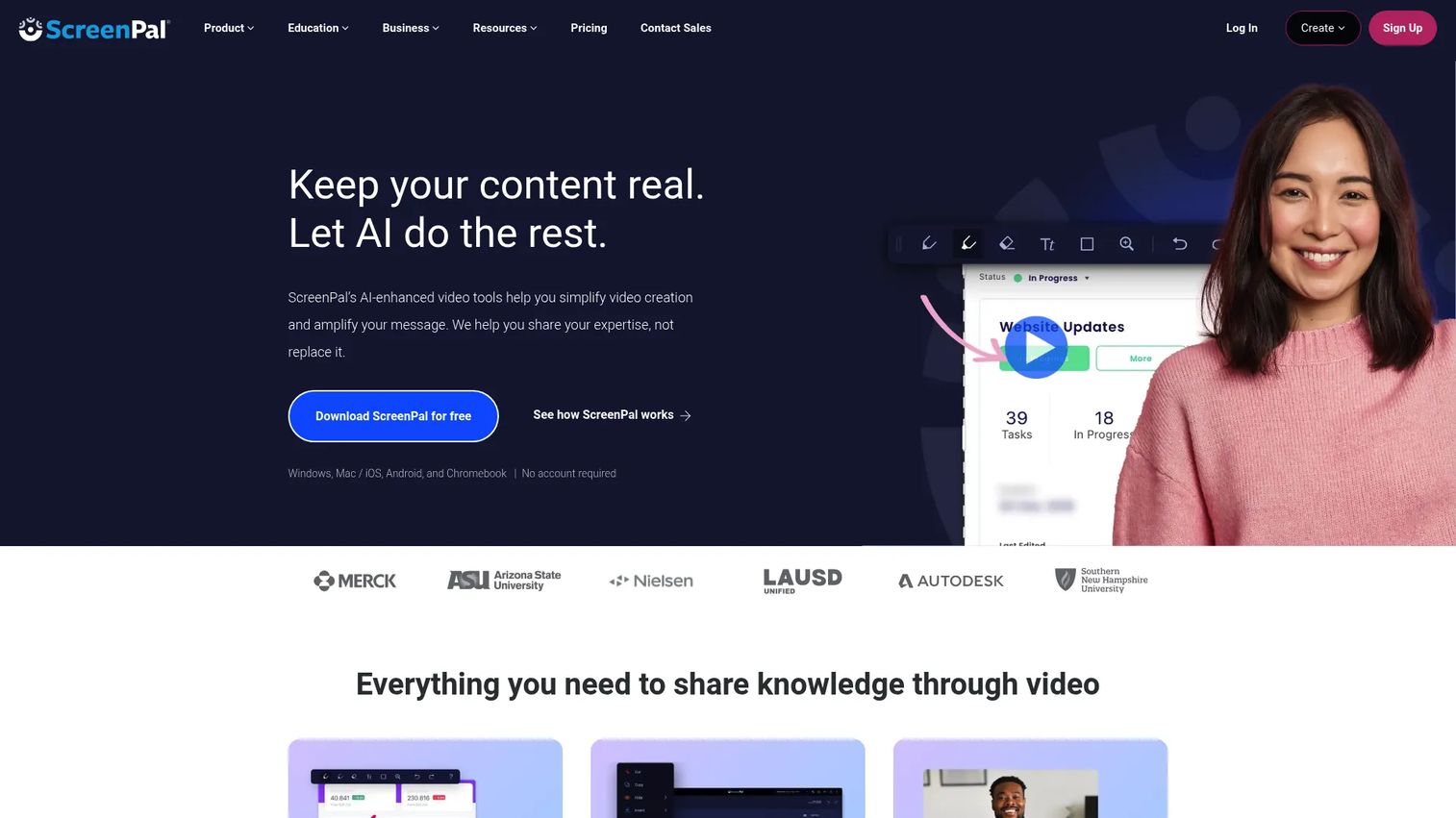
ScreenPal is a screen recording, video editing, and hosting platform with AI and collaboration features. It hits a middle ground: more editing than a pure recorder, less overhead than a full video suite. You record any part of your screen, your webcam, or both, then clean it up and host it in the same tool.
That record-edit-host loop is what makes it practical for teams who want a lighter workflow. You are not exporting to a separate editor or a separate host.
Best for: Teams and creators who want capture, real editing, and hosting without stitching three tools together.
Key features
- Screen recording with webcam overlay
- Built-in video editor
- Video hosting and sharing
- Interactive quizzes and polls
- AI captions and transcription
Why choose ScreenPal: Pick ScreenPal when a bare recorder feels too thin but a full editor is overkill. The quizzes and captions make it a fit for training and onboarding content specifically.
ScreenPal pricing: The Free plan is $0/month. Deluxe starts at $4/month paid annually, Max at $10/month paid annually, and Business at $8/user/month paid annually.
ScreenPal carries a 4.5/5 rating on G2.
4. Loom
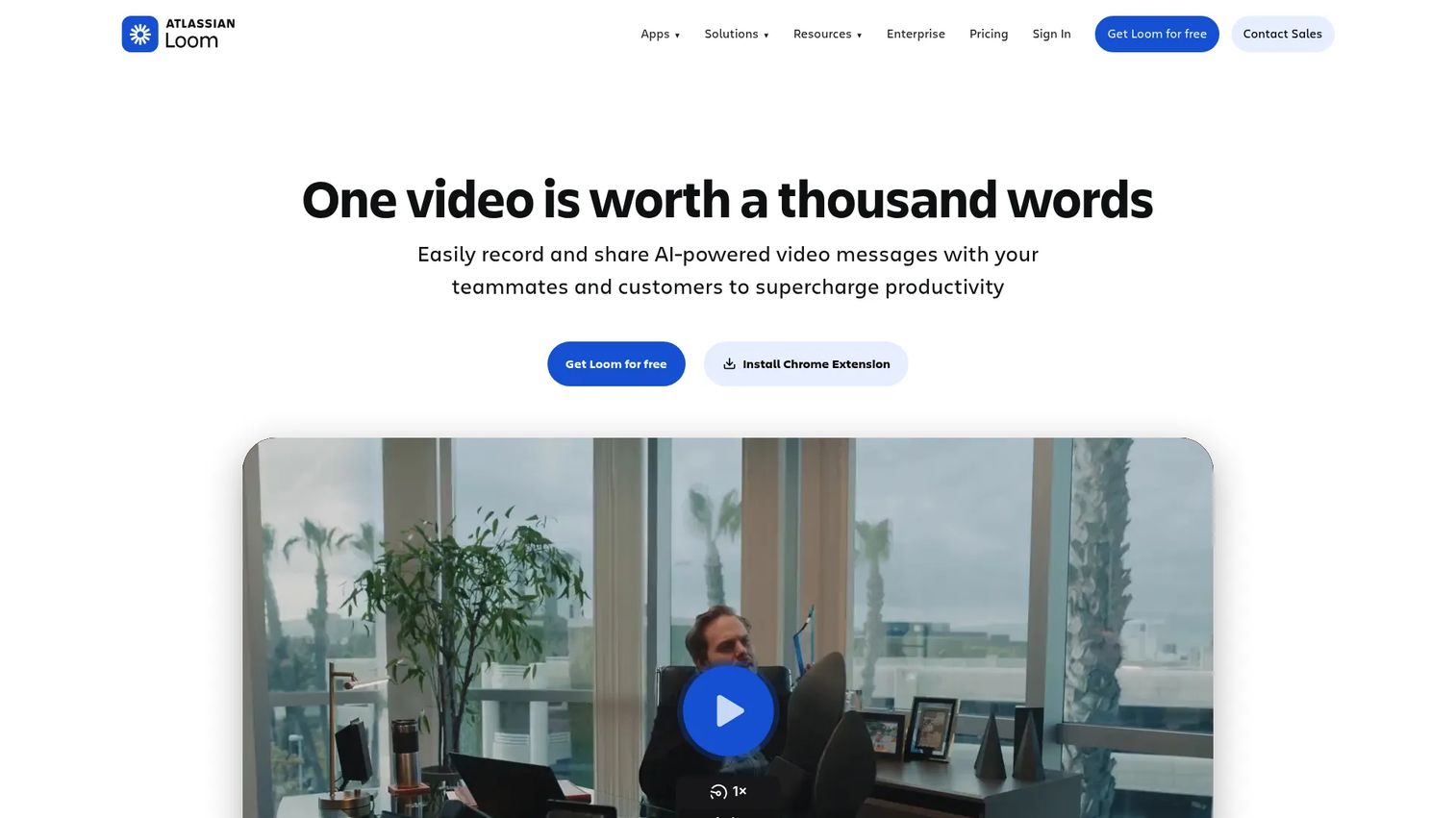
Loom is built around one motion: record, get a link, send it. It is AI-powered video messaging for teams that replace status meetings and long threads with a quick clip. Record on the Chrome extension, the desktop app, or mobile, and the shareable link is ready before you finish thinking about it.
The async angle is the whole point. A PM explaining a roadmap change to a distributed team drops one video instead of running the same call three times across time zones.
Best for: Teams that want fast async video updates, demos, and internal communication.
Key features
- Screen and camera recording
- Instant sharing link with viewer insights
- AI summaries, chapters, and tasks
- Comments and captions
- Chrome, desktop, and mobile apps
Why choose Loom: Choose Loom when speed to share matters more than editing polish. The AI summaries and viewer analytics help you see who watched and where they dropped, which is useful signal for a PM.
Loom pricing: The Starter plan is free for one user. Business is $15/month per user, Business + AI is $20/month per user with a 14-day free trial, and Enterprise is custom via sales.
Loom holds a 4.7/5 rating on G2.
5. Camtasia
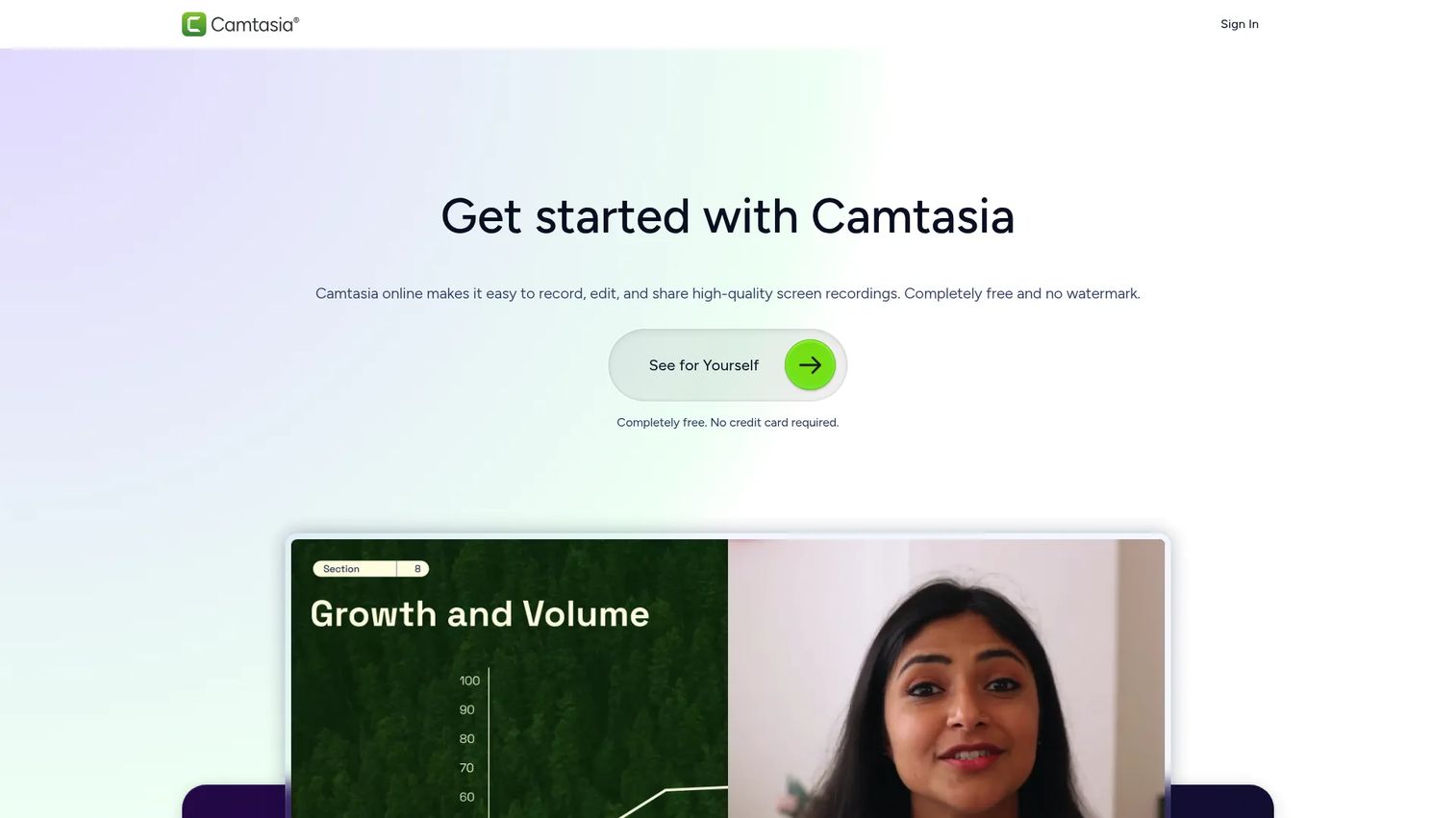
Camtasia is TechSmith's screen recording and video editing software, aimed at people who want control after they stop recording. It records your screen, then hands you a real timeline with cursor editing, captions, and transitions. This is the tool for tutorial output that has to look finished.
Where a quick recorder gives you trim-and-send, Camtasia gives you multi-track editing. That extra control is the point when the video is a polished training asset, not a throwaway clip.
Best for: Teams and creators making screen-recorded tutorials, training videos, and demos that need editing polish.
Key features
- Multi-track screen recording
- Cursor editing and effects
- Captions and translations
- Transitions and annotations
- Multiple export options
Why choose Camtasia: Reach for Camtasia when the finished video matters more than turnaround speed. It suits recurring training content where production quality justifies the editing time.
Camtasia pricing: TechSmith lists four individual annual plans: Starter at $39.00 per year, Essentials at $179.88 per year, Create at $249.00 per year, and Pro at $599.00 per year, all billed yearly. A free Camtasia Editor version exists but adds a watermark on exports until you upgrade.
Camtasia holds a 4.6/5 rating on G2.
6. OBS Studio
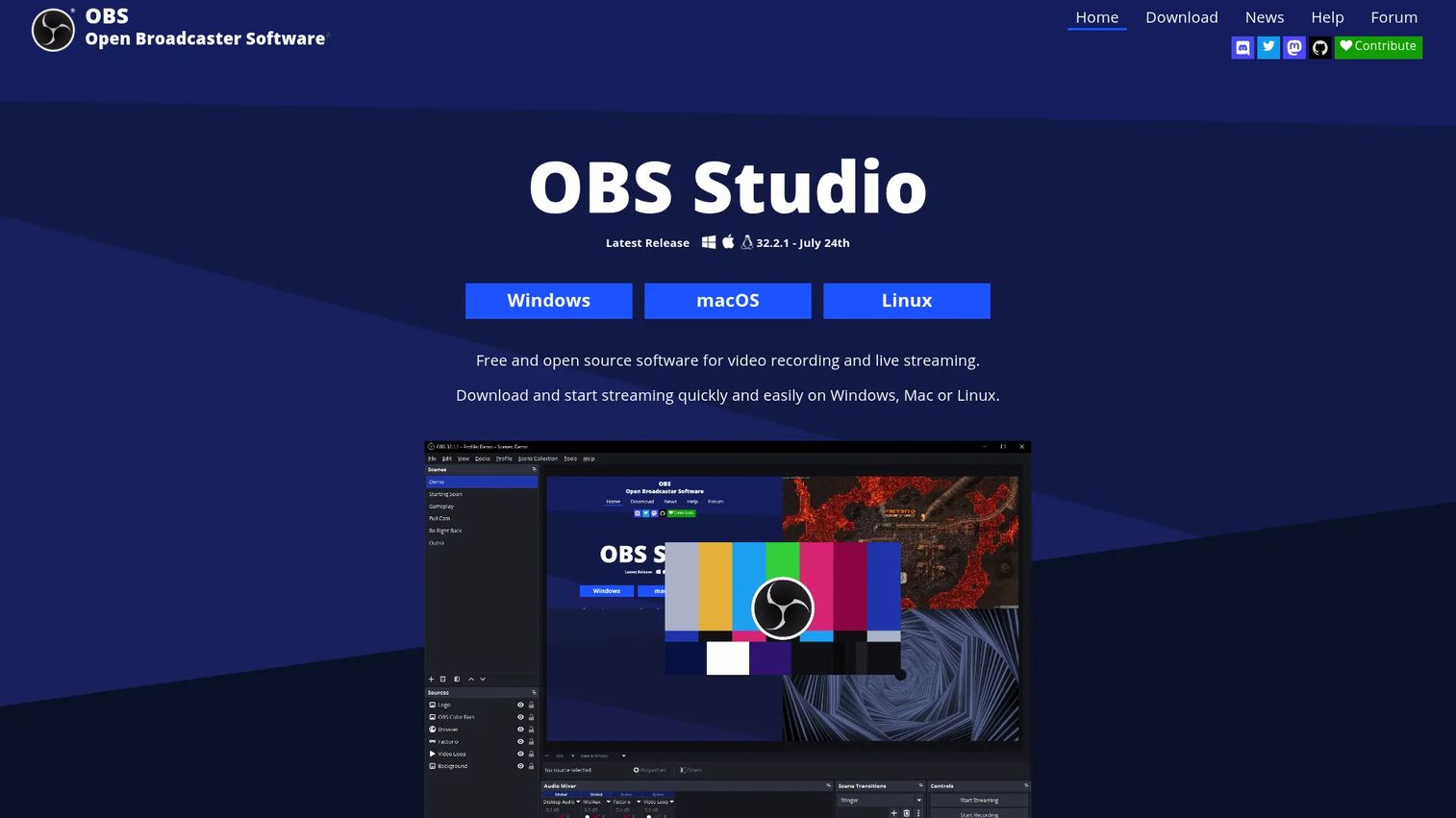
OBS Studio is free, open-source software for video recording and live streaming, and it is the power-user pick on this list. It handles high-performance real-time capture and mixing, unlimited scenes with custom transitions, and an audio mixer with filters. If you need to compose multiple sources, screen, webcam, system audio, and microphone, into one recording, OBS does it with no ceiling.
The tradeoff is that OBS asks more of you upfront. It is a technical tool, not a click-and-go recorder, which is exactly why streamers and technical teams choose it.
Best for: Creators, streamers, and technical users who need a free, cross-platform recording and streaming tool.
Key features
- Real-time video and audio capture and mixing
- Unlimited scenes with custom transitions
- Audio mixer with filters and VST support
- Multi-source capture
- Cross-platform: Windows, macOS, Linux
Why choose OBS Studio: Choose OBS when you want full control and zero cost, and you do not mind the setup. It scales to complex multi-source recordings that lighter tools cannot touch.
OBS Studio pricing: OBS Studio is completely free and open source. There are no paid tiers.
OBS Studio holds a 4.6/5 rating on G2.
7. ScreenRec
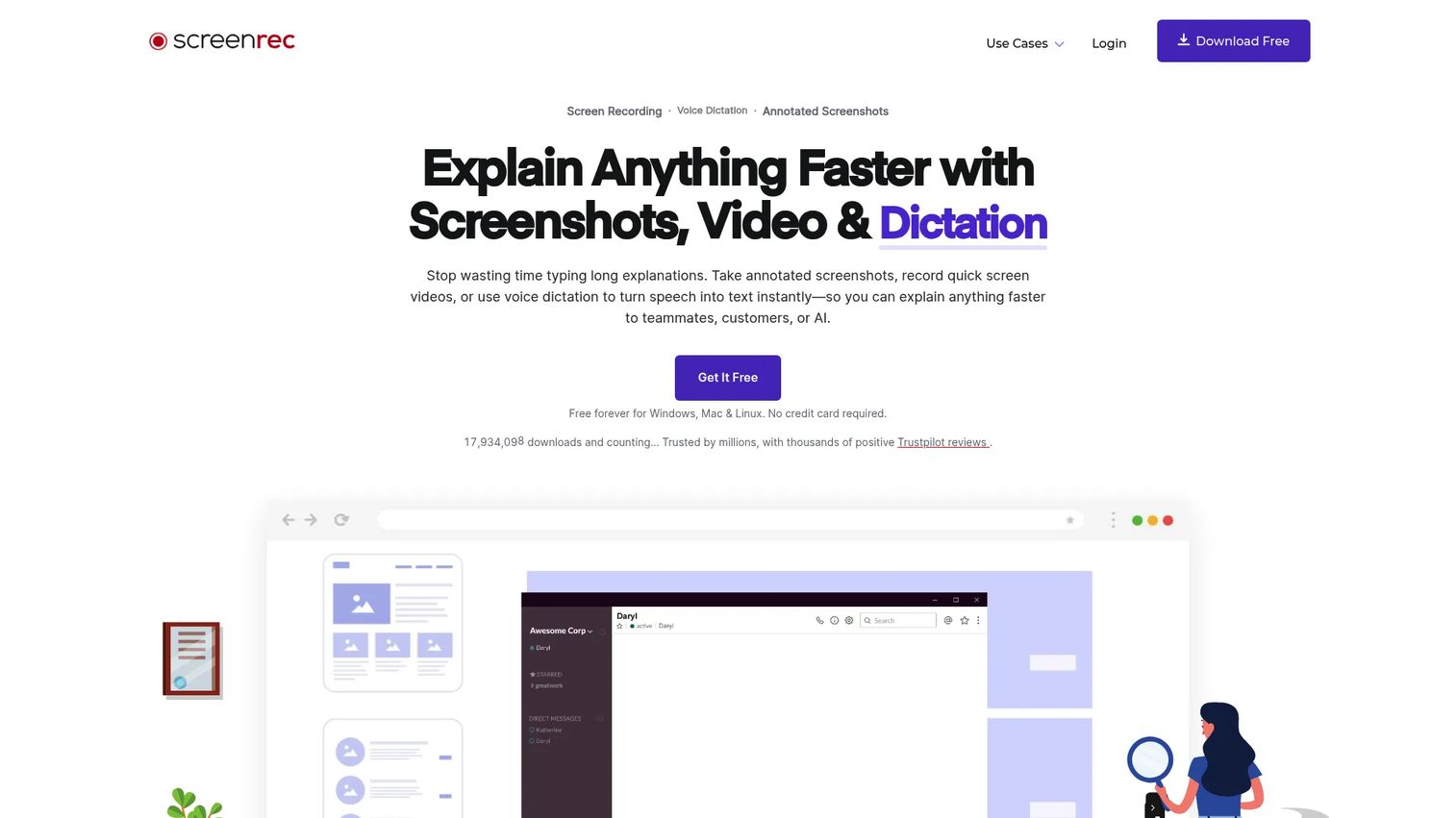
ScreenRec is a lightweight screen recording and screenshot tool built around private, instant sharing. You record screen, camera, voice, and system audio, then get a shareable link the moment you stop, with no watermark and no time limit on the recording itself. For quick internal communication, that combination is the draw.
The tool stays out of the way. Capture, annotate a screenshot if needed, and drop the link into Slack or a ticket. No editing detour, no export wait.
Best for: Individuals or teams who need quick screen capture and private link sharing.
Key features
- Screen, camera, voice, and system audio recording
- Instant sharing via private link
- Screenshots with annotations
- No watermark on recordings
- Cloud and offline saving
Why choose ScreenRec: Pick ScreenRec when speed and clean, watermark-free clips matter more than editing depth. It fits the fast bug-report and internal-update loop especially well.
ScreenRec pricing: Free Forever is $0/month for personal use. Pro is $8.32/month billed annually and adds business use plus higher-quality recording, while Premium is $81.66/month billed annually with team features, 4K recording, and priority support.
A G2 rating for ScreenRec is not currently listed, though reviews appear on other software directories.
8. Screen Studio
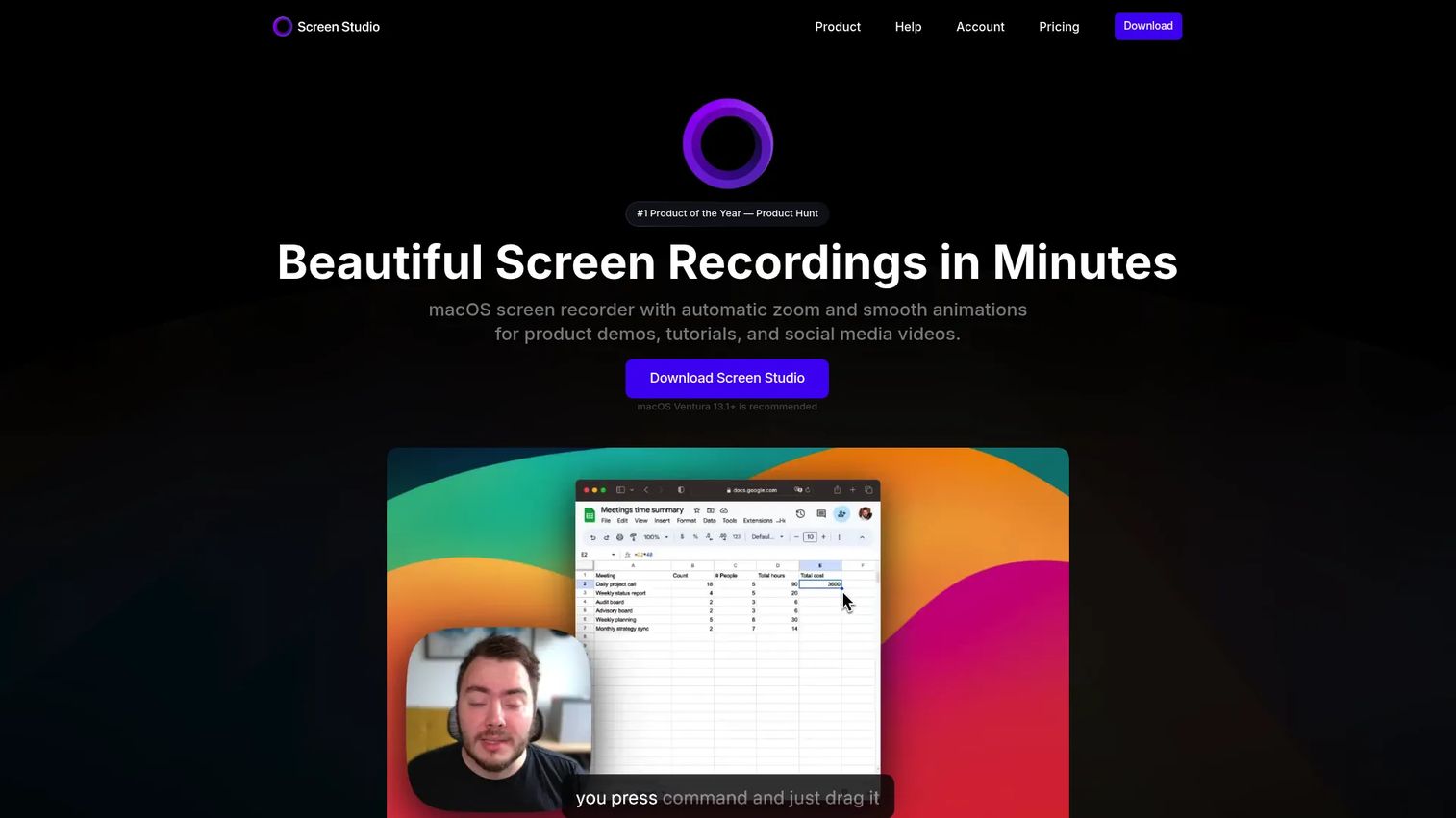
Screen Studio is a macOS screen recorder that automatically adds zooms, smooth cursor motion, and polished editing effects. It is the Mac-first choice for clean product demos and tutorials, where the output looks professionally edited with almost no manual work. Point it at a click, and it zooms and smooths for you.
It records webcam, microphone, system audio, and even your iPhone or iPad, then exports to presets, links, MP4, and GIF. For social clips and demo videos, that automatic polish is a real time saver.
Best for: Mac users creating polished product demos, tutorials, and social videos quickly.
Key features
- Automatic zoom on actions and clicks
- Smooth cursor motion
- Record webcam, mic, system audio, and iPhone/iPad
- Export to MP4, GIF, and shareable links
- macOS-native performance
Why choose Screen Studio: Choose Screen Studio if you are on a Mac and want finished-looking demos without a timeline editor. The auto-zoom and cursor smoothing do the editing you would otherwise do by hand.
Screen Studio pricing: One plan is offered with two billing options: $20.99/month billed monthly, or $9/month billed yearly. All features are included; video export requires an active plan.
Screen Studio holds a 4.5/5 rating on G2.
Considerations
Before you commit, run each tool through the criteria that actually change your day-to-day. Features on a page mean less than fit with your workflow.
Platform compatibility
Start with where your team and product live. A Mac-only tool like Screen Studio is ideal for a Mac-heavy team and a non-starter for a Windows shop. If you document mobile bugs, confirm iPhone or Android capture before anything else. Cross-platform tools like OBS Studio remove the guesswork.
Capture modes
Check that the tool records what you actually record. Full screen, single window, and custom area cover most cases, but system audio and webcam overlay are where cheaper tools cut corners. If you narrate walkthroughs, microphone plus system audio together is non-negotiable.
Sharing and export
Decide whether you need an instant sharing link or a local MP4. Instant links, like ScreenRec's and Loom's, cut the export-and-upload step entirely. Confirm the format you need, MP4 for video, GIF for quick clips, and watch for watermarks or time limits on free tiers.
Editing depth
Match editing to output. A throwaway bug clip needs trimming, nothing more. A recurring training video justifies Camtasia's timeline. Over-buying editing power you never use is a common and expensive mistake, so be honest about what the clip is for.
Maintenance and team fit
For teams, look at update cadence, admin controls, and collaboration. Hosting and shared libraries reduce the overhead of files scattered across drives. The less time your team spends managing recordings, the more the tool earns its keep.
Conclusion
Pick by the job, not the brand. If most of your captures are screenshots and short clips, Snagit is the broadest fit. If you want record, edit, and host in one loop, ScreenPal covers it. Loom wins on pure async speed, Camtasia on polished tutorials, and OBS Studio on free multi-source power. ScreenRec is the fast, no-watermark internal-sharing pick, and Screen Studio is the Mac polish champion.
Your next step is simple: shortlist two tools that match your platform and your main use case, then record the same real workflow in both. The one that hands you a clean, shareable result with the least cleanup wins.
And if the deeper job is helping people understand your product, not just watching a recording, consider pairing capture with interactive formats. Guideflow turns your product into self-serve interactive demos, sandboxes, demo centers, live demos, and mobile demos, so prospects and users experience the flow instead of watching it. You capture once, personalize for each audience, and analyze engagement in real time, with clean integrations into your existing stack.
Start your journey with Guideflow today!
FAQs about screen capture software
For most beginners, Loom or ScreenPal are the easiest starting points. Loom is record-and-send with almost no learning curve, and ScreenPal adds simple editing without overwhelming you. Both have free tiers, so you can test the workflow before paying.
Snagit, Camtasia, ScreenPal, OBS Studio, and Loom all run on Windows. For quick screenshots and short clips, Snagit is the strongest Windows pick. For free multi-source recording, OBS Studio is hard to beat.
Screen Studio is macOS-native and adds automatic zooms and smooth cursor motion for polished output. If you want cross-platform consistency instead, Loom, ScreenPal, and OBS Studio all run on Mac too. Choose Screen Studio when clean demo output with minimal editing is the goal.
Yes. Snagit, ScreenPal, Loom, OBS Studio, ScreenRec, and Screen Studio all record webcam and microphone together, usually with the webcam as a picture-in-picture overlay. Most also capture system audio at the same time. Confirm all three, webcam, microphone, and system audio, if you narrate over app sound.
ScreenRec records with no watermark on its free tier, which is part of its appeal for internal sharing. Camtasia's free Editor version adds a watermark on exports until you upgrade, so check the free-tier terms of any tool. Paid plans generally remove watermarks across the board.
ScreenRec places no time limit on the recording itself, making it a fit for longer walkthroughs. Free tiers on other tools sometimes cap clip length, so read the plan details before recording something long. Paid plans typically lift any recording-length limits.
MP4 is the safe default for screen recordings. It plays almost everywhere, keeps file sizes reasonable, and uploads cleanly to hosting and messaging tools. Use GIF for short, silent, looping clips, and PNG for static screenshots.
Enable system audio capture in your recorder's settings, then start recording as usual. Tools like OBS Studio, ScreenRec, ScreenPal, and Screen Studio capture system audio alongside your screen and microphone. On some setups you may need to grant audio permissions or install a virtual audio driver first.