You are three slides into a live demo. Someone asks about the button in the top-right corner. You reach for your cursor, wave it around, and hope everyone is looking at the right pixel.
That moment is exactly what a screen annotation tool fixes. You draw on screen, circle the button, freeze the frame, and keep talking. No context loss, no "the one next to the blue thing."
The category is growing for a reason. The screen annotation and writing software market was valued around USD 1.2 billion in 2024 and is projected to reach USD 2.5 billion by 2033 at an 8.9% CAGR, according to a LinkedIn / Screen Annotation & Writing Software Market Report (2024). Enterprise organizations account for 42.7% of revenue in the adjacent screenshot annotation tools market, per MarketIntelo (2025). Teaching and presentations drive most of that demand.
The problem is that most people pick the wrong tool for their workflow. A teacher running an interactive whiteboard needs different features than a product marketer who just wants to write on screen during a remote meeting. This guide sorts that out by workflow, not by feature count.
What's inside
This guide is for teachers, trainers, presenters, support teams, and PMMs who need to annotate a live screen during teaching and presentations, demos, or remote meetings. We picked tools that let you draw on screen without breaking flow.
We chose the seven tools based on four things:
- Workflow fit for live annotation, teaching, and meetings
- Hotkeys and speed to start and stop drawing
- Freeze mode, spotlight, and whiteboard and blackboard support
- Platform coverage, from Windows annotation app to multiplatform options, and pricing
TL;DR
- Best fastest lightweight option for demos: ZoomIt, free, with instant zoom, draw mode, and a countdown timer
- Best everyday screen annotation tool for presenters: Epic Pen, with a free tier and Pro at €24.00 per year
- Best minimal free screen annotation software: gInk, open source and low friction
- Best feature-rich Windows annotation option: ppInk, a gInk fork with shapes, text, and pages
- Best for teaching and presentations with freeze mode: ePointer and IPEVO Annotator, both built for classrooms and whiteboards
- Best screenshot markup hybrid: Snipaste, multiplatform, from $8.99 one-time
What is screen annotation software?
Screen annotation software is a desktop annotation tool that lets you draw, highlight, write, and mark up directly over whatever is on your screen, whether that is a live app, a browser, a slide deck, or a video. It sits as a transparent overlay on top of your desktop, so your annotations float above the active window.
Most tools in this category run on Windows, though some are multiplatform and work on Mac and Linux too. They are widely used for teaching and presentations, live demos, and remote meetings where a static cursor is not enough to guide attention.
Key features to look for:
- Draw on screen: pens, highlighters, arrows, shapes, and freehand ink over any app
- Freeze mode: freeze the current frame so you can annotate a static snapshot while the app keeps running underneath
- Hotkeys: keyboard shortcuts to start, stop, undo, and clear without hunting for a toolbar
- Spotlight and zoom: dim the screen around a focus area or magnify a region during a walkthrough
- Whiteboard and blackboard: switch to a blank canvas for sketching ideas mid-session
- Screenshot and recording: capture the annotated frame as an image or record the session to video
The category overlaps with screenshot markup tools, but the core job is live annotation: writing over a moving screen in real time, not editing a saved image afterward.
When to use screen annotation software
Teach and explain on a live screen
Teachers and trainers use these tools to circle terms, underline steps, and switch to a blackboard mid-lesson. Teaching software with freeze mode lets you pause a video or app, annotate the frozen frame, then resume. This keeps a class focused on one idea at a time.
Guide attention during live demos
In sales and product walkthroughs, a cursor is easy to lose. Drawing an arrow to the exact field, spotlighting a menu, or zooming into a chart keeps every stakeholder looking at the same thing. This matters most in remote meetings where you cannot point at the screen physically.
Mark up meetings and reviews
In design reviews, standups, and remote meetings, you often need to write on screen to flag a bug, comment on a layout, or sketch a flow. A quick hotkey to draw and clear turns any shared screen into a working canvas without opening a separate app.
Screen annotation software comparison
Here is a side-by-side look at the seven tools. Use it to match a screen annotation tool to your platform, workflow, and budget. Pricing and ratings reflect the most current values we could verify at the time of writing.
| # | Product | Intent | Key differentiation | Pricing | G2 rating |
|---|---|---|---|---|---|
| 1 | ZoomIt | Demos and technical presentations | Instant zoom, draw mode, countdown timer, recording | Free | Not available |
| 2 | Epic Pen | Everyday live annotation | Ink overlay with hotkeys and pen pressure | Free tier; Pro €24.00/year | 4.6/5 |
| 3 | gInk | Minimal on-screen notes | Open source, compact, low friction | Free (open source) | Not available |
| 4 | ppInk | Feature-rich Windows drawing | gInk fork with shapes, text, pages, cliparts | Free (open source) | Not available |
| 5 | ePointer | Teaching and presentations | Classic, smart, and freeze modes, spotlight | From $46 one-time | Not available |
| 6 | IPEVO Annotator | Classroom whiteboards | Whiteboard, ruler, protractor, magnifier | Free | Not available |
| 7 | Snipaste | Screenshot markup | Snip, pin, and annotate across platforms | Free; PRO from $8.99 one-time | Not available |
Best 7 tools for screen annotation
1. ZoomIt
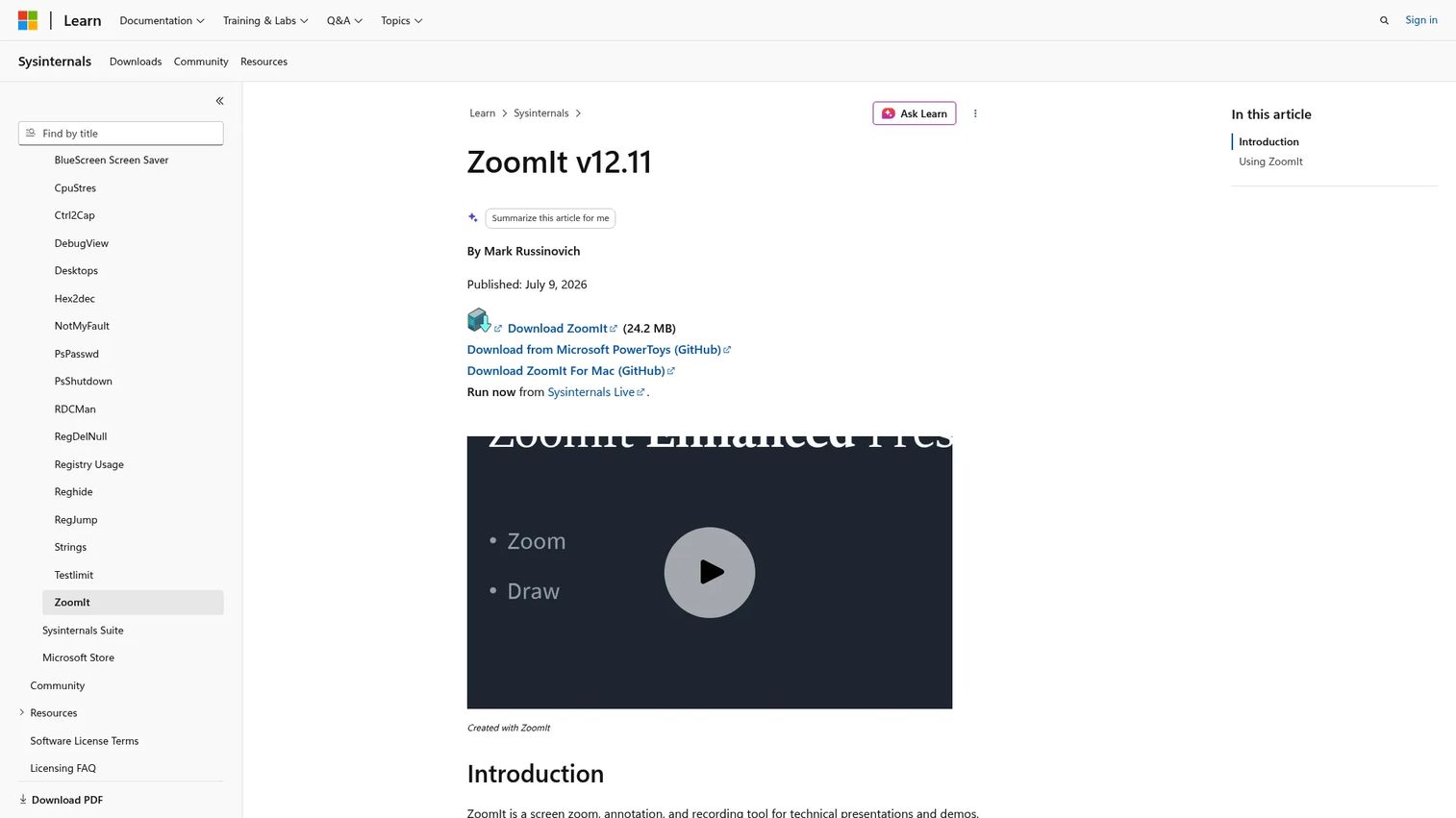
ZoomIt is a Windows screen zoom, annotation, screenshot, and recording tool from Microsoft Sysinternals. It is the fastest lightweight option here, built for technical presentations and demos. You trigger it with a hotkey, zoom into any region, and draw on the magnified view without launching a heavy app.
The workflow is what sells it. Hit the shortcut, zoom, annotate, escape, and you are back to your normal desktop in a second. There is nothing to configure before a demo.
Best for: presenters and trainers who need on-screen magnification, annotation, and demo recording on Windows.
Key strengths
- Screen zoom with live drawing on the zoomed view
- Screenshot snipping to copy or save
- Full-screen and window recording to MP4 or GIF
- Countdown timer and demo presentation modes
Why choose ZoomIt: It performs best when your main need is speed. If you want zoom, quick draw, and a break timer for training sessions without any setup, this is the tightest option on the list. It leans toward magnification-first workflows rather than full whiteboard or freeze-heavy teaching.
ZoomIt pricing: Free. ZoomIt is distributed through Microsoft Sysinternals with no public paid tier.
2. Epic Pen
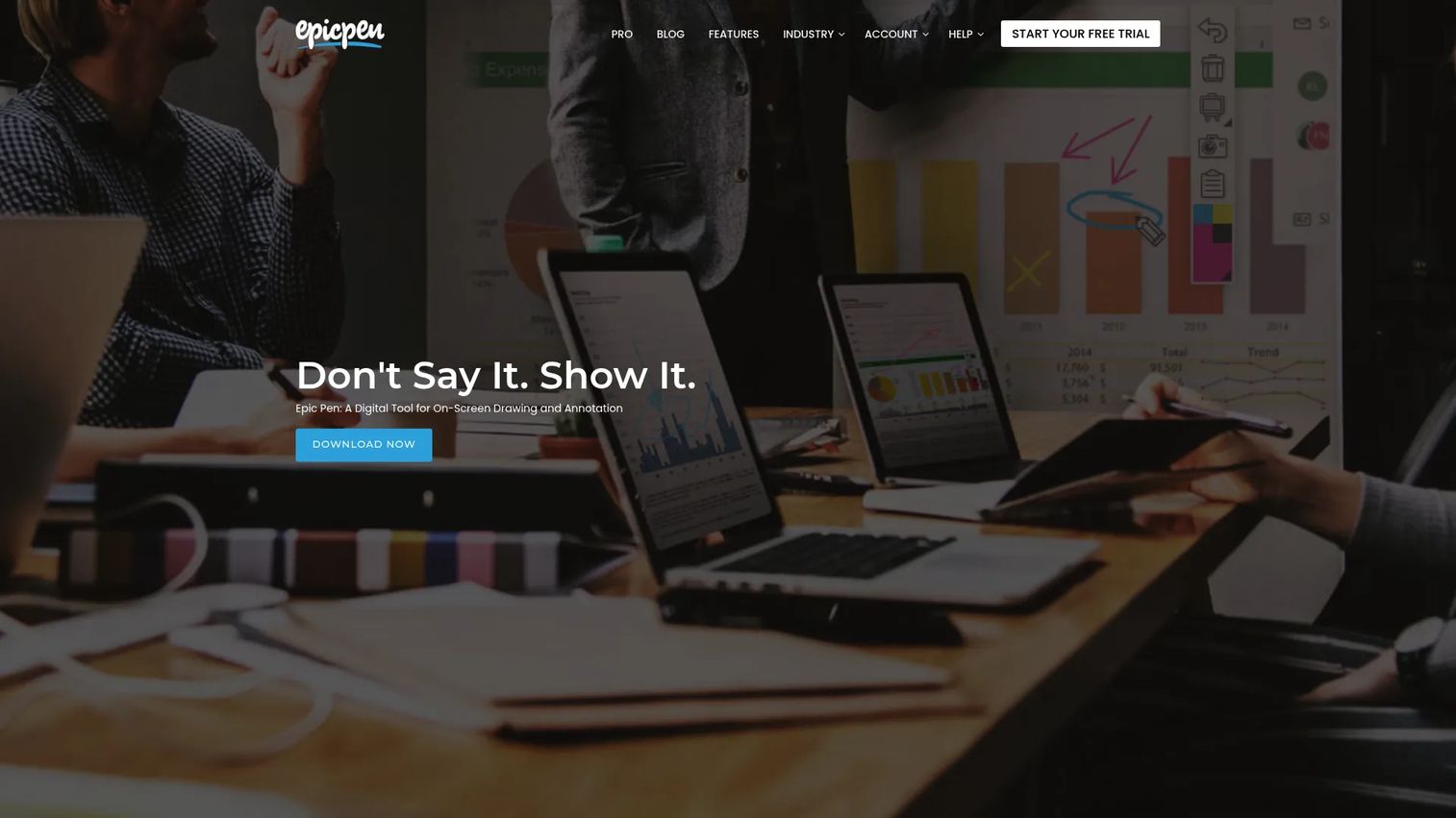
Epic Pen is the best-known everyday screen annotation tool for people who want to draw over active apps. It lays an ink overlay across your whole desktop, so you can write, highlight, and sketch on top of any window, then clear it with a keystroke. Presenters reach for it because it just works over anything.
It supports writing, drawing, highlighting, and screenshots, plus pen pressure and multi-touch for stylus users. Hotkeys make it fast to toggle in and out of drawing without breaking your talk track.
Best for: presenters, teachers, and teams who need to annotate live on screen across any application.
Key strengths
- Ink overlay for writing, drawing, highlighting, and screenshots
- Hotkey support to toggle tools quickly
- Pen pressure sensitivity and multi-touch input
- Works over any active app or window
Why choose Epic Pen: It excels when you want one reliable annotation layer that sits over every app without fuss. The free version covers core writing and drawing, and the paid tier adds more tools for heavier presentation annotation.
Epic Pen pricing: A free basic version is available. Epic Pen Pro starts with a 14-day free trial, then €24.00 per year billed annually.
3. gInk
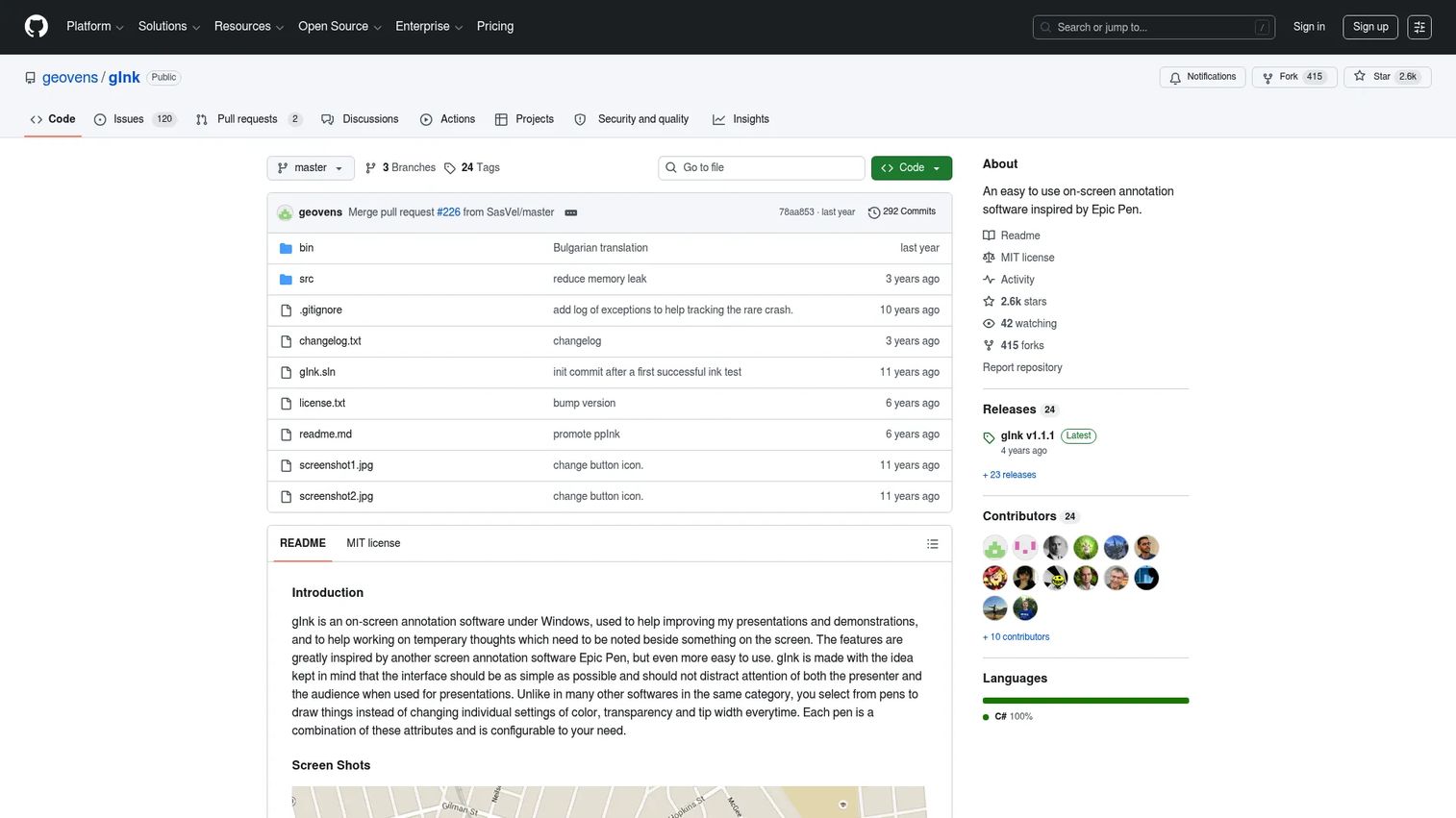
gInk is an open source Windows annotation app built for a low-friction workflow. It is the minimalist pick here: a compact toolbar, a few pens, and a fast way to jump into on-screen drawing during a demo or presentation. When you are done, one click clears everything and hands control back to the app underneath.
Because it is open source and free, it is a common choice for people who want a simple tool without a subscription or a learning curve.
Best for: Windows users who need lightweight on-screen annotation for demos and presentations.
Key strengths
- Compact and intuitive interface
- Stylus, touch, and mouse compatibility
- Multiple displays support
- Quick enter and exit for annotation mode
Why choose gInk: It performs best when you want the least possible setup. If your workflow is "draw a few marks, clear, move on," gInk keeps things minimal and stays out of your way.
gInk pricing: Free and open source, distributed through its public GitHub repository.
4. ppInk
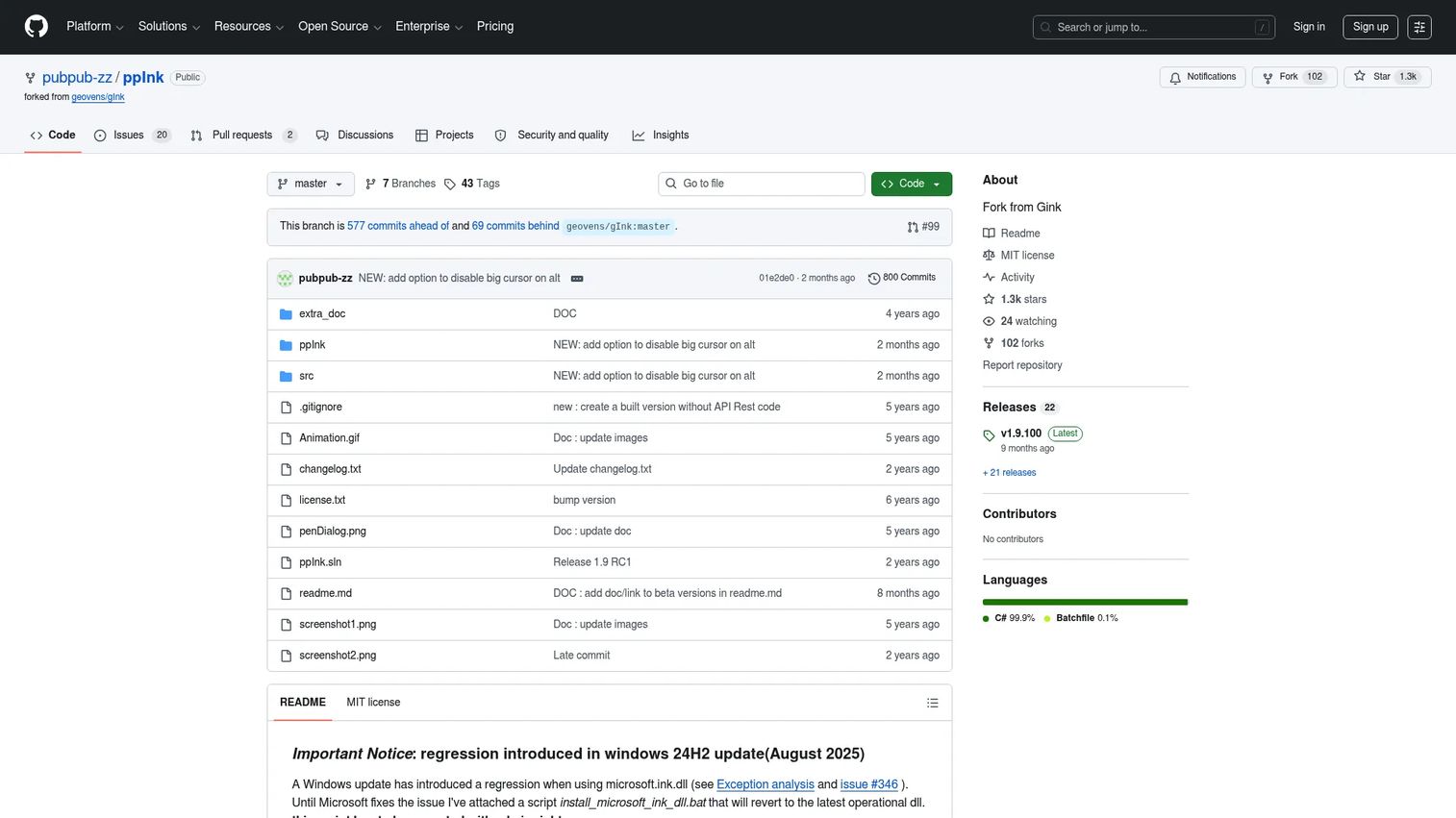
ppInk is a more feature-rich fork of gInk. It keeps the low-friction feel but adds real drawing depth: arrows, shapes, text, cliparts, and numbering tags for step-by-step callouts. For anyone who outgrew gInk but wants to stay in the same lightweight Windows annotation workflow, this is the natural upgrade.
It supports mouse, touchscreen, drawing tablet, and keyboard shortcuts, plus video recording and customizable toolbar options. The numbering tags are handy when you annotate a process and want to mark steps 1, 2, 3 on screen.
Best for: presenters and Windows users who want deeper drawing tools without leaving a minimal annotation setup.
Key strengths
- Pens, lines, rectangles, ellipses, arrows, text, cliparts, and numbering tags
- Mouse, touchscreen, drawing tablet, and keyboard shortcut support
- Video recording and REST API control
- Customizable UI and toolbar options
Why choose ppInk: It excels when you want gInk's speed plus shapes, text, and pages. Choose it over gInk when your annotations need structure, like labeled arrows and numbered steps during teaching and presentations.
ppInk pricing: Free and open source, available through its public GitHub repository.
5. ePointer
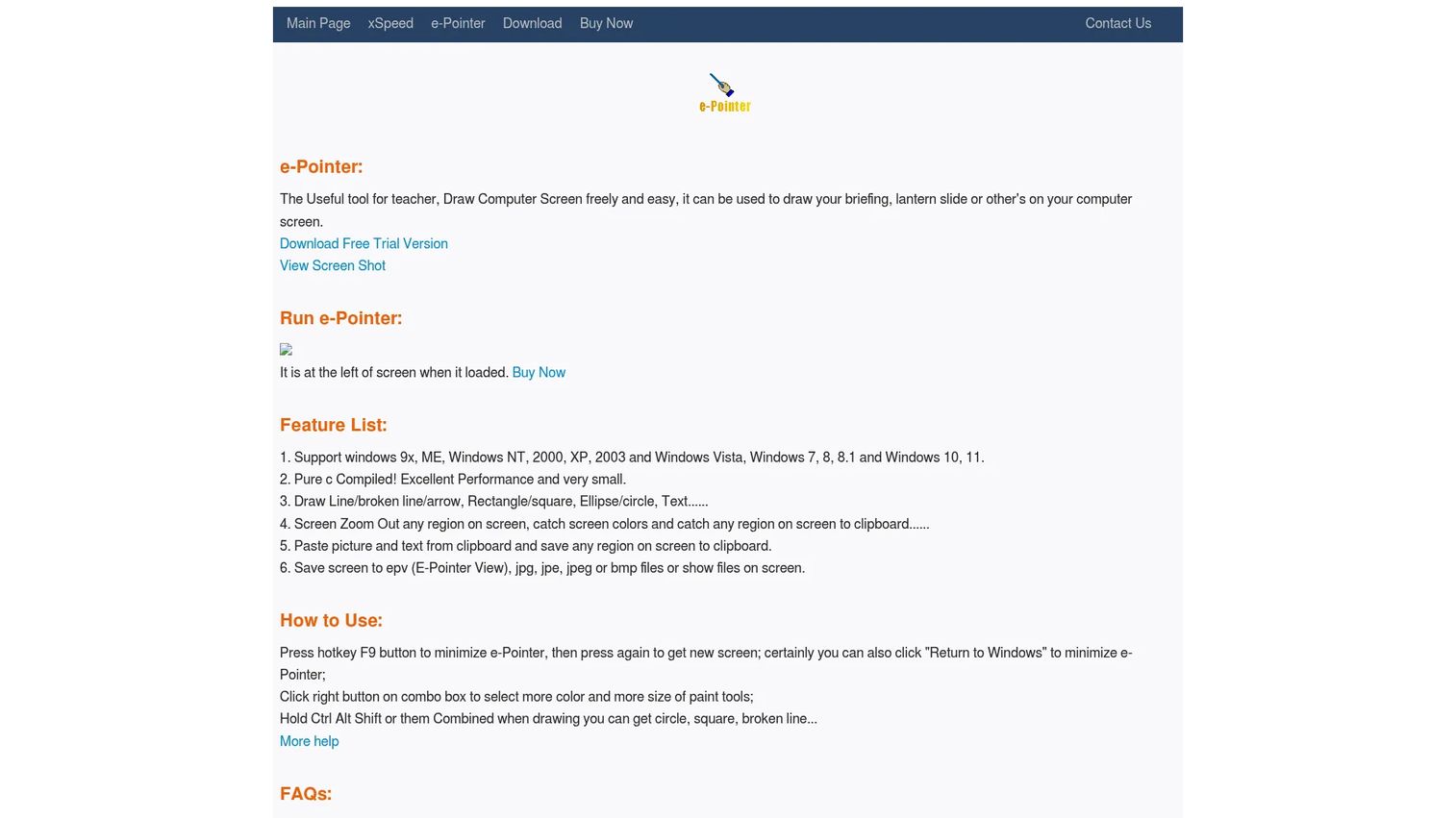
ePointer is the most feature-dense option in this list, built as teaching software for drawing directly on the screen. It ships with classic, smart, and freeze modes, so you can annotate live, let clicks pass through to the app, or freeze the frame and mark up a static snapshot. That freeze mode is exactly what teachers need to pause a chart and explain it.
Beyond drawing lines, arrows, rectangles, ellipses, and text, it includes screen zoom, spotlight, color picking, clipboard capture, and saving to image formats. Pagination and whiteboard tools round it out for full lessons.
Best for: teachers or presenters who need lightweight on-screen drawing plus freeze and spotlight during lessons or demos.
Key strengths
- Draw lines, arrows, rectangles, ellipses, and text on screen
- Classic, smart, and freeze modes with click-through behavior
- Screen zoom, spotlight, color picking, and clipboard capture
- Save annotations to image formats
Why choose ePointer: It excels when your sessions need range: freeze a frame for chart analysis, spotlight a region in a live meeting, or run an interactive presentation with pagination. It is the deepest teaching-focused toolset here.
ePointer pricing: The e-Pointer Personal License is $46 as a one-time purchase. A Site License offers volume pricing from $15 to $46 per user, and a World-Wide License requires contacting sales.
6. IPEVO Annotator
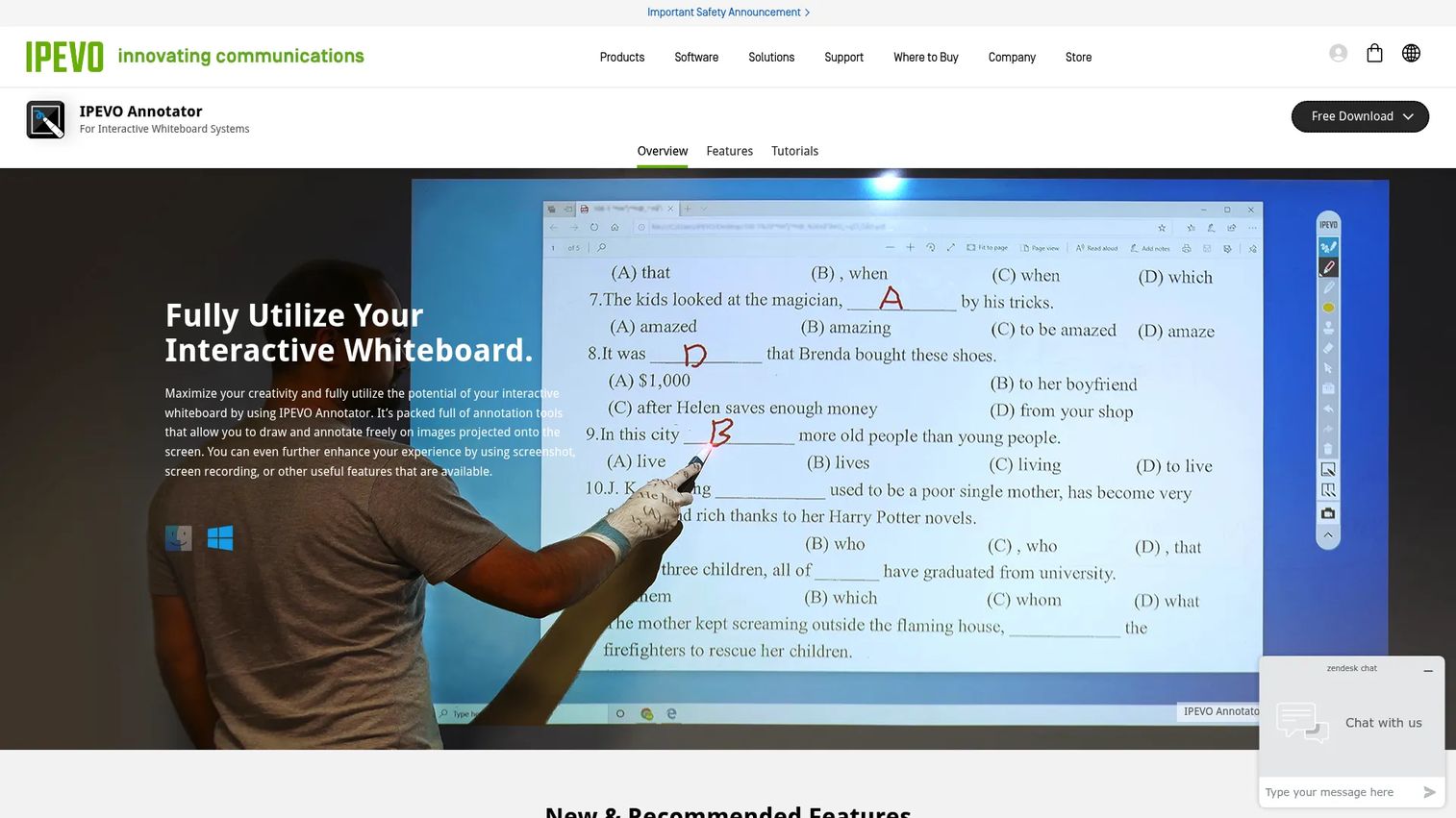
IPEVO Annotator is free annotation software built for interactive whiteboard systems and touch monitors. It leans into the classroom, pairing a drawing mode with a full whiteboard mode and a set of teaching tools you will not find in lighter apps. That makes it a strong fit for instructors who present on a touchscreen.
The advanced tools are the differentiator: a ruler, protractor, scissors, spotlight, and a magnifying lens, plus multi-pen mode for collaborative boards. It also handles screenshots, video recording, and live broadcast.
Best for: teachers and presenters using interactive whiteboard setups and touch monitors.
Key strengths
- Drawing mode and full whiteboard mode
- Advanced tools: ruler, protractor, scissors, spotlight, magnifying lens
- Multi-pen mode for shared boards
- Screenshot, video recording, and live broadcast
Why choose IPEVO Annotator: It performs best in an education-focused setup where the whiteboard and blackboard workflow matters as much as overlay drawing. The ruler and protractor make it a fit for math and science teaching specifically.
IPEVO Annotator pricing: Free download from IPEVO with no paid tier shown on the product page.
7. Snipaste
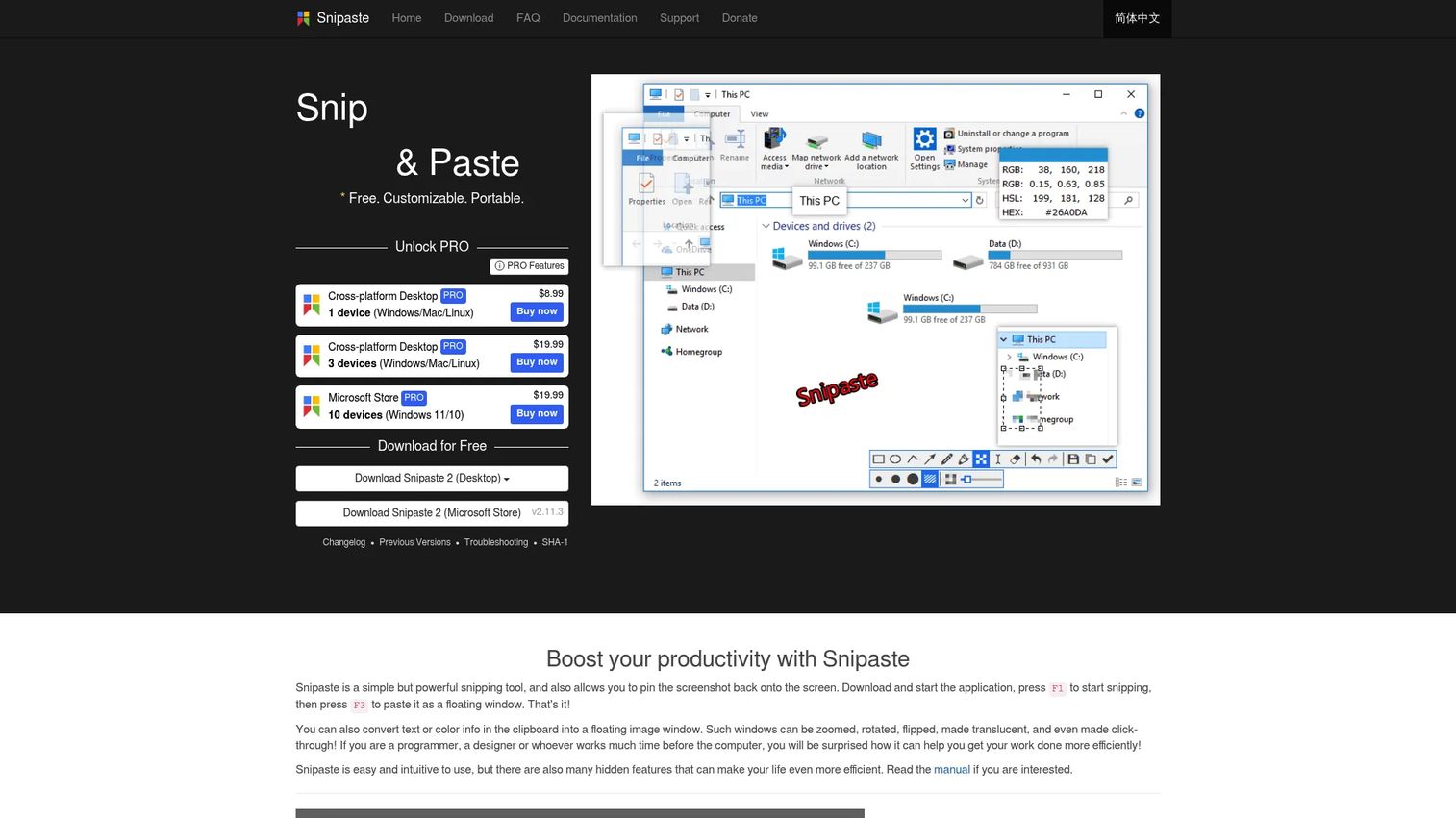
Snipaste is a screenshot and annotation hybrid rather than a live full-screen overlay. Its workflow is snip, pin, and annotate: capture a region, pin it as a floating window on top of everything, then mark it up with shapes, blur, and text. It is the pick for people who annotate captured images more than moving screens.
The snipping is precise, with auto-detected UI elements, pixel-level control, and multi-screen and HiDPI support. You can also paste text, HTML, color info, and images as topmost floating windows, which is useful for reference-heavy work.
Best for: people who need fast screenshots, pinning, and lightweight annotation across desktop platforms.
Key strengths
- Intuitive snipping with auto-detect UI elements and pixel-level control
- Pin screenshots, text, HTML, and images as floating windows
- Image annotation with shapes, blur, mosaic, and eraser
- Multi-screen and HiDPI support
Why choose Snipaste: It excels when your job is marking up screenshots, not writing over a live app. As one of the few multiplatform options here, it also fits Mac and Linux users who want fast markup outside of Windows.
Snipaste pricing: Free for personal use, and Snipaste 1.x remains free for business use. Snipaste 2.0 requires a paid license for business use. PRO starts at $8.99 one-time for one device, with a three-device option at $19.99.
Considerations before you choose
Workflow: live overlay or screenshot markup
Decide first whether you annotate moving screens or saved images. Live overlays like Epic Pen, gInk, and ePointer draw over active apps in real time. Snipaste is built for capturing and marking up screenshots. Picking the wrong side of this line is the most common mismatch.
Freeze mode and click-through
If you teach or run chart-heavy demos, freeze mode matters. ePointer's freeze and smart modes let you pause a frame or pass clicks through to the app underneath. Confirm the tool supports the exact freeze-and-draw behavior your sessions need.
Hotkeys and speed
The best tool is the one you can trigger without thinking. Check that start, stop, undo, and clear all map to hotkeys you can reach mid-sentence. A slow toolbar breaks your flow during teaching and presentations.
Platform and multiplatform needs
Most of these are a Windows annotation app. If you work on Mac or Linux, Snipaste is the multiplatform choice here. Match the tool to every machine you present from, not just your main one.
Teaching tools versus lightweight drawing
A whiteboard, ruler, protractor, and spotlight matter for classrooms. IPEVO Annotator and ePointer carry those. If you just need a quick arrow in a meeting, a lighter tool like gInk or ZoomIt will feel faster.
Conclusion
The right screen annotation software depends on your workflow, not the longest feature list. Match the tool to how you actually present.
For the fastest lightweight demo workflow on Windows, ZoomIt is hard to beat, with instant zoom and a countdown timer at no cost. For everyday live annotation over any app, Epic Pen is the reliable everyday screen annotation tool, with a free tier and Pro at €24.00 per year. If you want minimal and open source, gInk keeps things simple, and ppInk adds shapes and pages when you need more depth.
For teaching and presentations that lean on freeze mode, spotlight, and whiteboard and blackboard tools, ePointer and IPEVO Annotator are the classroom-ready picks. And if your real job is screenshot markup across Mac, Windows, or Linux, Snipaste is the multiplatform hybrid.
Start with the workflow question, freeze-and-draw versus quick overlay versus screenshot markup, then shortlist two tools and test them in a real session before you commit.
FAQs
For a fast, free Windows annotation app, ZoomIt and gInk are strong picks. ZoomIt adds zoom, drawing, and recording with zero setup, while gInk is open source and minimal. Epic Pen and IPEVO Annotator also offer free versions if you want more tools or a whiteboard.
Epic Pen is the easiest for most presenters because its ink overlay sits over any app and toggles with a hotkey. ZoomIt is just as fast if you want zoom plus quick draw. Both let you start drawing and clear the screen without leaving your slides or demo.
Freeze mode captures the current screen as a static frame so you can write on screen and annotate it while the underlying app keeps running. It is useful for pausing a video or a live chart to explain one detail. ePointer includes a dedicated freeze mode for exactly this.
For teaching and presentations, ePointer and IPEVO Annotator lead because they include freeze mode, spotlight, whiteboard and blackboard canvases, and tools like a ruler and protractor. Those features fit classrooms and touch monitors better than lightweight overlay-only tools.
Yes. Live overlay tools like Epic Pen, gInk, and ppInk draw over the active app in real time without freezing it. Some tools, like ePointer, also offer a smart or click-through mode so your clicks pass through to the app while annotations stay on top.
Live annotation draws over a moving screen in real time, ideal for demos, teaching, and remote meetings. Screenshot markup captures a still image first, then adds shapes and text to it. Snipaste focuses on screenshot markup, while Epic Pen and ePointer focus on live annotation.
Most tools in this list are Windows-only, including ZoomIt, gInk, ppInk, and ePointer. Snipaste is the multiplatform option, running on Windows, Mac, and Linux. If you present from a Mac, check platform support before you commit, since many desktop annotation tools target Windows first.