A customer opens a ticket. "The export button isn't working." You reply with a five-step walkthrough. They reply, "Where is the settings menu?" You send a screenshot. It's from the old UI. Three replies later, nobody is closer to a fix.
Text-heavy docs and stale screenshots break down [the moment a problem gets specific. Sometimes the fastest path to resolution is seeing the customer's screen yourself. That's what remote assistance software does: it lets a support agent view, control, or guide another device in real time, without booking a formal call or flying to a site.
The demand is real. The global remote support software market is projected to reach USD 5.4 billion by 2026, up from USD 1.9 billion in 2020, a 13.9% CAGR according to Facts & Factors (2024).](https://www.fnfresearch.com/news/global-remote-support-software-market-revenue-projected-around) Support teams are buying these tools to cut average handle time, lift first-contact resolution, and stop the reactive loops that burn out agents.
This guide compares seven remote support tools built for that job.
What's inside
This guide is for customer support leaders and IT-adjacent teams at SaaS companies who need to resolve tickets faster without scheduling live calls every time. We looked past generic feature lists and focused on how each tool fits a real support workflow.
We chose the seven based on four criteria:
- Security and access control: encryption, MFA, permissions, and session auditability
- Cross-platform compatibility: desktop, mobile, and mixed-OS device support
- Ease of setup: browser access, one-click connections, low onboarding friction
- Workflow integration: helpdesk, ITSM, and case reporting fit
TL;DR
- Best for enterprise remote support: TeamViewer, broad cross-platform reach and mature admin controls
- Best for low-latency cross-device control: AnyDesk, fast sessions and lightweight connections
- Best for support teams needing RMM-style depth: Splashtop, high-performance access across many device types
- Best for helpdesk-heavy teams: Zoho Assist, tight ticket-queue and ITSM integration
- Best for browser-based support sessions: ScreenMeet, native ServiceNow and Salesforce workflows
- Best for compliance-heavy environments: BeyondTrust, privileged access and deep audit trails
- Best for lightweight browser access: Chrome Remote Desktop, simple setup for basic use cases
What is remote assistance software?
Remote assistance software is a tool that lets one person view, control, or guide another person's device over the internet to troubleshoot issues, provide support, or complete tasks together.
The terms overlap, but they mean slightly different things in a support context:
- Remote assistance usually means a live, attended session where an agent helps a present user. Think a support rep walking a customer through a fix while both watch the same screen.
- Remote access software means connecting to a device to use it, often unattended, when nobody is sitting in front of it. Think logging into a server at 2am.
- Remote desktop software is the broader category for viewing and controlling a full desktop environment across the network.
Most modern remote it support software blends all three. The features that matter most for support teams:
- Screen view and control: see and operate the customer's device
- File transfer: push a patch or pull a log without a separate tool
- Session recording: capture sessions for QA, training, and audit
- In-session chat: guide without switching channels
- Cross-device support: desktop and mobile, across Windows, macOS, Linux, iOS, and Android
- Access control: permissions, MFA, and consent prompts that set clear boundaries
When to use remote assistance software
Onboard customers without live calls
New users get stuck on setup. A 30-minute onboarding call doesn't scale past a handful of accounts. A short attended remote session lets you configure the first workflow with the customer watching, so they learn by seeing. It cuts the one-to-one call burden and shortens time to value without forcing a calendar invite for every new account.
Troubleshoot issues faster
Some issues die in email. A config problem that takes eight back-and-forth replies to diagnose takes two minutes on a shared screen. When a ticket involves a multi-step reproduction or an error nobody can describe in words, a live session beats a macro. That directly lifts first-contact resolution and pulls down average handle time.
Support users across devices and OSs
Your users aren't all on the same setup. One's on a Windows laptop, another on an iPad, a third on Android in the field. Remote support tools that work across desktop and mobile let one agent handle a mixed-device queue without swapping tools. That matters more as work-from-anywhere support becomes the default rather than the exception.
Comparison table
Here's how the seven tools compare on support fit, pricing, and rating. Pricing reflects each vendor's published rates as of August 2026. Ratings come from each tool's current G2 listing where available.
| # | Product | Best for | Key differentiator | Pricing | G2 rating |
|---|---|---|---|---|---|
| 1 | TeamViewer | Enterprise remote support | Broad cross-platform reach, mature admin controls | From US$50.90/mo | 4.5/5 |
| 2 | AnyDesk | Low-latency cross-device control | Fast, lightweight sessions | From $28.90/mo | 4.5/5 |
| 3 | Splashtop | RMM-style support depth | High-performance access across device types | From $6/mo | Not listed |
| 4 | Zoho Assist | Helpdesk-heavy teams | Deep ticket-queue and ITSM integration | Free; paid from $10/mo | Not listed |
| 5 | ScreenMeet | Browser-based support | Native ServiceNow and Salesforce sessions | Custom pricing | 4.4/5 |
| 6 | BeyondTrust | Compliance-heavy environments | Privileged access and deep audit trails | Custom pricing | 4.6/5 |
| 7 | Chrome Remote Desktop | Lightweight browser access | Free, simple browser-based access | Free | 4.2/5 |
Best 7 remote assistance software tools for 2026
1. TeamViewer
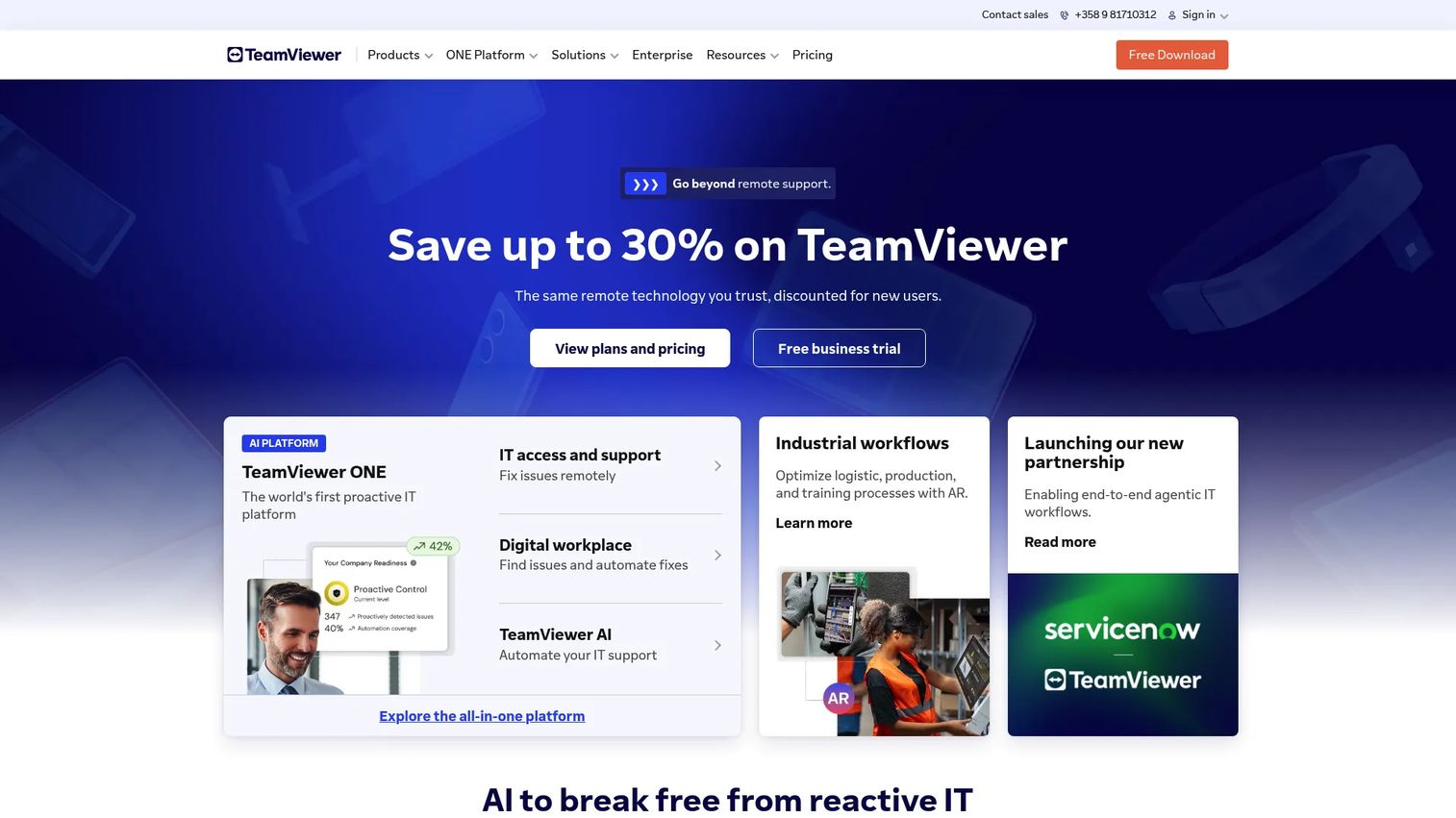
TeamViewer is one of the most widely recognized names in remote connectivity, covering remote support, remote access, and device management from one platform. Support teams reach for it when they run large, mixed-device environments and need something end users already trust. Cross-platform access and a web app mean an agent can connect from almost anywhere, to almost anything.
Best for: IT teams and support organizations that need secure remote access and device support at scale.
Key features
- Remote support and control
- Device and asset management
- Web app and cross-platform access
Why choose TeamViewer: If your users span Windows, macOS, mobile, and everything in between, TeamViewer's breadth and brand familiarity reduce the "what is this software you want me to install" friction that slows first contact. It fits support orgs that value maturity and admin depth over a rock-bottom price.
TeamViewer pricing: A free license is available for personal use. Paid business plans start at US$50.90 per month for Business, US$120.90 per month for Premium, and US$245.90 per month for Corporate, all excluding tax. The US quote page includes a 7-day money-back guarantee.
2. AnyDesk
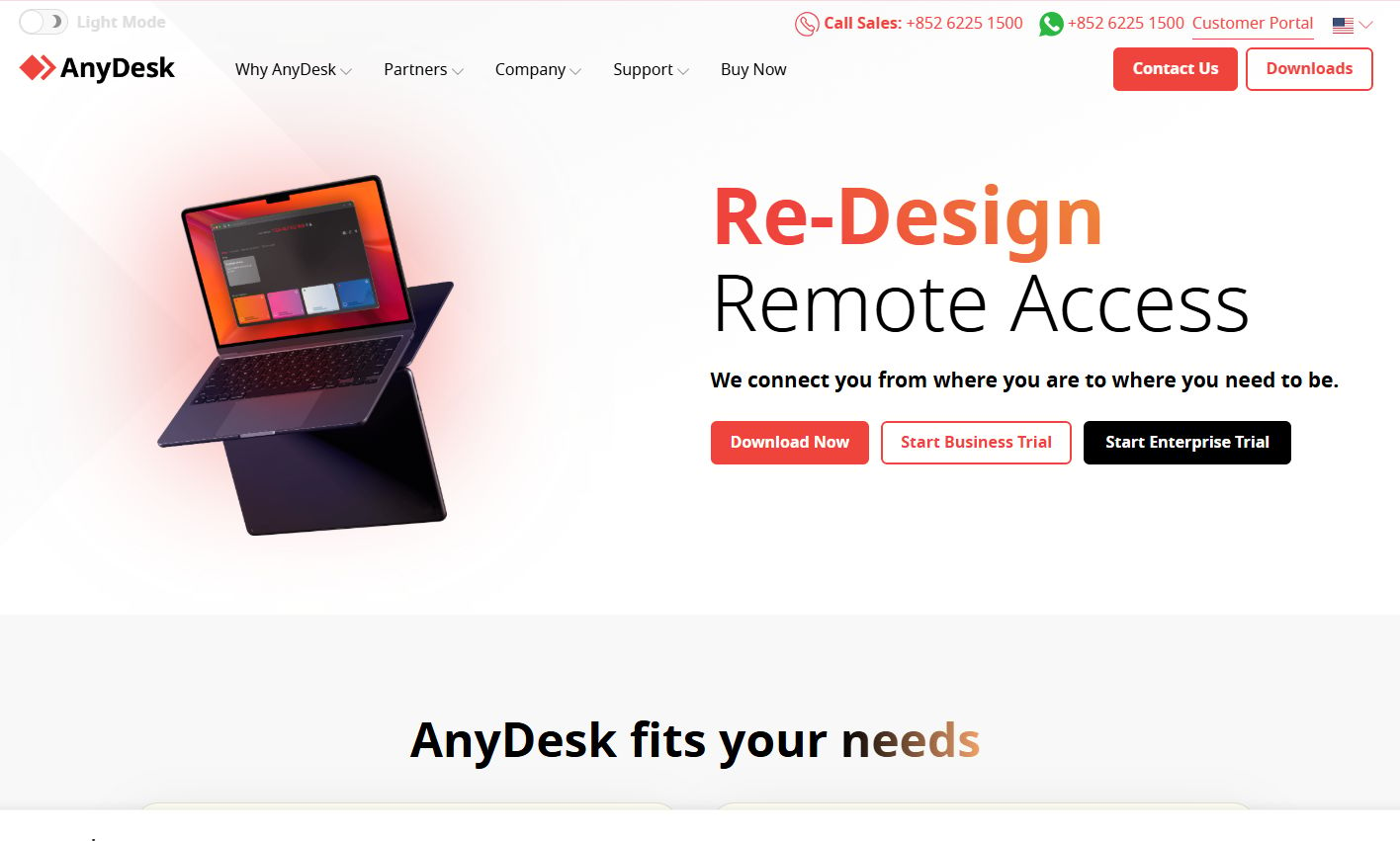
AnyDesk is remote desktop software built around speed. Its low-latency connections make it a strong fit for fast troubleshooting, where an agent needs to jump in, see the issue, and act without waiting on a laggy session. It handles remote support, remote access, and remote work across devices, with file transfer and unattended access built in.
Best for: Teams and individuals who need fast remote support and remote access across devices.
Key features
- Desktop sharing
- Unattended access
- File transfer and file manager
Why choose AnyDesk: When session responsiveness is the difference between a two-minute fix and a frustrated customer, AnyDesk's lightweight footprint matters. It suits support teams that prioritize connection speed and a small install over a sprawling feature set.
AnyDesk pricing: A free tier is available for personal use. Paid plans are billed annually: Solo at $28.90 per month, Standard at $49.90 per month for one connection, and Advanced at $111.90 per month for two connections. The Ultimate plan uses custom pricing, so you contact AnyDesk for a quote.
3. Splashtop
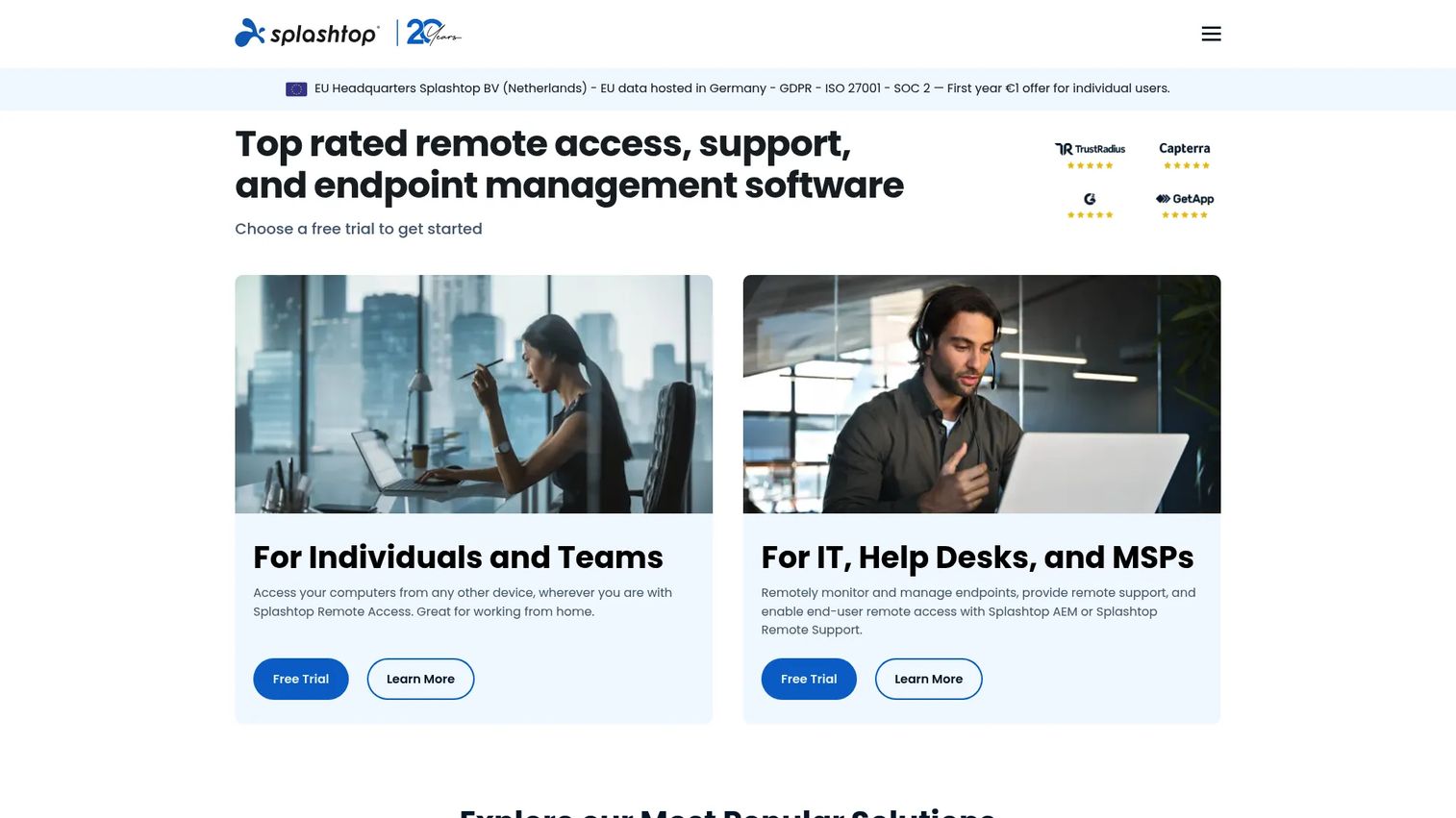
Splashtop delivers remote access and remote support for individuals, teams, IT, and enterprises. Support teams pick it when they want operational depth, high-performance sessions, multi-monitor handling, and broad device coverage, without the workflow getting complicated. It scales from a solo technician to an enterprise support desk.
Best for: Organizations needing secure, high-performance remote access or remote support across many device types.
Key features
- Cross-platform remote access
- File transfer
- Multi-monitor support
Why choose Splashtop: For teams that want RMM-style support depth and reliable performance on graphics-heavy or multi-screen sessions, Splashtop covers the ground without forcing a steep learning curve. It fits IT-adjacent support desks that live in remote sessions all day.
Splashtop pricing: Splashtop publishes rates for several tiers. Solo is $6 per month (billed annually at $72), Pro is $8.25 per month per user (billed annually at $99 per user), and Performance is $13 per month (billed annually at $149). Remote Support SOS starts at $22 per month per concurrent user license, and Remote Support Enterprise is quote-based.
4. Zoho Assist
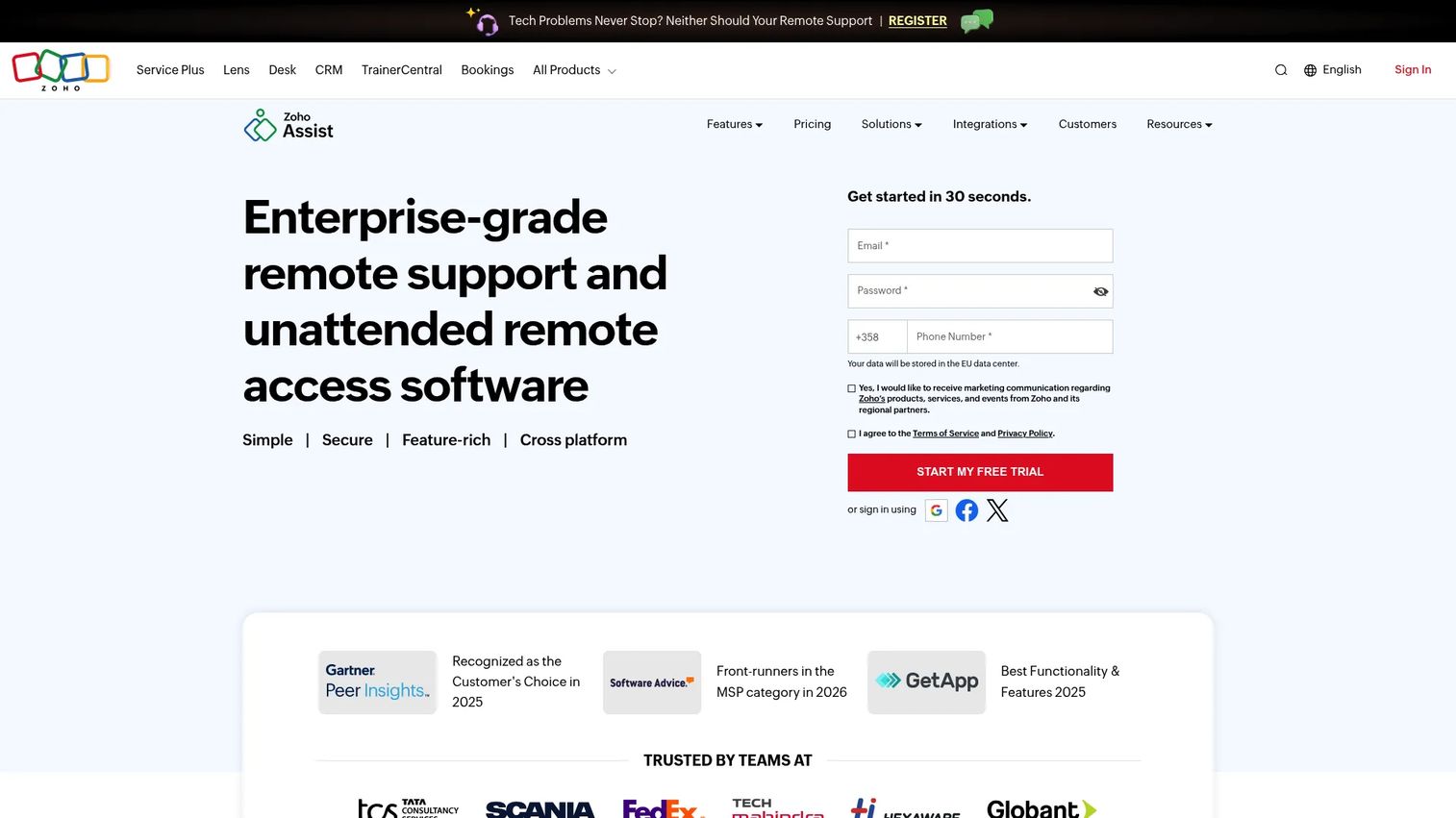
Zoho Assist is cloud-based remote support and remote access software for PCs, laptops, mobile devices, and servers. Its edge for support teams is workflow fit: it plugs into Zoho Desk, Zendesk, and ServiceNow, so a session starts from inside the ticket instead of a separate tool. That keeps agents in the queue.
Best for: IT and support teams needing cross-device remote support and unattended access tied to their helpdesk.
Key features
- Remote support and unattended access
- File transfer, screen sharing, and session recording
- Integrations with Zoho Desk, Zendesk, ServiceNow, and APIs
Why choose Zoho Assist: If your team lives in a ticket queue and helpdesk integration is the deciding factor, Zoho Assist keeps remote sessions inside the workflow you already run. The free tier also makes it easy to trial before committing budget.
Zoho Assist pricing: A free forever edition is available. Paid tiers are billed annually per technician per month: Standard at $10, Professional at $15, and Enterprise at $24.
5. ScreenMeet
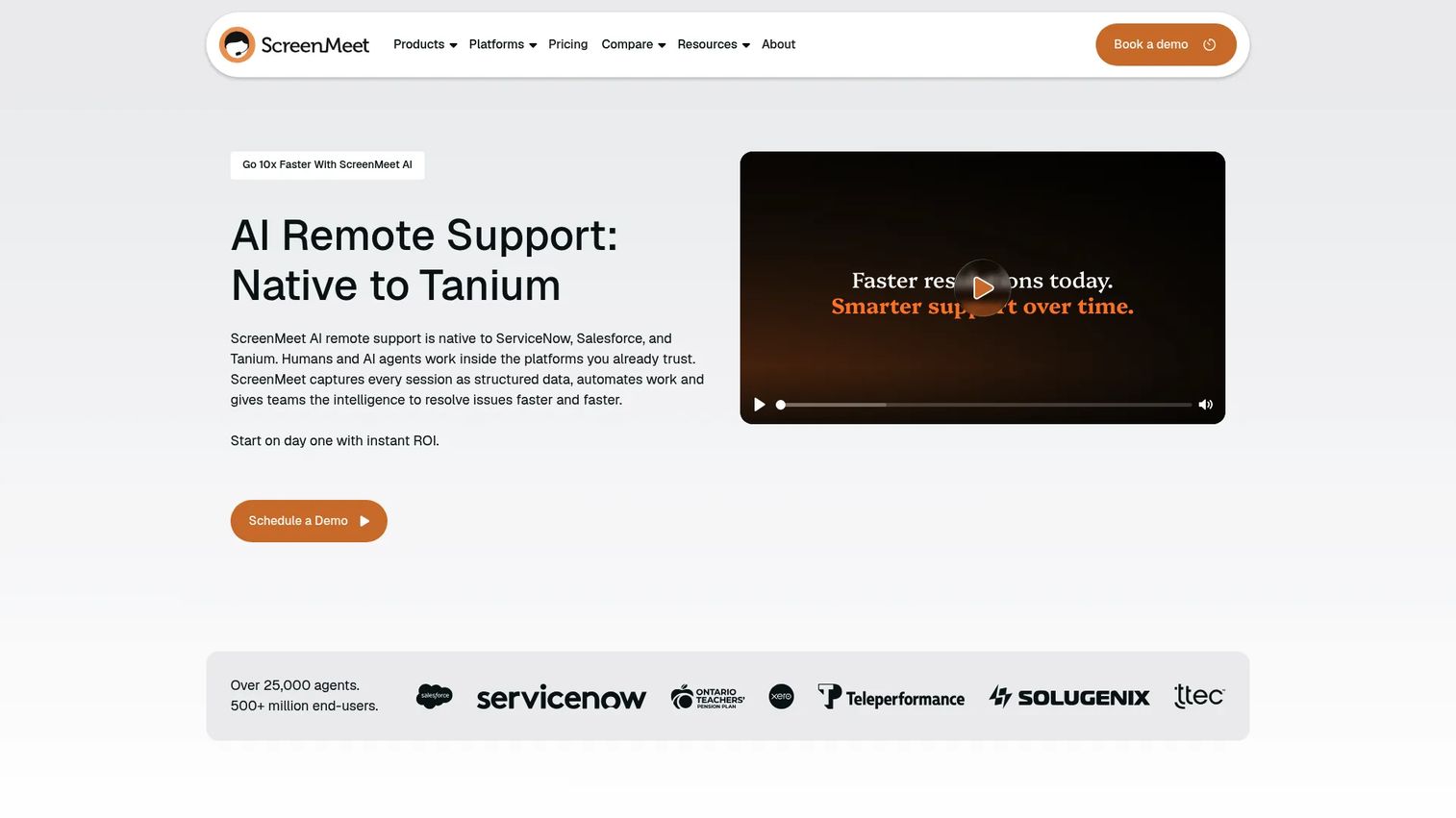
ScreenMeet is platform-native remote support software built for ServiceNow, Salesforce, and Tanium. Instead of pulling agents out to a separate app, it runs remote access, control, and screen sharing from inside the ITSM or CRM workflow they already use. Sessions start with low friction, often straight from the browser.
Best for: Enterprises needing embedded remote support inside ServiceNow, Salesforce, or Tanium.
Key features
- Remote access, control, and screen sharing from within ITSM/CRM workflows
- AI-powered troubleshooting guidance and session summarization
- Security and compliance controls with automatic session documentation
Why choose ScreenMeet: For enterprise support orgs standardized on ServiceNow or Salesforce, ScreenMeet removes the context switch entirely. Its automatic session documentation also helps teams that need a clean audit trail without manual note-taking.
ScreenMeet pricing: ScreenMeet uses custom, quote-based pricing built around active agent seats and flexible deployment options. There's no public price list, so you contact sales for a quote tailored to your seat count and deployment.
6. BeyondTrust
BeyondTrust is identity security and privileged access management software built for enterprises. Its remote support sits inside a larger governance framework, with privileged password and session management, secure remote access, and endpoint privilege management. That makes it a fit for regulated environments where every session must be controlled and logged.
Best for: Large organizations needing enterprise-grade privileged access and identity security controls.
Key features
- Privileged password and session management
- Privileged remote access and secure remote support
- Endpoint privilege management and secrets management
Why choose BeyondTrust: When your support org operates under compliance mandates and access boundaries are non-negotiable, BeyondTrust's audit depth and privileged controls carry more weight than a lower sticker price. It suits security-heavy and regulated teams over lightweight, ad hoc use.
BeyondTrust pricing: BeyondTrust does not publish pricing. The site directs you to request a custom quote, so pricing depends on the products and scale you need.
7. Chrome Remote Desktop
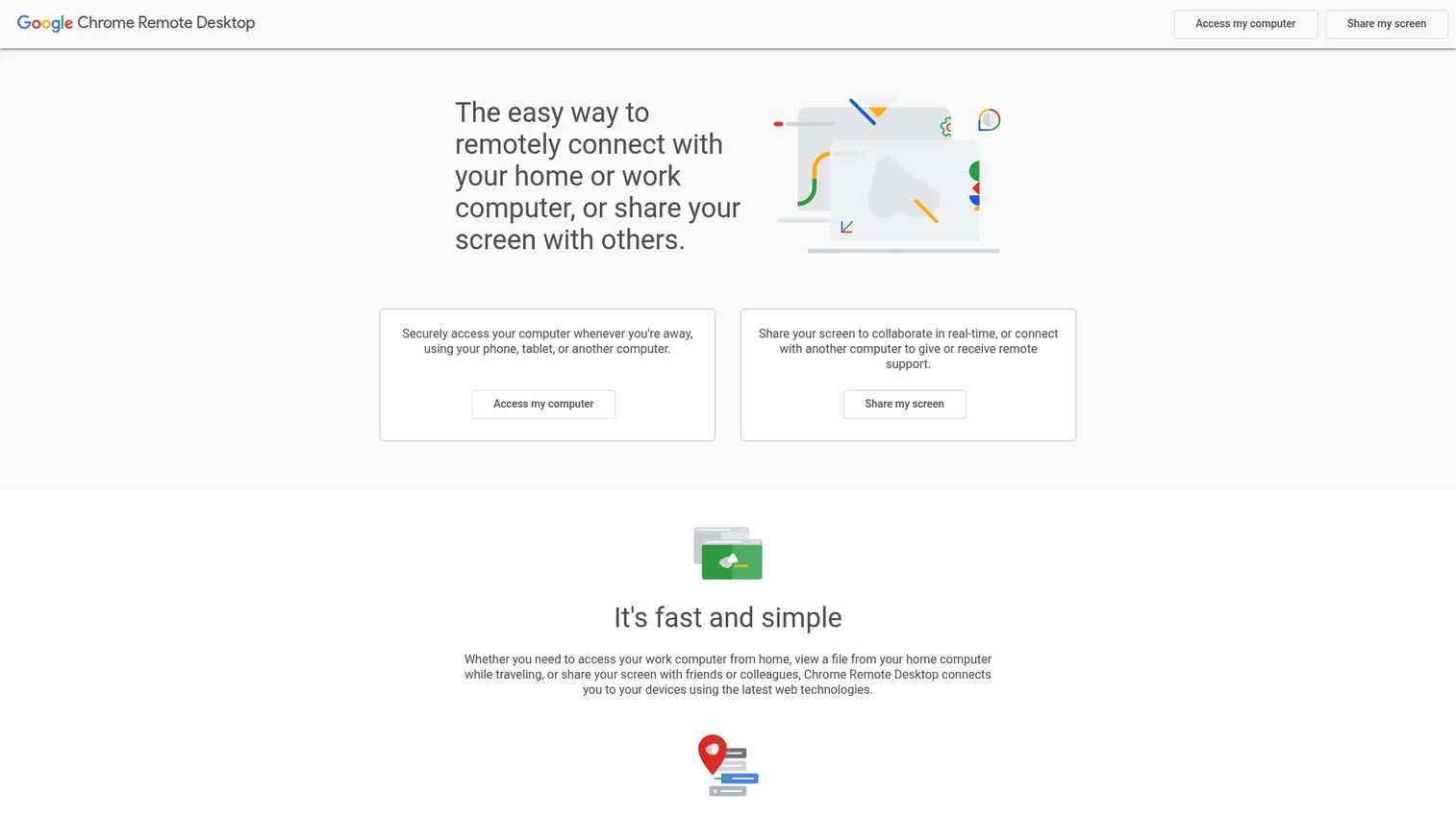
Chrome Remote Desktop is Google's remote access and screen-sharing tool for connecting to your own devices or providing basic remote support. Setup is quick, browser-based access to your computer works across computer, Android, and iOS. It's the simple option for straightforward remote access, not a full support operation.
Best for: Individuals or small teams needing simple remote access to personal or work computers.
Key features
- Secure remote access to your computer
- Remote support and screen sharing
- Works on computer, Android, and iOS
Why choose Chrome Remote Desktop: If you need occasional, no-cost remote access without deploying a dedicated support platform, Chrome Remote Desktop covers the basics. It fits simple use cases rather than a scaling support desk that needs admin controls, session recording, or helpdesk integration.
Chrome Remote Desktop pricing: Chrome Remote Desktop is free to use with a Google account.
Considerations
Before you shortlist, weigh these criteria against how your team actually works.
Security and access control
Check for end-to-end encryption, MFA or 2FA, granular permissions, and full session auditability. Support leaders should care about access boundaries because a remote session hands over control of a customer's device. Consent prompts, time-limited access, and recorded sessions keep that power in check.
Cross-platform compatibility
Verify desktop and mobile coverage across Windows, macOS, Linux, iOS, and Android. Your customers use whatever devices they use, and your agents shouldn't need a different tool per OS. Mixed-device environments are the norm, so confirm the tool handles yours before you commit.
Ease of setup
Look at browser access, one-click connections, and how long onboarding takes for both agents and customers. Friction on the customer's side kills sessions before they start. The faster a user can grant access, the sooner the ticket gets resolved.
Enterprise governance
As the support org scales, admins need deployment tools, group policies, monitoring, and session visibility. Look for centralized management that lets you set rules once and apply them across the team, plus reporting that shows who did what and when.
Workflow integration
Confirm helpdesk, ITSM, RMM, and case or session reporting support. A remote tool that lives inside your ticket queue keeps agents from tab-hopping. Integration ties remote sessions to actual case resolution, so the data lands where you manage the queue.
Conclusion
The right remote access support software depends on your team's maturity and security needs, not a single "best" label.
For large, mixed-device support orgs, TeamViewer offers breadth and admin depth. AnyDesk wins on session speed for fast troubleshooting. Splashtop gives high-performance, RMM-style depth. Zoho Assist fits teams that live in a helpdesk queue, while ScreenMeet suits enterprises standardized on ServiceNow or Salesforce. BeyondTrust is the pick for compliance-heavy, regulated environments, and Chrome Remote Desktop covers simple, no-cost access.
Shortlist two or three based on your device mix, security requirements, and how tightly you need remote sessions to sit inside your existing helpdesk. Run a trial on real tickets before you buy. The tool that lowers your average handle time and lifts first-contact resolution in practice is the one that earns its place in your stack.
FAQs
Remote assistance software usually means a live, attended session where an agent helps a user who is present at the device. Remote desktop software is the broader category for viewing and controlling a full desktop, often unattended. Most support tools now blend both, so the practical difference comes down to whether a person is waiting on the other end.
It can be, when the tool uses strong encryption, MFA, and clear access controls. The risk is control: a session hands over the customer's device. Look for consent prompts, time-limited access, permission settings, and session recording so every action is bounded and logged. Those controls are what make it safe for daily support use.
Yes. Most tools on this list support desktop and mobile across Windows, macOS, Linux, iOS, and Android. TeamViewer, AnyDesk, Splashtop, Zoho Assist, and Chrome Remote Desktop all extend to mobile, though the exact capabilities per platform vary. Confirm the specific OS and device support you need before committing.
Helpdesk integration first: a tool that starts a session from inside the ticket keeps agents in the queue. After that, session recording for QA, file transfer for pushing fixes, unattended access for after-hours work, and clean case reporting. Zoho Assist and ScreenMeet stand out here for how tightly they tie into helpdesk and ITSM workflows.
Attended support means a user is present and grants access, ideal for live troubleshooting and onboarding. Unattended access lets you connect to a device with nobody there, useful for servers or after-hours maintenance. Most support teams need both. Pick a tool that handles the mix rather than optimizing for one.
ScreenMeet and Chrome Remote Desktop lead on browser-based access. ScreenMeet runs sessions natively inside ServiceNow and Salesforce, so agents start from the browser without a separate install. Chrome Remote Desktop offers simple browser-based access for basic remote support. Browser-based sessions reduce the friction of getting a customer connected.
Start with your device mix and where your agents work. A hybrid team supporting work-from-anywhere users needs strong cross-platform coverage, low-latency sessions, and helpdesk integration so remote support tools fit the queue. Weigh security and admin controls against ease of setup, then trial your shortlist on real tickets before deciding.